
Is your HughesNet internet suddenly dropping or crawling at a snail’s pace? When your satellite connection falters, knowing exactly how to reset HughesNet router properly can restore your internet in minutes rather than hours. This guide delivers precise instructions for every reset scenario—from quick power cycles to full factory restores—so you can choose the right approach for your specific problem without unnecessary complications.
Most HughesNet users don’t realize there are multiple reset methods, each serving different purposes. A simple restart might fix temporary glitches while preserving your settings, but persistent issues often require a complete factory reset. The key is understanding which technique to use and how to minimize disruption to your connected devices. By the end of this guide, you’ll confidently troubleshoot router problems and restore reliable connectivity.
Why Your HughesNet Router Needs Resetting
Connectivity problems with HughesNet often stem from temporary software glitches rather than hardware failures. When your internet drops unexpectedly or speeds plummet without explanation, a router reset typically resolves the issue. Common scenarios requiring a reset include frozen admin interfaces, unresponsive Wi-Fi networks, or mysterious data usage spikes that don’t match your actual activity.
Your HughesNet router accumulates temporary data in its memory during operation, which can eventually cause performance degradation. Think of it like your computer needing a restart after running for weeks—it’s not broken, just bogged down with temporary processes. A strategic reset clears this digital clutter without requiring a technician visit, putting you back in control of your satellite internet experience.
Soft Reset: The First Troubleshooting Step
Before diving into factory resets that erase all settings, always attempt this 2-minute soft reset. This non-destructive method fixes approximately 70% of minor connectivity issues while preserving your custom configurations.
Step 1: Unplug the router’s power cord directly from the wall outlet—not the router itself—to ensure complete power disconnection. This step is critical because some power strips maintain residual current.
Step 2: Wait precisely 30 seconds. This brief pause allows internal capacitors to fully discharge, clearing temporary memory issues that cause slowdowns. Set a timer—you’ll be surprised how often users skip this crucial step.
Step 3: Reconnect the power adapter and watch the indicator lights. They’ll flash erratically during startup, then stabilize into a solid pattern when the router completes initialization (typically 2-3 minutes).
Step 4: Test your connection immediately after lights stabilize. If speeds return to normal, you’ve solved the problem without losing any custom settings. If issues persist after two attempts, move to factory reset methods.
Physical Factory Reset: When Buttons Work Best
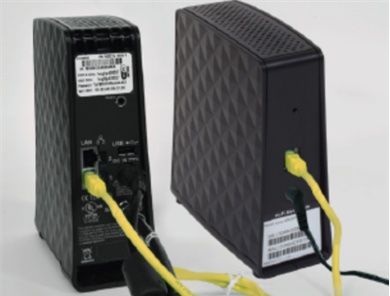
The physical reset button provides the most reliable factory reset when you can’t access the web interface or have forgotten admin credentials. This method works on all HughesNet router models regardless of current configuration.
Locate Your Reset Button
Find the recessed button on your router’s rear panel—usually labeled “Reset” or marked with a circular arrow icon. It’s intentionally small to prevent accidental presses, requiring a paperclip or similar thin object. If you’re struggling to locate it, check near the power port or Ethernet connections.
Execute the Reset Properly
With your router powered on, insert your paperclip and press firmly. Hold for exactly 10-15 seconds—timing is critical here. Too short won’t trigger the reset, while too long might cause other issues. You’ll know you’ve succeeded when the power LED changes to a rapid flashing pattern. Release immediately when this happens to avoid potential complications.
Complete the Reinitialization
Leave the router undisturbed for 3-5 minutes. During this time, it automatically reboots, loads default firmware, and reestablishes satellite connections. The process finishes when all indicator lights return to their normal patterns—typically solid power and internet LEDs. Never interrupt this process, as it could corrupt the router’s firmware.
Web Interface Reset: Click-Based Reset Method
When you remember your admin credentials, the web interface reset offers the most controlled factory reset experience.
Step 1: Connect your computer directly to the router via Ethernet cable for maximum reliability during the reset process. While Wi-Fi works, a wired connection prevents disconnection during critical moments.
Step 2: Open your browser and navigate to 192.168.0.1 or http://hughesnet.router. If these addresses fail, try 192.168.1.1 as some newer models use alternate IP ranges.
Step 3: Enter your current admin credentials. If you’ve never changed these, check the default credentials printed on your router’s label—typically admin/admin or admin/password. Avoid using mobile browsers as they sometimes render the interface incorrectly.
Step 4: Navigate to System Tools > Factory Defaults or Administration > Restore Factory Settings. The exact path varies by firmware version, so check both locations if you don’t see the option immediately.
Step 5: Click “Restore” and confirm the action when prompted. The interface requires multiple confirmations to prevent accidental resets that would wipe your settings.
Post-Reset Configuration Essentials
After any factory reset, your HughesNet router returns to default settings. Immediate reconfiguration prevents security vulnerabilities and restores your internet access.
Connect to Default Network
Look for the HN#### network in your Wi-Fi list (the last 4 digits of your router’s MAC address). The password appears on a sticker on your router—usually a 12-character alphanumeric code. Connect to this network before attempting any configuration.
Change Admin Password Immediately
Navigate to 192.168.0.1 using default credentials, then update the admin password. Choose something secure but memorable—this prevents unauthorized access to your network settings. Never leave your router with default credentials, as this creates a significant security risk.
Configure Critical HughesNet Features
Restore your Bonus Zone settings (2AM-8AM unlimited data window) to maximize your monthly data allowance. Re-enable Video Data Saver to automatically reduce streaming quality and conserve data—especially crucial if you’re on a metered plan. These HughesNet-specific features often get overlooked during reconfiguration but significantly impact your monthly data usage.
Troubleshooting Common Reset Problems

Reset Button Won’t Respond
If the physical reset button seems unresponsive, verify the router has power—the button does nothing on unpowered devices. Use a sturdy paperclip rather than a flimsy one that might not depress the button fully. Hold for the full 15 seconds; shorter presses only trigger reboots, not resets. If debris has accumulated in the reset hole, use compressed air to clear the obstruction before trying again.
Can’t Access Admin Panel After Reset
When you can’t reach the admin interface post-reset, confirm you’re connected to the router’s default network—not just the internet. Clear your browser cache and cookies, as cached pages often display old login screens. Try incognito or private browsing mode to eliminate extension conflicts that might block access. If 192.168.0.1 fails, attempt 192.168.1.1 as some HughesNet models use alternate IP ranges.
Internet Still Down After Reset
If connectivity remains down beyond 10 minutes post-reset, check your coaxial cable connection to the satellite modem—physical disconnections won’t fix themselves through resets. Verify your satellite dish hasn’t shifted due to weather or physical damage, as this requires professional realignment. Contact HughesNet support if the internet light remains off, as this indicates a signal issue beyond router configuration.
Speed Optimization After Reset

After resetting your HughesNet router, run speed tests using HughesNet’s official tool (built into their app and website) rather than third-party services. Compare results to your plan’s advertised speeds—satellite internet has different performance characteristics than cable or fiber.
Check for firmware updates through your admin panel immediately after reset. HughesNet occasionally pushes updates that improve performance and stability, but resets might revert to older firmware versions. Monitor your connected device list carefully; background devices often reconnect simultaneously after a reset, creating temporary slowdowns as they sync data.
When to Call HughesNet Support
While most reset issues can be resolved independently, certain situations require professional assistance. Contact HughesNet technical support at 1-866-347-3292 if:
– Your satellite modem fails to lock onto the signal after multiple reset attempts
– The internet light remains off more than 15 minutes post-reset
– You’re experiencing persistent data usage discrepancies
– You need help configuring business-specific settings
Their 24/7 support team can often resolve issues remotely through their diagnostic tools, saving you the wait for a technician visit. Keep your account number handy when calling, as this speeds up the verification process.
Mastering how to reset HughesNet router properly transforms frustrating connectivity issues into manageable 5-minute fixes. Always start with soft resets before progressing to factory resets, document your settings before making changes, and prioritize restoring HughesNet-specific features like Bonus Zone and Video Data Saver. With these techniques, you’ll spend less time troubleshooting and more time enjoying reliable satellite internet—no technician required. Remember, a well-executed reset isn’t just about fixing current problems; it’s about establishing a foundation for more stable, secure connectivity moving forward.



