Is your Xfinity internet crawling to a halt, dropping connections during crucial video calls, or refusing to recognize your password? A router reset could be your instant solution. Knowing how to reset your Xfinity Wi-Fi router properly saves you hours of frustration and unnecessary tech support calls—especially when your work, streaming, or gaming depends on stable connectivity.
This guide delivers exactly what you need: every verified method to reset your Xfinity router, from simple restarts that keep your custom settings intact to complete factory resets that wipe the slate clean. You’ll discover which approach solves your specific problem, how long each process takes, and critical mistakes that leave users offline for hours longer than necessary.
Soft Reset vs Factory Reset: Choose the Right Method
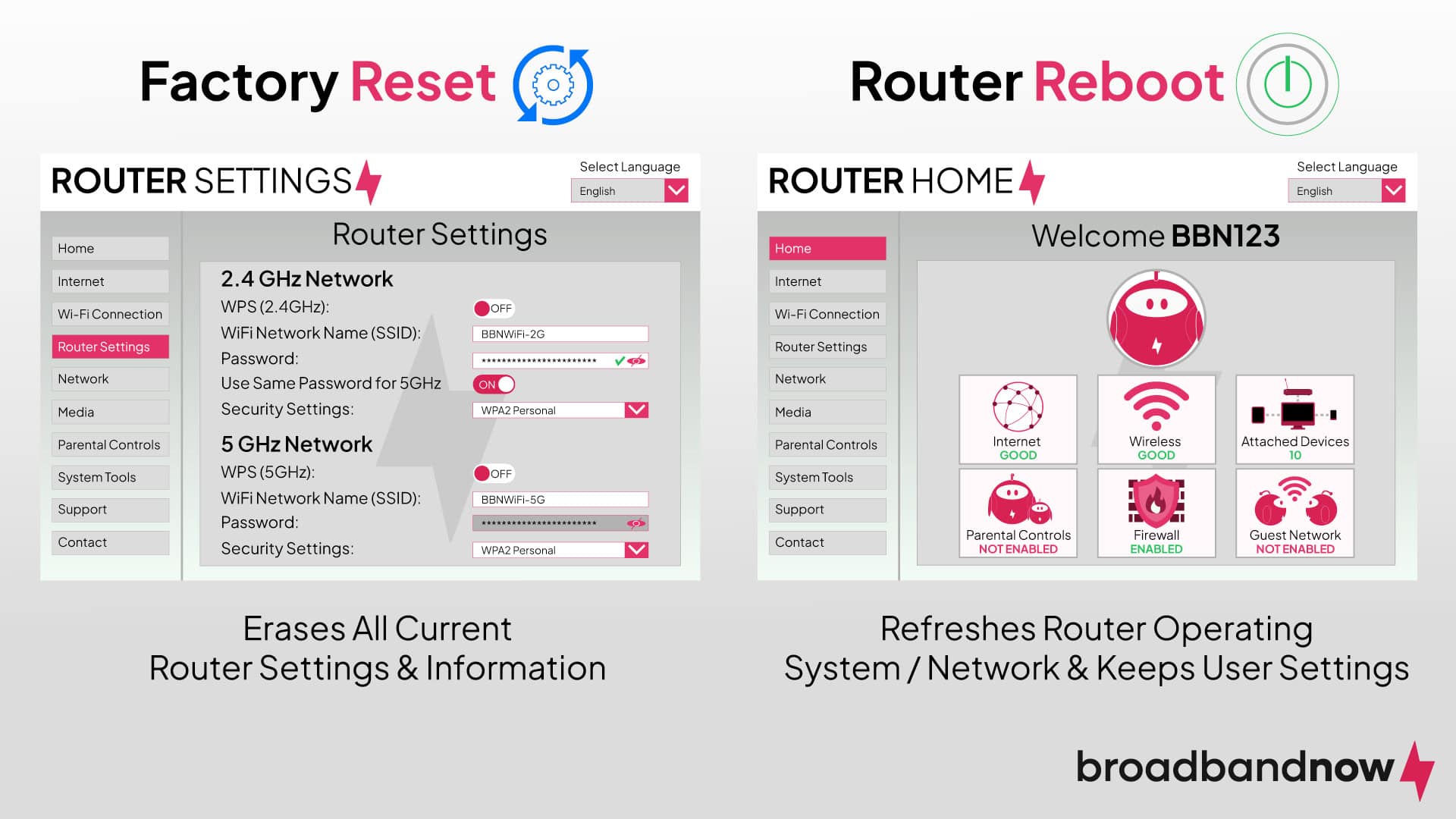
Soft Reset Fixes Minor Issues in Minutes
A soft reset (power cycle) refreshes your router without altering saved configurations—think of it as giving your router a quick nap rather than wiping its memory. This method solves most temporary glitches while preserving your Wi-Fi name, password, and all custom settings.
Use soft reset when:
– Internet speed suddenly drops but doesn’t disappear completely
– Devices randomly disconnect from Wi-Fi networks
– Streaming buffers constantly despite good speed test results
– Smart home devices lose connection periodically
What to expect: Your router restarts in 2-5 minutes with all settings intact. Simply unplug the power cord, wait 30 seconds, then plug it back in. Watch for all LED lights to stabilize before testing connectivity.
Factory Reset Wipes Everything Clean
A factory reset completely erases your Xfinity router’s configuration, returning it to its original out-of-the-box state. This nuclear option eliminates all custom networks, passwords, and settings—but solves persistent issues nothing else can fix.
Use factory reset when:
– You’ve forgotten your admin password and can’t access settings
– Router shows suspicious activity (unknown devices connecting)
– Selling or returning your Xfinity equipment
– Issues persist after multiple soft resets and troubleshooting attempts
Critical warning: Your Wi-Fi name and password will revert to defaults printed on the router label. You’ll need to reconfigure everything from scratch.
Pre-Reset Checklist: Avoid Costly Mistakes
Document Settings Before Wiping Clean
Grab your phone and snap photos of these critical details before initiating any reset:
- Default network credentials on router label (XFINITY or xfinitywifi)
- Your custom Wi-Fi names and passwords
- Admin username/password (usually “admin” unless changed)
- Router model number (XB3, XB6, XB7, or xFi Gateway)
Pro tip: If you can still access your router settings, export the configuration file through the admin portal for easier reconfiguration later.
Schedule Smart to Minimize Downtime
Every reset kills your internet temporarily. Plan strategically:
- Soft reset: Schedule during brief lulls (2-5 minute outage)
- Factory reset: Block 15-20 minutes during low-usage periods
- Notify household members about the outage window
- Prepare mobile hotspot as backup for critical tasks
Method 1: Physical Reset Button (Factory Reset)
https://www.xfinity.com/support/articles/xfinity-xb6-router-reset-button-location/
Locate Your Router’s Reset Button
Where to find it: Flip your Xfinity router over or check the back panel for a tiny recessed hole labeled “Reset”—smaller than a pencil eraser requiring a paperclip.
Model-specific locations:
– XB6/XB7 models: Bottom-left corner on back panel
– XB3 models: Near power port on bottom
– xFi Gateway: Between power and Ethernet ports
Step-by-Step Physical Reset Process
- Verify power: Ensure router lights are solid (not rapidly blinking)
- Prepare tool: Straighten a paperclip or use SIM eject tool
- Press firmly: Insert tool and hold reset button for full 30 seconds
- Watch for signs: LED lights will flash or turn off briefly
- Release only when: Lights begin cycling through startup sequence
- Wait patiently: Allow 10-15 minutes for complete restart
Critical mistake to avoid: Releasing the button too early causes partial reset. Hold for the full 30 seconds even if lights change before then.
Method 2: Admin Portal Reset (Factory Reset)

Access Router Settings Safely
Connection requirement: Plug computer directly into router via Ethernet cable for most reliable access.
Gateway addresses to try:
– http://10.0.0.1 (most common)
– http://192.168.1.1
– http://192.168.0.1
Login credentials: Check router label for default admin username/password (often “admin” or “user” with password “password”)
Portal Reset Execution Steps
- Open browser and enter gateway IP address
- Enter admin credentials from router label
- Navigate to Troubleshooting → Reset/Restore Gateway
- Select Restore Factory Settings (not just restart)
- Confirm with “Yes” when warned this erases all settings
- Wait 5-7 minutes for automatic restart
- Reconnect using default network name and password
Warning: This method offers no configuration backup—everything disappears immediately.
Method 3: xFi App Reset (Soft or Factory)
In-App Reset Process Simplified
- Open Xfinity xFi app and sign in with your Xfinity ID
- Tap Network → Gateway → Advanced Settings
- Choose between:
– Restart Gateway (soft reset, keeps settings)
– Restore Factory Settings (complete wipe) - Confirm with account password
- Monitor progress through app notifications
- Receive completion alert when ready
Unique advantage: Reset remotely even when away from home—perfect for helping family members troubleshoot.
Post-Reset Setup: Get Online Faster
Essential Reconfiguration Steps
Priority order:
1. Connect to default network using credentials on router label
2. Change default passwords immediately (both Wi-Fi and admin)
3. Create new Wi-Fi names for 2.4GHz and 5GHz bands
4. Set strong passwords (12+ characters with mix of letters/numbers/symbols)
5. Reconnect devices one by one to verify functionality
Time-saver: Use identical Wi-Fi name and password as before to avoid reconnecting all devices.
Troubleshooting Reset Problems
No Internet After Reset
Check these first:
– Verify coax cable is firmly connected to wall outlet
– Check Xfinity service status at xfinity.com/outage
– Ensure all router lights are solid (not blinking rapidly)
– Wait 30 minutes for automatic service reactivation
Contact Xfinity if: No internet after 30 minutes with solid white lights.
Reset Button Not Working
Quick solutions:
– Hold button for full 60 seconds instead of 30
– Try different paperclip angle or SIM tool
– Ensure router has stable power (no blinking lights)
– Clean button hole with compressed air
When to replace: If button feels physically broken after multiple attempts.
Security Must-Dos After Reset
Lock Down Your Router Immediately
Critical actions:
– Change default admin password to something strong
– Disable WPS (security vulnerability)
– Enable WPA3 encryption if available
– Create separate guest network for visitors
Pro tip: Use password manager to store credentials—never reuse router passwords elsewhere.
Performance Optimization Tips
Channel Selection Secrets
Best practices:
– 2.4GHz: Stick to channels 1, 6, or 11 only
– 5GHz: Use higher channels (149-161) for less interference
– Check neighboring networks with free Wi-Fi analyzer apps
Quick test: Run speed tests after changing channels to verify improvements.
QoS Configuration Basics
Priority setup:
1. Gaming/streaming devices: Highest priority
2. Work computers: High priority
3. Smart home devices: Medium priority
4. Guest devices: Lowest priority
Testing tip: Run speed tests while streaming and gaming simultaneously to verify QoS effectiveness.
Emergency Recovery Plan
Complete System Failure Signs
When to call Xfinity immediately:
– No LED lights after multiple reset attempts
– Burning smell or unusual sounds from router
– Router stuck in reboot loop (lights cycling endlessly)
– Physical damage visible on unit
Temporary solutions:
– Use Xfinity mobile hotspot
– Visit Xfinity store for same-day replacement
– Access Xfinity community WiFi while waiting
Key takeaway: Master these reset methods now—when your internet dies at 11 PM on a Sunday, you’ll know exactly what to do. Start with soft resets for minor issues (they work 80% of the time), escalate to factory resets only when necessary, and always document your settings before wiping anything clean. Keep this guide bookmarked for instant access when connectivity emergencies strike—your future self will thank you when the streaming stops buffering and work calls reconnect.