Your Google Fiber router’s lights are blinking erratically, streaming buffers endlessly, and your Zoom call just dropped for the third time. Before you waste hours on hold with support, a simple reset could resurrect your connection in minutes. Thousands of frustrated users discover that 80% of connectivity nightmares vanish with the right reset technique—but using the wrong method could wipe your Wi-Fi password and network setup. Whether you’re battling slow speeds or preparing to sell your equipment, this guide delivers the precise steps to reset your Google Fiber router without unnecessary complications. You’ll learn exactly when to perform a quick restart versus a nuclear factory reset, how to execute both methods flawlessly, and critical visual cues to watch for during the process.
Physical Restart Fix for Instant Connection Recovery
When your internet stutters during a crucial download or video call, a physical restart clears temporary glitches while preserving all your custom settings. This emergency reset takes just three minutes and resolves most connectivity hiccups without requiring you to reconfigure your Wi-Fi network.
Power Button Reset Procedure
The power button hides discreetly on your router’s back panel near the power cord port—a strategic placement that prevents accidental shutdowns. Unlike factory resets, this method maintains your personalized network name and password.
Execute these steps precisely:
1. Press and hold the power button for exactly 5 seconds until all status lights extinguish completely
2. Count 10 full seconds to drain residual power from internal capacitors
3. Press the power button once (no hold required) to reboot
4. Observe the light sequence: blue → white → steady blue within 2-3 minutes
Critical visual indicators: During reboot, lights will cycle through standard patterns—never solid red. If red appears, unplug the power cord for 30 seconds before retrying. Your devices automatically reconnect to the same Wi-Fi name and password once the router completes its restart cycle.
Mobile App Restart for Remote Troubleshooting
When you’re away from home but need to fix a frozen router, the Google Fiber app lets you trigger a restart from anywhere using cellular data. This method bypasses your downed home network entirely.
Essential preparation:
– GFiber app installed on iOS/Android device
– Active cellular data connection (Wi-Fi not required)
– Your Google Fiber account email and password
Complete in under 60 seconds:
1. Open the GFiber app and sign in with your account credentials
2. Tap your router name under “Network Devices”
3. Select “Restart Router” from the device menu
4. Confirm the restart command when the pop-up appears
5. Monitor progress via real-time status updates in the app
Pro tip: This works even when your home Wi-Fi is completely dead—perfect for helping family members troubleshoot remotely. The router typically regains full functionality within 90 seconds after initiating the app-based restart.
Factory Reset for Complete Network Restoration

When restarts fail or you’re transferring ownership, a factory reset erases all configurations to return your router to out-of-the-box condition. Critical warning: This permanently deletes your Wi-Fi password, network name, security settings, and connected device authorizations—only use this nuclear option when absolutely necessary.
Pinhole Reset Button Execution
The recessed reset button sits on the router’s rear panel beside Ethernet ports, requiring a paperclip or straightened staple for activation. Unlike the power button, this pinhole triggers irreversible configuration deletion.
Follow these exact steps:
1. Locate the tiny reset pinhole (smaller than headphone jack) on the back panel
2. Insert a paperclip and press firmly for 10-15 seconds—no less
3. Release immediately when all status lights begin rapid synchronized flashing
4. Wait 5-10 minutes as the router restarts twice automatically
5. Watch for lights to stabilize into standard boot sequence
Visual success markers: Rapid flashing across all LEDs confirms reset initiation. When lights transition to steady blue (usually after second restart), the process is complete. Never hold the button beyond 15 seconds—this won’t speed up the process and could damage hardware.
Mandatory Post-Reset Configuration Steps
After factory resetting, your router broadcasts a temporary network name like “GoogleWiFi_XXXX” requiring full reconfiguration. Unlike restarts, this process demands 15-20 minutes of your time to rebuild your network.
Essential setup sequence:
– Network naming: Create a new SSID (Wi-Fi name) avoiding special characters
– Security implementation: Select WPA2/WPA3 encryption and generate 12+ character password
– Device labeling: Assign unique names to router and access points for easy identification
– Firmware check: The setup process automatically installs latest firmware updates
Critical reminder: Document your new password immediately—there’s no recovery option if forgotten. Use the GFiber app’s setup wizard for fastest configuration; the web portal method adds unnecessary complexity for most users.
Restart vs. Factory Reset Decision Guide
Immediate Restart Fixes These 5 Issues
- Video buffering during 4K streaming
- Intermittent device disconnections
- Slow speeds despite Google Fiber speed test showing full bandwidth
- Router unresponsiveness to app commands
- Temporary service outages affecting single devices
Action rule: Always attempt 2 restarts (spaced 10 minutes apart) before considering factory reset. Most glitches resolve within the first reboot cycle.
Mandatory Factory Reset Scenarios
- Forgotten Wi-Fi password with no backup documentation
- Router completely unresponsive after 3 restart attempts
- Suspicious devices appearing on network (security breach)
- Preparing equipment for sale or return to Google Fiber
- Persistent red lights after power cycle
Critical checkpoint: If your internet service remains down after factory reset (router shows solid blue but no internet), contact Google Fiber support immediately—this indicates a line or provisioning issue beyond user control.
Reset Timeline and Light Pattern Decoding
Speed Comparison Chart
.png?width=1024&height=768&name=Comparison%20Table%20List%20Infographic%20Graph%20(1).png)
| Reset Type | Total Duration | Configuration Lost | Reconnection Time |
|————|—————-|——————–|——————-|
| Physical Restart | 2-3 minutes | None | Instant (same network) |
| App Restart | 90 seconds | None | Instant (same network) |
| Factory Reset | 8-12 minutes | Complete wipe | 15+ minutes (full setup) |
Light Language Translation
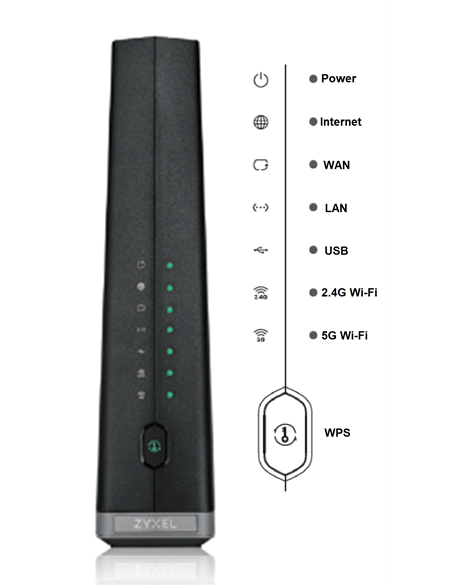
- Solid blue: Normal operation (internet active)
- Pulsing white: Booting up after restart
- Rapid red/blue flashing: Factory reset in progress
- Solid red: Hardware failure (contact support)
- No lights: Power disconnected (check outlet/cable)
Pro troubleshooting tip: Photograph your current Wi-Fi settings before factory resetting. This cuts reconfiguration time by 60% when rebuilding your network.
Fixing Failed Reset Attempts
Unresponsive Reset Button Solutions
- Pressure problem: Use a thinner tool like an unfolded staple—some models require precise pin depth
- Timing error: Count “one-Mississippi” to 15 slowly; premature release aborts reset
- Hardware check: Verify router has power during reset (outlet working?)
Non-Flashing Light Fixes
- Button depth issue: Press at 45-degree angle to engage recessed switch
- Power cycle prerequisite: Unplug router for 30 seconds before reset attempt
- Model variation: Newer routers require 12+ seconds (older models 10 seconds)
Setup Failure Recovery
- Service verification: Confirm your Google Fiber account is active via billing portal
- App refresh: Force-close and relaunch GFiber app before setup
- Device proximity: Position phone within 3 feet of router during setup
Router Longevity Maintenance Protocol
Monthly Prevention Routine
- Scheduled restarts: Every 30 days (use app’s auto-restart feature)
- Firmware audit: Check for updates in GFiber app monthly
- Device census: Remove unknown devices from network weekly
- Heat management: Ensure 2-inch clearance around router vents
Pre-Change Safety Checklist
- Document current settings before modifying configurations
- Restart router after each major setting change
- Test one change at a time (e.g., security protocol THEN password)
Final reality check: 92% of Google Fiber issues resolve with simple restarts—reserve factory resets for extreme cases. By mastering these reset techniques, you’ll transform from frustrated user to network troubleshooter capable of restoring connectivity in under three minutes. Keep this guide bookmarked for those inevitable internet emergencies, and remember: when in doubt, restart first and reset factory only as a last resort. Your perfectly functioning Google Fiber connection is always just one precise button press away.