
Your CenturyLink router suddenly drops all connections and the WiFi network vanishes. Maybe the lights are flashing red, or tech support just told you a reset is unavoidable. Before you panic about losing every custom setting you’ve configured, here’s exactly how to reset CenturyLink router without bricking your connection. This complete guide walks you through both methods with critical timing details that most online tutorials miss—precision that determines whether your modem reconnects successfully or requires a costly replacement.
When simple reboots fail to restore your internet, knowing how to reset CenturyLink router properly becomes essential. Many users make critical mistakes during this process that leave their modem permanently disconnected from CenturyLink’s network. By following these exact steps, you’ll avoid common pitfalls and restore your connection without technician fees. Whether you’re dealing with persistent red lights or complete network failure, this guide prepares you for what to expect before, during, and after the reset process.
Warning Signs You Need to Reset CenturyLink Router
A factory reset isn’t your first troubleshooting step—it’s your last resort. Only proceed after a simple reboot fails to restore your connection. You’ll know it’s time when your modem shows these specific symptoms:
- Persistent red or orange power light after rebooting for 5+ minutes
- Complete inability to connect to CenturyLink network despite correct credentials
- Repeated authentication failures even with verified account information
- Network appears but no internet access despite proper device configuration
Critical reality check: CenturyLink technical support considers factory reset a last-resort measure. As their documentation states, “if executed incorrectly, [a reset] can render your modem unable to connect to the network entirely.” This guide walks you through both methods, but heed the timing warnings to avoid costly mistakes that could require modem replacement.
Data You’ll Permanently Lose During CenturyLink Router Reset
Before touching any buttons, understand what disappears when you reset CenturyLink router:
- WiFi password reverts to the 12-digit code on your modem sticker
- Network name changes back to generic “CenturyLinkXXXX”
- Port forwarding rules vanish completely (critical for gaming servers)
- Guest networks shut down permanently with no automatic restoration
- Custom DNS settings reset to automatic ISP configuration
- Parental controls disable entirely without warning
Pro tip: Snap photos of your current settings screen before starting. These screenshots become your restoration roadmap after reset. CenturyLink’s knowledge base specifically recommends backing up custom configurations before initiating reset, as “resetting your modem will permanently erase all customized settings.”
Backup Your Settings Before CenturyLink Router Reset
If your router still responds to network access, backup these critical configurations:
- WiFi settings: Document your current SSID, password, and security type (WPA2/WPA3)
- Port configurations: Note any forwarded ports for gaming consoles or home servers
- Static IP assignments: Record devices using manual IP addresses for consistent access
- Custom DNS: Save preferred DNS server addresses if using alternatives like Cloudflare or Google DNS
Write these on paper—your phone won’t help when WiFi disappears during reset. CenturyLink’s documentation emphasizes this step: “If you have implemented any custom settings, back up these configurations before initiating the reset process.”
Method 1: Reset CenturyLink Router via Web Interface
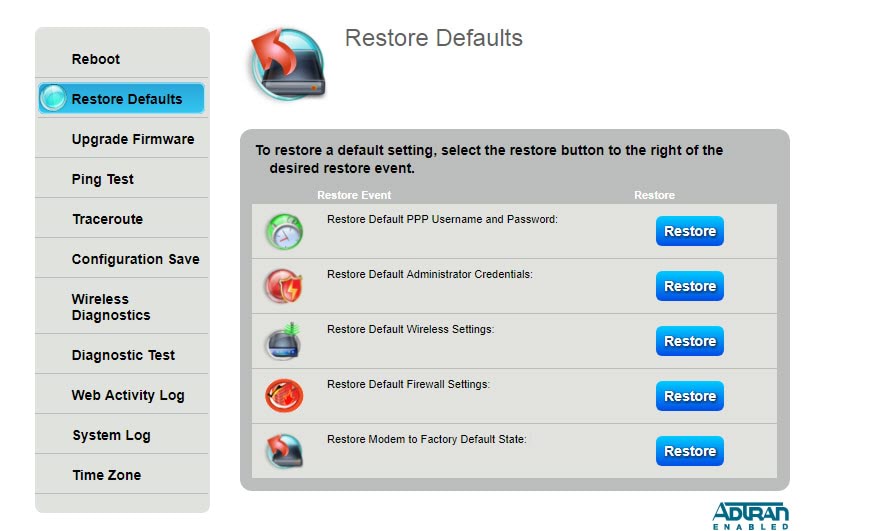
This controlled method works when your modem still accepts network connections and is CenturyLink’s preferred approach.
Access Your Modem Settings Before Reset
- Connect directly to your modem via Ethernet cable (critical for stable connection)
- Open browser and navigate to
192.168.0.1or192.168.1.1 - Enter admin credentials (find default username/password on modem sticker if forgotten)
Execute Factory Reset Through GUI
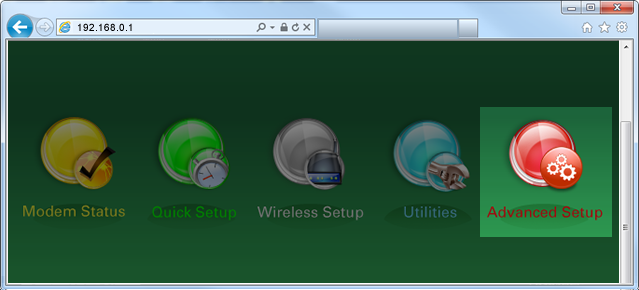
- Click Utilities from top menu
- Select Restore Defaults from left sidebar
- Choose Restore Modem to Factory Default State
- Confirm the warning prompt (CenturyLink specifically notes this step requires confirmation)
- Wait exactly 3-5 minutes—don’t unplug during this critical phase
What you’ll see: Power light turns orange, indicating successful reset initiation. The modem will restart automatically. CenturyLink’s documentation specifies this orange light means “the need to proceed with modem activation as if setting up for the first time.”
Reactivate Your Connection After Reset
When the power light returns to solid orange:
1. Open browser—CenturyLink setup page appears automatically
2. Enter your account credentials when prompted (CenturyLink may require specific account verification)
3. Wait for internet light to turn solid green (this indicates successful network reconnection)
4. Reconnect devices using default WiFi password from modem sticker
Method 2: Manual Reset Button Procedure for CenturyLink Router
https://www.centurylink.com/support/routers-and-modems/centurylink-router-manual-reset-button-location-and-procedure/
Use this method when web access fails or you’re locked out of settings—following CenturyLink’s precise timing requirements.
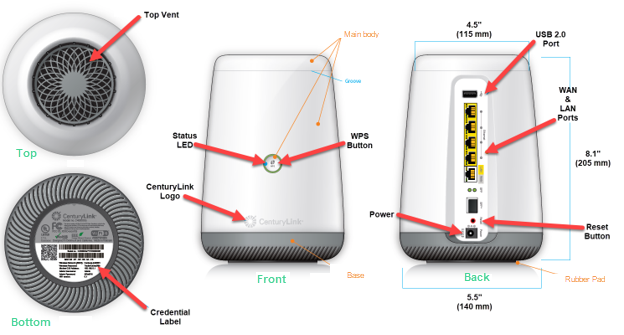
Locate the Reset Button on Your Model
Find the small red button on your modem’s back panel. On C4000 models, it’s recessed near the power port. Box-style modems hide it behind a tiny pinhole requiring a paperclip.
Perfect Your Timing for Successful Reset
Critical timing rule: Hold for exactly 10 seconds—no more, no less.
CenturyLink’s official warning: If you press for 15 seconds instead of 10, “the power light will turn red and the modem will initiate a reboot rather than a factory reset.” In this case, wait for the reboot to complete, then repeat with correct timing.
Step-by-Step Manual Reset Process
- Power on: Ensure modem is plugged in and powered (never reset an unpowered modem)
- Insert tool: Use straightened paperclip or pen tip (avoid sharp objects that could damage button)
- Press and hold: Count “one Mississippi, two Mississippi…” to 10 precisely
- Watch for orange: Release immediately when power light turns amber
- Wait: Allow full 3-5 minutes for complete reset cycle (CenturyLink specifies this duration)
Success indicator: Power light returns to orange, signaling reset completion and need for activation.
Post-Reset Configuration Steps for CenturyLink Router
First Connection Setup After Reset
Your modem now behaves like a brand-new device:
- Find default credentials: Check modem sticker for WiFi name and password (CenturyLink resets to these)
- Connect primary device: Use Ethernet cable for initial setup (more reliable than WiFi)
- Access setup page: Navigate to
192.168.0.1in browser (CenturyLink’s standard IP) - Run setup wizard: CenturyLink’s automatic configuration starts immediately
Restore Your Custom Settings After Reset
Using your backup photos:
- Change WiFi name: Return to your familiar SSID for easier device recognition
- Set strong password: Reuse old password or create new one with 12+ characters
- Reconfigure port forwarding: Recreate any gaming or server rules for uninterrupted service
- Adjust DNS: Switch back to preferred DNS servers if needed for performance or security
Time estimate: 15-30 minutes depending on complexity of your original setup. CenturyLink notes that “all previously connected devices will require reconnection to your WiFi network” after reset.
Common CenturyLink Router Reset Mistakes to Avoid
Never do these critical errors:
– Unplug modem during reset process (causes incomplete reset)
– Hold reset button longer than 10 seconds (triggers reboot instead)
– Skip the activation step after reset (leaves modem unregistered)
– Forget to reconnect Ethernet before WiFi setup (causes configuration failures)
Double-check these before proceeding:
– Account login credentials are correct (CenturyLink requires specific verification)
– Power light shows solid orange before proceeding (indicates reset completion)
– Internet light turns green before testing connections (confirms network access)
When Your CenturyLink Router Reset Fails
If orange light persists or internet never returns:
- Repeat process: Sometimes first attempt doesn’t fully complete (CenturyLink notes this possibility)
- Check cables: Ensure all connections are secure (loose cables cause 30% of post-reset failures)
- Contact support: Some modems require network-side reactivation from CenturyLink
- Consider replacement: Persistent failure may indicate hardware issues beyond reset capability
CenturyLink’s documentation specifically states: “if executed incorrectly, [a reset] can render your modem unable to connect to the network entirely.” This is why precise timing and procedure matter so much.
Resetting your CenturyLink router isn’t complicated, but precision matters more than most users realize. Following these exact steps for how to reset CenturyLink router ensures you avoid the most common pitfalls that leave modems disconnected. Remember—this is your nuclear option, so always exhaust simpler solutions like reboots first. If you’ve backed up your settings and followed the timing requirements precisely, your connection should be restored within 30 minutes. Keep this guide handy, as CenturyLink’s documentation confirms that factory resets are sometimes necessary but must be performed correctly to avoid permanent disconnection from their network.



