
Your internet cuts out mid-video call, the router lights flash erratically, and panic sets in. Before you rush to replace your device, a proper reset could restore connectivity in minutes—but choose the wrong method and you’ll lose custom Wi-Fi passwords, port forwarding rules, and parental controls. Knowing exactly how to reset wireless router without unnecessary configuration headaches separates tech novices from networking-savvy users. This guide reveals precisely when to soft reset versus factory reset, where to find your model-specific reset button, and how to recover your network faster than your ISP’s technician can arrive.
Soft Reset vs Hard Reset: Which One Your Router Actually Needs
Most connectivity glitches require only a soft reset—think of it as rebooting your smartphone to clear temporary glitches. This power cycle preserves your Wi-Fi password, network name, and all custom settings while clearing corrupted memory. Your devices automatically reconnect within 60 seconds with no configuration needed. Use this method for intermittent disconnections, slow speeds, or when devices can’t obtain IP addresses.
Hard resets serve as your nuclear option—they wipe everything back to factory defaults. Your router forgets its network name, password, port forwarding rules, and DNS settings. You’ll need to reconfigure everything from scratch, including entering your ISP credentials. Reserve this method for persistent login issues, forgotten admin passwords, or when your router won’t recognize connected devices despite multiple soft resets.
5 Critical Steps Before Resetting Your Wireless Router
Skipping these preparations turns a 2-minute fix into a 30-minute network reconstruction project. Complete this checklist whether you plan a soft reboot or factory reset.
Document your network credentials immediately by accessing your router’s admin panel:
– Snap photos of your Wi-Fi password and network name (SSID)
– Record your ISP username and password (often different from your Wi-Fi password)
– Note any port forwarding rules for gaming consoles or security cameras
– Capture static IP assignments for printers and smart home hubs
Create a configuration backup file through your router’s web interface:
1. Connect your laptop directly to the router via Ethernet cable
2. Open Chrome or Firefox and enter your router’s IP (typically 192.168.1.1)
3. Navigate to Administration > Backup Settings
4. Download the configuration file to your desktop for safekeeping
Gather essential information including your router model number (printed on the bottom), default admin credentials, and your ISP’s technical support number. Notify household members about the temporary outage to prevent frantic calls during the 5-10 minute downtime.
Power Cycle Method: Fix 90% of Router Issues in 90 Seconds
When your internet stutters but hasn’t completely failed, this non-destructive reboot solves most temporary glitches without touching your settings.
Execute the perfect power cycle:
1. Unplug only the router’s power cable from the wall outlet (not the router itself)
2. Wait 30 full seconds—this critical step ensures capacitors fully discharge
3. Reconnect power and watch the LED sequence
4. Wait 90 seconds for all lights to stabilize (power light solid, internet light steady)
5. Test connectivity on your phone before checking other devices
Pro tip: If you have separate modem and router units, unplug both, then power up the modem first. Wait until its internet light turns solid before reconnecting the router—this prevents IP address conflicts that cause “connected but no internet” errors.
Where to Find Your Router’s Reset Button (Model-Specific Guide)
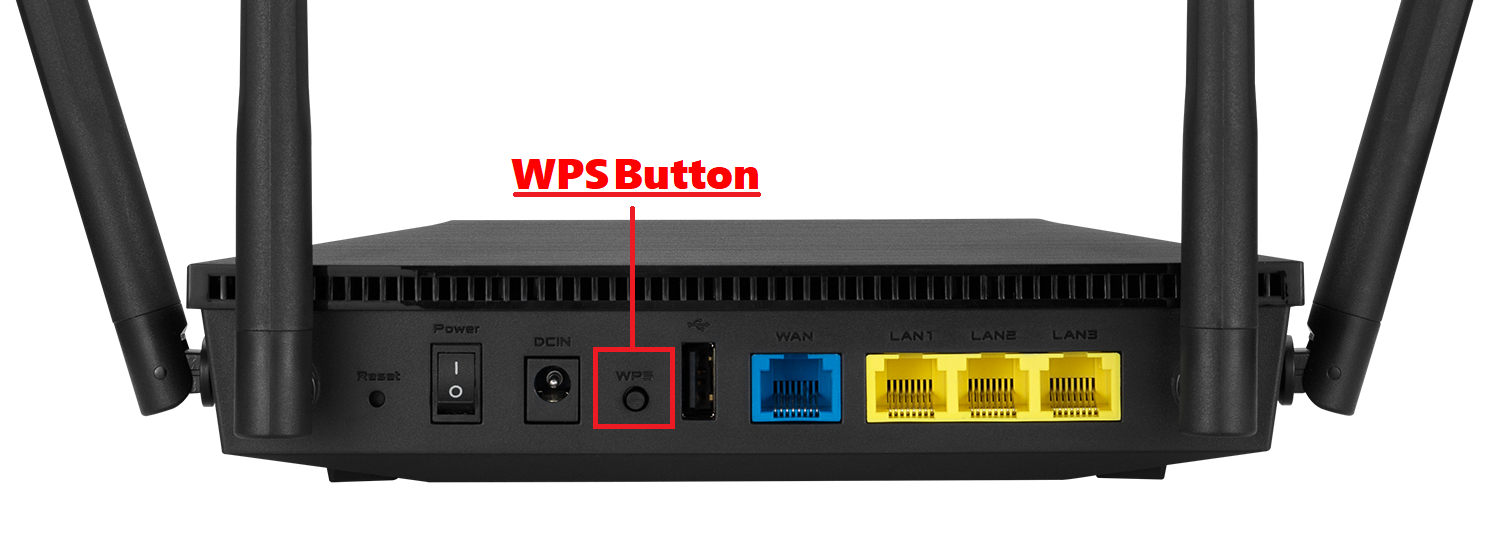
Manufacturers hide reset buttons in frustratingly different locations—knowing exactly where to look saves precious troubleshooting time.
ASUS routers tuck the reset button near the power port—press with a paperclip for 5-10 seconds until the power LED flashes. Netgear devices require inserting a paperclip into the rear-panel hole for 7-10 seconds until the power light blinks amber. Linksys models feature a distinctive red button on the back—hold for 10 seconds until rapid flashing confirms the reset. TP-Link units place theirs on the side or rear—press for 10 seconds watching for all LEDs to cycle off and on. D-Link routers hide theirs in a small recess—hold for 10 seconds until the power LED flashes orange.
Web Interface Reset: Safer Alternative to Physical Button

When you can’t reach the reset button or prefer visual confirmation, resetting through your browser prevents accidental full factory wipes.
Execute a browser-based reset:
1. Connect via Ethernet cable for stable access during the process
2. Open your browser and enter your router’s IP address
3. Login with admin credentials (check your documentation if forgotten)
4. Navigate to Administration > System Tools
5. Click “Restore Factory Settings” and confirm the action
Critical warning: Never interrupt power during the 2-3 minute reset process. The router will restart automatically—wait for the completion message before closing your browser. This method provides confirmation you’re performing a factory reset, reducing accidental configuration loss.
Post-Reset Setup: Get Your Network Back Online in 10 Minutes
After a factory reset, your router broadcasts its default network name from the label and uses generic credentials. Immediate configuration prevents security breaches and speeds up recovery.
Complete essential setup in this order:
1. Connect to the default network using credentials printed on your router
2. Access setup wizard via 192.168.1.1 or your model’s default IP
3. Change admin password first—never leave it as “admin/admin”
4. Create new Wi-Fi network name (avoid personal identifiers)
5. Set strong WPA2/WPA3 password (12+ characters with mixed types)
6. Update firmware before connecting devices
ISP connection setup varies: Most networks use automatic DHCP, but PPPoE connections require your ISP username/password, while business connections need static IPs. Check your ISP documentation if internet fails after setup.
Fix These Common Reset Problems Immediately
Reset button won’t respond? Ensure the router is powered on and use a straightened paperclip (not a safety pin). Press for up to 30 seconds while watching LED patterns—some models require longer holds.
Can’t access admin panel after reset? Verify your computer uses DHCP (automatic IP addressing). Try 192.168.0.1 if 192.168.1.1 fails. Clear browser cache or try incognito mode if login pages won’t load.
Internet still down after reset? Confirm your modem connects to the blue WAN port (labeled “Internet”). Some ISPs require MAC address cloning—call their tech support with your router model for specific instructions.
Restore Settings in 3 Minutes Using Your Backup File

If you created a configuration backup before resetting, skip tedious reconfiguration with this recovery method:
- Access your router’s admin panel with default credentials
- Navigate to Administration > Backup/Restore
- Click “Browse” and select your saved configuration file
- Click “Upload” and wait for confirmation
- Restart the router to apply all previous settings
This technique preserves your custom network name, password, port forwarding rules, and DNS settings—effectively giving you a soft reset’s benefits after a hard reset.
Critical Security Steps After Any Factory Reset
Default router settings create massive security vulnerabilities—complete these actions before connecting devices:
Change these defaults immediately:
– Router admin password (use 15+ character unique passphrase)
– Wi-Fi password (enable WPA3 if your devices support it)
– Disable WPS (Wi-Fi Protected Setup) which hackers exploit
– Create separate guest network with isolated access
Update firmware before connecting smart devices—manufacturers patch security holes monthly. Check for updates in the Administration section and enable automatic updates if available.
Prevent Future Resets With Monthly Maintenance
Most router issues stem from neglected maintenance—implement these simple habits:
Monthly quick checks:
– Power cycle your router during low-usage hours
– Verify firmware updates are installed
– Review connected devices for unknown entries
– Test internet speed to catch ISP issues early
Quarterly deep maintenance:
– Change Wi-Fi passwords
– Clean dust from vents with compressed air
– Review port forwarding rules
– Check DNS settings for unauthorized changes
Your router should deliver reliable service for 3-5 years with proper care. Bookmark this guide—next time your internet drops, you’ll know exactly how to reset wireless router without losing hard-earned configurations or compromising security. Save hours of frustration by choosing the right reset method for your specific problem.



