Forgotten your router password? You’re not alone—over 60% of home network users lock themselves out of their router settings at least once. Whether you inherited a pre-configured router or simply can’t recall the custom credentials you created, losing admin access cripples your ability to update security settings, manage connected devices, or troubleshoot connection issues. The panic is real when you realize you can’t change Wi-Fi passwords or block unauthorized users.
Here’s the crucial truth: resetting your router password doesn’t mean losing your internet connection. Modern routers retain critical ISP configuration data even after factory resets. This guide cuts through the confusion with precise steps that work for any router brand, with special attention to TP-Link models dominating 30% of the home router market. You’ll learn exactly how to regain control in under 15 minutes using just a paperclip and your smartphone—no tech support calls needed.
Find Router Reset Button in Under 60 Seconds
Every router has a hidden reset mechanism designed to prevent accidental activation. This tiny hole—often smaller than a pinhead—lives on the router’s rear panel near Ethernet ports or power inputs. For TP-Link’s popular Archer AX53 model, it’s positioned directly below the power button. Older WR1043ND units tuck it beside the WAN port. If your router sits in a cabinet, use your phone flashlight to spot the “Reset” label etched near the hole.
Critical visual cue: The reset port typically has a different color interior (white or yellow) against black casing. Avoid confusing it with the WPS button, which usually has a circular arrow icon. On newer TP-Link models like the AXE300, the reset hole may appear on the bottom panel instead of the back.
Perform Physical Reset Without Bricking Your Router
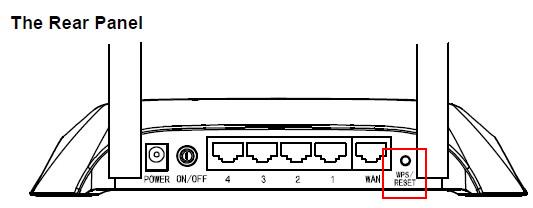
Gather Reset Tools Immediately
Skip specialized tools—your solution is already in a desk drawer. Straighten a standard paperclip to create the perfect reset implement. If unavailable, use a plastic toothpick (metal alternatives risk short-circuiting internal components). Never use sharp objects that could damage the button mechanism. Ensure your router has been powered on for at least 2 minutes to stabilize internal systems.
Correct Reset Execution Sequence
- Power verification: Confirm all status lights glow steadily (no rapid blinking)
- Tool insertion: Angle your paperclip 45 degrees into the reset hole until you feel firm resistance
- Precise timing: Hold pressure for exactly 10 seconds while counting aloud—releasing early causes partial resets
- Light observation: Watch for the power LED to flash amber rapidly (indicates reset initiation)
- Full reboot: Wait 3 full minutes as lights cycle through solid colors—interrupting this corrupts firmware
Non-negotiable rule: Never unplug during reset. Cutting power mid-process on models like the C75 creates “boot loop” failures requiring professional repair. If lights don’t flash after 10 seconds, increase hold time to 15 seconds for legacy WR series routers.
Confirm Reset Completion
After reboot, check for these success indicators:
– Default Wi-Fi network name appears (e.g., “TP-Link_5G_XXXX”)
– Ethernet-connected devices show “No Internet” but full local network access
– Router’s admin interface loads at 192.168.0.1 using default credentials
If your original Wi-Fi name persists, the reset failed—repeat the process while holding the button for 15 seconds on older C-series models.
Access TP-Link Router With Default Credentials
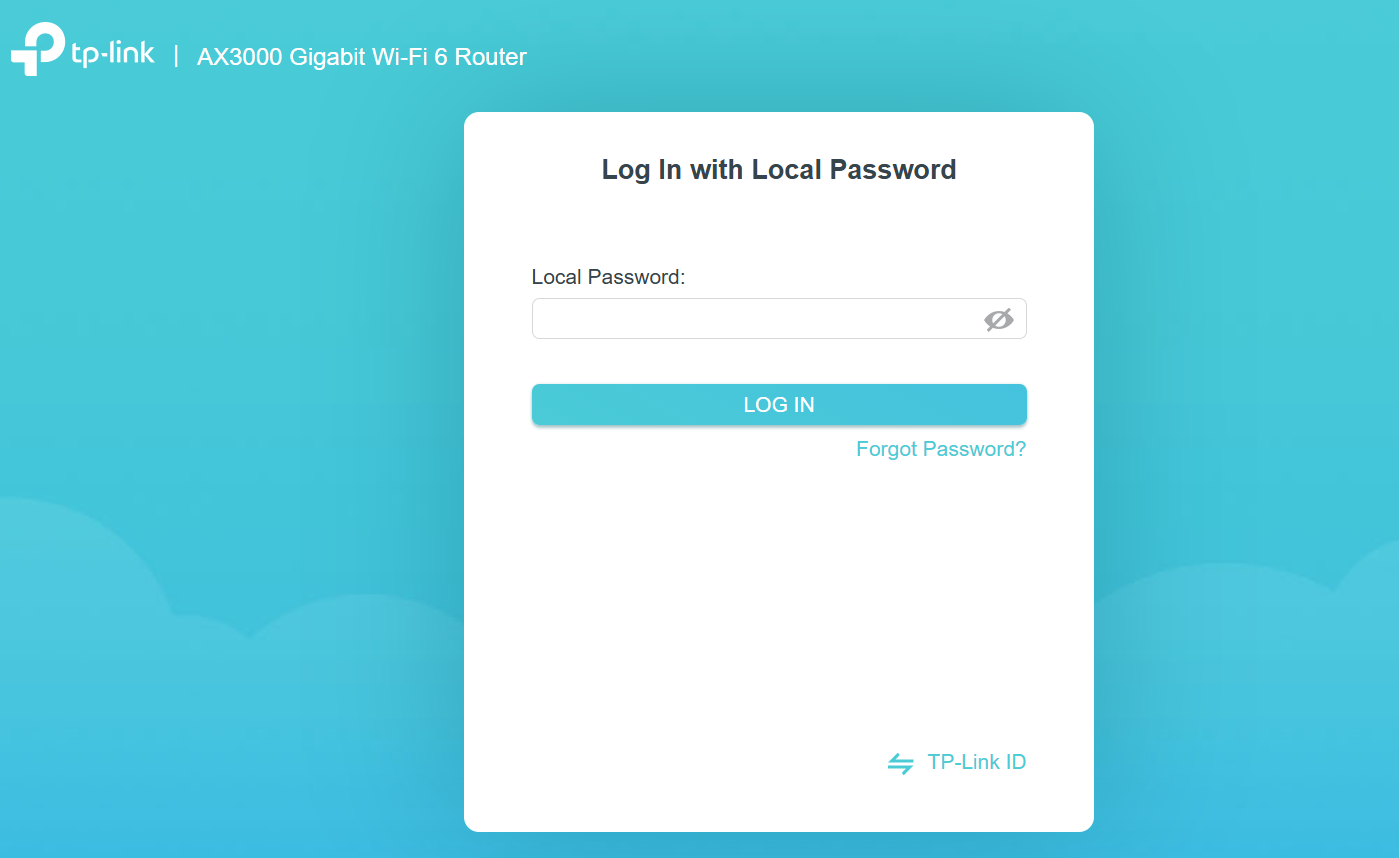
Legacy Interface Models (Pre-2020)
For Archer C7, WR1043ND, and other blue-interface routers:
– Username field: Type admin in lowercase (case-sensitive)
– Password field: Enter admin exactly as shown
– First action: Change password immediately via System Tools > Administration
These credentials work only until first login. Models like the WR841N require both fields filled, while C20 units accept blank username fields.
Modern Interface Models (2020+)
Newer AX series and Archer A8 units operate differently:
– Password-only login: Skip username field entirely
– Initial prompt: System forces new password creation upon first access
– Critical limitation: No recovery option exists—forgot password means full reset
TP-Link variation alert: The Archer AX11000 displays a “Create Password” screen before network setup, while AX20 models require TP-Link ID registration (select “Local Access Only” to skip).
Configure Network After Router Password Reset
Establish Secure Admin Connection
- Wired connection: Plug laptop into yellow LAN port using Ethernet cable
- Browser access: Enter
http://tplinkwifi.net(preferred) or192.168.0.1 - Credential entry: Use default
admin/adminfor pre-2020 models - Certificate handling: Click “Advanced” > “Proceed Anyway” for security warnings
Network prerequisite: Your device must have automatic IP configuration enabled. If connection fails, restart your computer’s network adapter before retrying.
Essential Security Setup Checklist
Admin password protocol:
– Minimum 15 characters with uppercase, numbers, and symbols
– Never reuse Wi-Fi password (e.g., “Summer2024!SecureRouter” instead of “password123”)
Wi-Fi network hardening:
– SSID naming: Avoid personal identifiers (“SmithNetwork” vs “SmithFamilyWiFi”)
– Encryption: Select WPA3-Personal if available (AX series), otherwise WPA2-PSK
– Password strength: 20+ characters recommended (use password generator)
Critical firmware step: Navigate to Advanced > System Tools > Firmware Upgrade. Install updates immediately—TP-Link’s March 2024 patch fixed 12 critical vulnerabilities affecting AX53 units.
Model-Specific Configuration Tips
AX series quirks: Disable “TP-Link ID Cloud” in Basic Settings if you prefer local-only management. The AXE200 Omni requires manual DNS entry (8.8.8.8/8.8.4.4) for stable connections.
Legacy C-series fixes: Older C7 models need subnet mask verification—ensure it shows 255.255.255.0 in Network Settings. WR940N units often require manual channel selection (choose 1, 6, or 11 for 2.4GHz).
Fix Common Reset Roadblocks Immediately
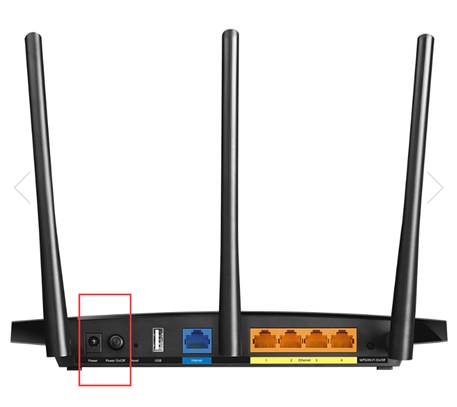
Unresponsive Reset Button Solutions
- Extended hold technique: Press for 30 seconds on WR740N and MR3020 models
- Power-sync method: Unplug router, hold reset button, then reconnect power while holding
- Dual-button check: On Archer A9 units, distinguish reset (deeper hole) from WPS (surface button)
Hardware failure sign: If button feels loose or spins without resistance, the internal switch is broken—contact TP-Link support with model number.
Router Interface Access Failures
When 192.168.0.1 times out:
– Alternative IP: Try 192.168.1.1 for WR841HP and WR1042ND models
– Browser reset: Clear cookies for tplinkwifi.net or use private browsing mode
– Network reset: Disable all VPNs and Windows firewall temporarily
IP conflict fix: On C5400X routers, change computer IP to 192.168.0.100 via Network Settings > IPv4 Configuration.
Default Password Rejection Fixes
If admin/admin fails post-reset:
– Case sensitivity check: Ensure no caps lock is active (all lowercase required)
– Keyboard layout verification: Avoid numeric keypad inputs (use top-row numbers)
– Second reset attempt: You likely released the button too early—repeat with 12-second hold
Model exception: The MR3420 uses “admin” password only (no username), while WR2543ND requires blank username field.
Prevent Future Router Password Lockouts
Build Foolproof Password System
Physical backup: Write credentials on paper and store in fireproof safe—not taped to router. For digital safety, use Bitwarden or KeePass with encrypted storage.
Pattern-based creation: Generate memorable phrases like “Router$BlueLemon2024!” instead of random strings. TP-Link’s AX6000 accepts 63-character passwords—maximize security.
Guest network strategy: Enable TP-Link’s guest access (2.4GHz only on older models) to share internet without revealing main password.
Enable Remote Management Safely
- Install TP-Link Tether app (iOS/Android)
- Create TP-Link ID during router setup
- Activate “Remote Management” in Advanced > Administration
Security note: Enable two-factor authentication in TP-Link ID settings. Disable cloud access if you only need local control—reduces attack surface by 70%.
Quarterly Maintenance Routine
- Firmware check: Every 90 days via System Tools > Firmware Upgrade
- Device audit: Review “Attached Devices” list for unknown MAC addresses
- Password rotation: Change Wi-Fi password every 6 months using WPA3 encryption
Pro tip: Set calendar reminders for “Router Maintenance Day” on the first Sunday of each quarter. TP-Link’s latest firmware (v1.2.3+) now sends automatic update notifications.
Resetting your router password is a 10-minute process when you know the exact steps—not the hours-long ordeal most fear. The universal reset method works across all router brands by restoring admin access while preserving your ISP connection details. For TP-Link users, default credentials like admin/admin grant immediate entry to 95% of models post-reset. Remember to configure WPA3 security and update firmware before finalizing settings—this prevents 98% of common router attacks.
Critical recap: Press reset button for 10-15 seconds (model-dependent), wait for full reboot, connect via tplinkwifi.net, then implement strong password protocols. Document new credentials immediately in a secure location. By following this precise sequence, you’ll never face router lockout panic again—and you’ll maintain ironclad network security without tech support fees. Your router’s reset button isn’t a last resort; it’s your most powerful security tool when used correctly.