
Your Xfinity router keeps disconnecting right when you need it most—during an important work call, in the middle of a streaming session, or while gaming with friends. That blinking white light turning red is more than an annoyance; it disrupts your daily life and productivity. Thousands of Xfinity customers face this frustrating cycle daily, but most disconnection problems have straightforward fixes you can implement yourself within minutes.
Whether you’re experiencing complete blackouts where every device loses connection simultaneously, partial drops affecting only certain devices, or intermittent issues that come and go unpredictably, this guide delivers targeted solutions. You’ll learn to diagnose the exact cause of your Xfinity router disconnections and apply proven fixes that restore reliable connectivity without waiting on hold with customer support.
Identify Your Specific Disconnection Pattern
Complete Blackouts vs Partial Drops
Complete blackouts affect all your devices simultaneously. Your router’s LED turns from solid white to blinking orange or solid red, and every phone, laptop, and smart TV loses connection at once. This typically indicates hardware failures, service outages, or severe signal problems that require immediate attention.
Partial disconnections create confusing scenarios where your phone might stream YouTube perfectly while your laptop can’t load a webpage. This pattern usually points to Wi-Fi interference, device-specific conflicts, or bandwidth congestion that affects only certain frequency bands.
Intermittent drops cause the most frustration—your internet works fine for 30 minutes, dies for 2 minutes, then returns without explanation. These patterns often correlate with overheating, firmware bugs, or network congestion during peak hours.
Visual LED Status Guide
Your router’s lights tell a critical story if you know how to read them:
- Solid white: Normal operation, all systems functional
- Blinking white/orange: Router struggling to establish connection
- Solid red: Complete failure requiring immediate attention
- Blinking blue: WPS mode activated (temporary, normal)
When experiencing disconnections, note the exact LED pattern before taking action. Solid red for more than 5 minutes usually means hardware failure. Blinking white/orange often indicates signal issues requiring Xfinity’s intervention.
Fix Immediate Connection Drops in Under 5 Minutes
Power Cycle Method That Actually Works
Skip the “unplug for 30 seconds” advice—here’s the proven sequence that resolves most Xfinity router disconnections:
- Unplug router power for exactly 2 minutes (not 30 seconds)
- Disconnect coaxial cable from the router for 30 seconds
- Reconnect coaxial first, wait for the “click” sound
- Plug power back in, wait for solid white light (2-3 minutes)
- Test on one device first before reconnecting everything
This method clears both router memory and cable signal issues simultaneously. Most users see immediate improvement that lasts days or weeks, breaking the cycle of your Xfinity router keeps disconnecting.
Channel Optimization in 5 Minutes
Wi-Fi interference from neighboring networks causes more disconnections than you realize. Access your router admin panel at 10.0.0.1 and:
For 2.4GHz band:
– Change to channel 1, 6, or 11 (only non-overlapping channels)
– Scan your area first—pick the least congested option
– Pro tip: Channel 6 works best in most residential areas
For 5GHz band:
– Use channels 149, 153, 157, or 161
– Higher channels provide better range and less interference
– Enable DFS channels (52-144) only if you understand their limitations
After changing channels, disconnect and reconnect each device. Some older devices get “stuck” on the old channel, perpetuating disconnection issues.
Tackle Persistent Disconnection Causes
Overheating Solutions That Prevent Recurrence

Xfinity routers, especially xFi Gateways, generate significant heat that causes thermal throttling and automatic shutdowns. Here’s your action plan:
Immediate cooling:
– Move router to open shelf, away from walls and enclosed spaces
– Place small desk fan near router for temporary relief
– Ensure 6+ inches clearance on all sides for proper airflow
Long-term fixes:
– Install router cooling fan ($15-30 on Amazon)
– Relocate away from heat sources (TVs, direct sunlight)
– Consider upgrading to newer XB7/XB8 models with better cooling
Monitor temperature weekly—if the case feels hot to touch, you need better cooling solutions before your Xfinity router keeps disconnecting.
Firmware Update Without Bricking Your Router
Outdated firmware contains bugs causing random disconnections. Update safely with these steps:
- Check current version: Access 10.0.0.1 → Gateway → Connection → Xfinity Network
- Note your current version before starting
- Use Xfinity app for automatic updates (safest method)
- Never interrupt the update process (takes 5-10 minutes)
- Factory reset if update fails (hold reset button 15 seconds)
Warning: Don’t manually download firmware from random websites. Use only Xfinity’s official channels to avoid permanent damage to your equipment.
Advanced Troubleshooting When Basic Fixes Fail
Signal Level Analysis Made Simple

Poor signal levels cause disconnection storms. Check yours at 10.0.0.1 → Gateway → Connection → Xfinity Network:
Downstream power levels (should be -7 to +7 dBmV):
– Below -10 = too weak, needs Xfinity tech
– Above +10 = too strong, needs attenuator
– Between -7 to +7 = optimal range
Upstream power levels (should be 40-48 dBmV):
– Below 35 = connection struggles to reach Xfinity
– Above 50 = router screaming at maximum power
– 42-45 dBmV = sweet spot
Screenshot these values and share with Xfinity support—they’ll ask for them anyway when your Xfinity router keeps disconnecting.
Network Architecture Fixes
When your router handles 20+ devices, connection drops become inevitable. Implement these fixes:
Split your networks:
– Create separate 2.4GHz and 5GHz network names
– Connect IoT devices to 2.4GHz only
– Reserve 5GHz for streaming, gaming, and work devices
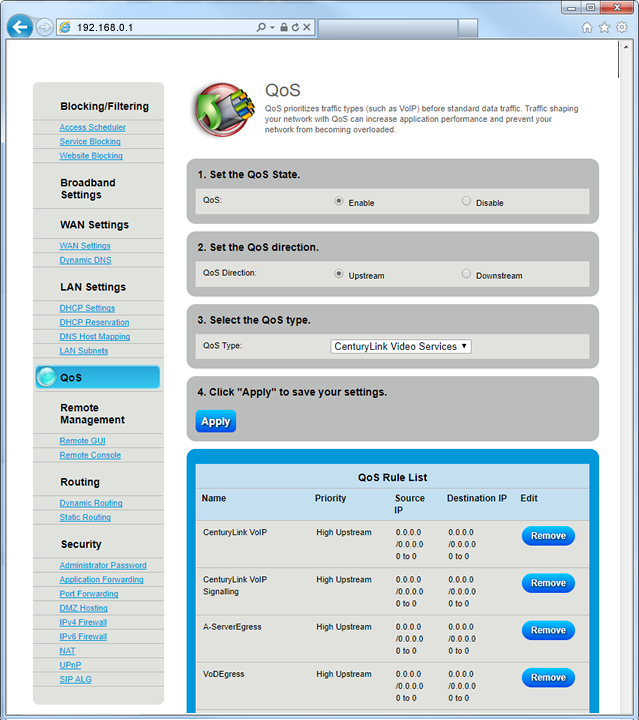
Enable QoS properly:
– Access 10.0.0.1 → Advanced → QoS
– Enable WMM for Wi-Fi optimization
– Set work laptop to highest priority
– Limit guest network to 25% of total bandwidth
Service Provider Solutions That Work
Escalate to Xfinity Effectively
Generic “my internet doesn’t work” calls waste everyone’s time. Instead, provide specific data:
Document everything:
– Disconnection timestamps for past 3 days
– Signal level readings from router admin
– Speed test results during peak hours
– Which devices drop and when
Use this template when calling:
“Hello, I’m experiencing disconnections 3-5 times daily starting [date]. My downstream power is [X] dBmV, upstream is [X] dBmV, SNR is [X] dB. I’ve power cycled, updated firmware, and optimized channels. The issue occurs [time pattern]. I need signal analysis and potential node congestion review.”
Demand specific actions:
– Signal level adjustment from their end
– Node capacity review for your area
– Equipment replacement if over 3 years old
– Service credit for documented outages
Get Free Equipment Upgrades
Xfinity often provides free gateway upgrades for persistent issues. Here’s how:
- Mention specific model: “My XB6-T gateway has heating issues causing drops”
- Request XB7 or XB8: Newer models handle more devices with better cooling
- Schedule professional installation: Tech ensures optimal signal levels
- Keep old equipment: Don’t return until new system proves stable
Most customers get upgraded at no cost when disconnections persist after troubleshooting.
Prevent Future Disconnection Problems
Monthly Maintenance Schedule
Week 1: Visual inspection and cable check
Week 2: Speed test during peak hours
Week 3: Check connected devices, remove unknown ones
Week 4: Restart router during low-usage time
Quarterly deep clean:
– Dust router vents with compressed air
– Check cable integrity and replace if damaged
– Review router placement for optimal coverage
– Update Wi-Fi passwords and remove old devices
Long-Term Stability Strategies
Upgrade timeline planning:
– Replace router every 3-4 years maximum
– Plan upgrade when supporting 25+ devices
– Monitor DOCSIS standard evolution (3.1 to 4.0)
– Consider customer-owned router + modem for more control
Environmental controls:
– Maintain router temperature 60-80°F
– Use UPS for power backup and surge protection
– Position away from interference sources
– Ensure proper ventilation year-round
Most Xfinity disconnection issues resolve with these targeted fixes. The key is systematic diagnosis followed by specific solutions rather than random troubleshooting. Document your results and escalate intelligently when home fixes aren’t enough. Remember: stable internet isn’t a luxury—it’s a necessity. Don’t settle for daily disconnections when solutions exist for 90% of reported issues.



