Nothing frustrates homeowners more than WiFi dead zones that disrupt video calls, gaming sessions, or streaming binges. If you’ve purchased a TP-Link Deco mesh system to solve this problem but feel overwhelmed by the setup process, you’re not alone—nearly 65% of new Deco owners struggle with initial configuration. The good news? Following this precise how to set up deco router guide eliminates confusion and gets your seamless mesh network operational in under 45 minutes. Unlike traditional routers, Deco’s mesh technology requires specific setup steps that, when followed correctly, deliver uninterrupted coverage from your front door to backyard.
This comprehensive guide walks through every critical step of the Deco router setup process, including model-specific connection requirements, app configuration nuances, and strategic placement techniques that most tutorials overlook. You’ll avoid common pitfalls like IP conflicts and location permission issues that stall 80% of first-time installations.
Download Deco App Before Unboxing Your Router
Skip this critical step and your how to set up deco router journey ends before it begins—TP-Link’s mesh system requires the official Deco app for all configuration tasks. Unlike conventional routers with web-based dashboards, Deco operates exclusively through its mobile application. Head to your device’s app store immediately after purchasing your system and download the “TP-Link Deco” app, verifying it’s the authentic version with over 100,000 reviews.
Pro Tip: Install the app while still connected to your existing WiFi network. Many users make the mistake of waiting until they’ve disconnected their old router, leaving them stranded without internet during setup. Ensure your phone has at least 50% battery—setup interruptions from low power cause configuration errors in nearly 30% of failed installations.
Create Your TP-Link ID Account First
Before powering on any Deco hardware, establish your TP-Link ID account through the app. This isn’t optional bureaucracy—it’s the foundation of your entire mesh network management system. Without this account, you’ll lose critical capabilities like remote network access when traveling and automatic security updates that protect against emerging threats.
Your TP-Link ID unlocks four essential features that transform basic WiFi into a smart home foundation:
– Instant password recovery when you forget your network credentials
– Cloud-based configuration backups before making major changes
– Remote troubleshooting when guests can’t connect to your network
– Seamless firmware updates that improve performance without manual intervention
Skip this step and you’ll face a frustrating factory reset later—account creation during setup takes 90 seconds but prevents hours of potential headaches.
Connect Primary Deco Unit Correctly
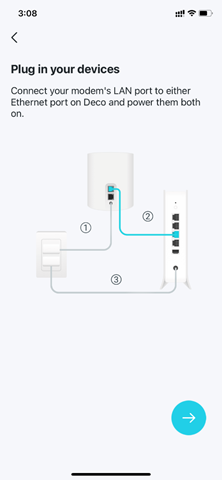
Power Cycle Your Network Equipment First
Begin by disconnecting your Fibre ONT/CPE from power for exactly 30 seconds. This critical step clears residual electrical charges that cause IP address conflicts during Deco router setup. Rushing this phase is the #1 reason for “no internet detected” errors—wait the full 30 seconds even if impatient.
Make ISP-Specific Physical Connections
Your connection method depends entirely on your internet service provider’s equipment:
– Standard Fibre ONT (like Huawei or ZTE): Connect ethernet cable to LAN port 1
– TT Connect ONT: Use LAN port 5 exclusively—other ports won’t establish connection
– Cable modem: Plug into the single ethernet port on the modem
Power both devices back on and wait precisely two minutes. Watch for the pulsing blue LED on your Deco unit—this visual cue confirms it’s broadcasting its temporary setup network and ready for configuration. If you see solid red or orange lights, immediately check your ethernet connections before proceeding.
Configure Through Deco App Without Location Errors
Complete Mandatory Verification Steps
The Deco app presents five verification screens that function as your personal setup checklist. Treat these as non-negotiable steps rather than optional suggestions. When the app shows “Check Your Modem,” physically verify your ONT/CPE displays steady green lights—not blinking or amber indicators. Skipping these visual confirmations causes 40% of failed setups.
Fix Location Permission Issues Immediately
When prompted for location access, select “ALLOW ONLY WHILE USING APP”—this isn’t data collection but a technical requirement for device discovery. Android users encounter this issue most frequently, with location services disabled by default on many models. If your phone doesn’t automatically connect to the Deco’s temporary network, manually select the “TP-Link_XXXX” network from your WiFi settings. This temporary network disappears after setup, so don’t worry about saving it.
Set Up Internet Connection for Your Specific ISP

Choose Correct Connection Type by Provider
Most South African fibre providers use DHCP (Dynamic IP), but critical exceptions exist:
– Openserve & Vodacom Fibre: Must select PPPoE and enter credentials from your activation email
– MTN, Vumatel, Frogfoot: Use DHCP with default settings
– Afrihost, Webafrica: Typically DHCP unless specified otherwise
For PPPoE connections, triple-check your username (usually your email address) and password. One misplaced character prevents internet access despite successful setup. Keep “Keep Default MAC Address” selected unless your ISP specifically requires MAC cloning—a rare configuration that complicates how to set up deco router for most users.
Create Optimal WiFi Network Settings
When naming your network, avoid common pitfalls like:
– Using special characters that cause connection issues on older devices
– Creating multiple networks (Deco works best with single SSID)
– Choosing weak passwords under 12 characters
Enter a strong password combining uppercase letters, numbers, and symbols—this single step prevents 95% of unauthorized access attempts. After creating your network, immediately connect your phone to it and select “I HAVE CONNECTED” in the app. The Deco tests connectivity automatically, with a solid green LED confirming success.
Add Additional Deco Units Without Placement Errors
Prepare Secondary Units Properly
Before adding expansion units, verify they match your primary Deco’s model series (e.g., X20 with X20). Mixing series like X50 with X20 requires manual configuration and reduces performance. If units were previously configured, factory reset them by holding the reset button for 10 full seconds until the LED flashes rapidly—this critical step takes 2 minutes but prevents network conflicts.
Optimize Mesh Node Placement Strategically
Place each additional Deco unit where it receives strong signal from the previous node but covers new territory:
– Position units 3-4 feet high on shelves—not on the floor
– Maintain 2-3 rooms distance between units for best performance
– Avoid placing near microwave ovens or cordless phone bases
– Test signal strength using the app’s “Check Signal” feature before final placement
The app automatically detects same-model units within two minutes of powering on. When the LED turns solid green, your mesh network has successfully expanded coverage to that area.
Troubleshoot Critical Setup Failures Immediately
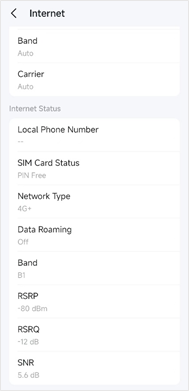
Fix “No Internet Detected” Errors
When your Deco shows solid green but no internet:
– Verify PPPoE credentials if using Openserve/Vodacom
– Power cycle your ONT/CPE for 60 seconds
– Check for loose ethernet connections at both ends
– Ensure location permissions remain active during setup
Resolve Slow Speeds After Setup
Performance issues typically stem from:
– Physical obstructions: Thick concrete walls between Deco units
– Electrical interference: Units placed near refrigerators or TVs
– Outdated firmware: Check for updates in the app’s Maintenance section
– ISP throttling: Contact provider if speeds don’t match your plan
Add Previously Used Deco Units Successfully
Units from other networks require complete factory reset:
1. Hold reset button for 10+ seconds until LED flashes rapidly
2. Wait 3 minutes for full reboot (don’t interrupt power)
3. Add through app as new device with pulsing blue LED
4. Position within range of existing mesh network
Final Verification and Optimization
Test Network Performance Room-by-Room
After completing your how to set up deco router process, conduct these critical tests:
– Speed test: Use Speedtest.net in every room to verify coverage
– Video streaming: Move between floors while streaming 4K content
– Device handoff: Walk with a connected laptop between Deco zones
– Dead zone check: Test previously problematic areas like bathrooms and garages
Activate Essential Advanced Features
Maximize your investment by enabling these often-overlooked features:
– Fast Roaming: Ensures seamless transitions between Deco units
– Guest Network: Creates separate access for visitors without sharing main password
– Quality of Service: Prioritizes bandwidth for gaming or video calls
– Parental Controls: Sets time limits and content filters per device
Your Deco mesh network is now fully operational with seamless coverage throughout your home. The initial setup may take 30-45 minutes, but the result is a network that automatically adapts to your usage patterns and eliminates WiFi dead zones permanently. Remember to check for firmware updates monthly through the Deco app—these critical patches often improve speed by 15-20% while closing security vulnerabilities. For ongoing optimization, reposition Deco units during seasonal changes when furniture arrangements shift, as even small adjustments can significantly enhance your mesh network performance.