Your video conference freezes mid-presentation as the Linksys router’s lights turn ominous red. Before calling your ISP in frustration, know that 80% of connectivity issues vanish with a simple router restart. This critical troubleshooting step clears memory glitches, refreshes network connections, and requires zero technical skills—yet most users miss the precise timing and methods that make it effective. Whether you own a basic EA8300 or sophisticated Velop mesh system, mastering how to restart Linksys router properly restores your internet faster than waiting for technician appointments. You’ll learn why a 30-second wait matters more than you think and discover smartphone tricks to reboot your network from anywhere.
Unlike factory resets that erase all settings, restarting your Linksys router preserves Wi-Fi passwords, port forwarding rules, and parental controls while refreshing the operating system. This process clears temporary memory congestion that accumulates during daily use—similar to rebooting your computer when it slows down. Most connectivity problems like DNS failures, IP conflicts, or sudden signal drops resolve within two minutes when executed correctly. Skip this essential maintenance step, and you risk recurring slowdowns that degrade streaming, gaming, and work-from-home reliability. By the end of this guide, you’ll restart your router confidently using five proven methods tailored to your specific Linksys model.
Power Cycle Your Linksys Router

This universal method works for every Linksys model from legacy WRT series to new Wi-Fi 6 routers. Physical power cycling forces a complete system refresh by cutting all electricity to clear residual power in capacitors—a step most users skip that causes failed restarts.
Execute this correctly in six steps:
- Unplug the power adapter from the wall outlet (not just the router) to ensure total disconnection
- Wait exactly 30 seconds—this critical pause dissipates hidden electrical charge that prevents full reset
- Reconnect power firmly to both outlet and router port
- Watch LED progression: Power light cycles solid → off → blinking rapidly → solid white/blue
- Allow 90-120 seconds for complete boot (EA series shows purple flashing during this phase)
- Confirm internet restoration when Wi-Fi LEDs glow steadily
Pro tip: Monthly restarts at 2 AM via smart plug prevent slowdowns during family streaming hours. Never skip the 30-second wait—rushing this step leaves memory corruption intact.
Restart Linksys Router via Web Interface
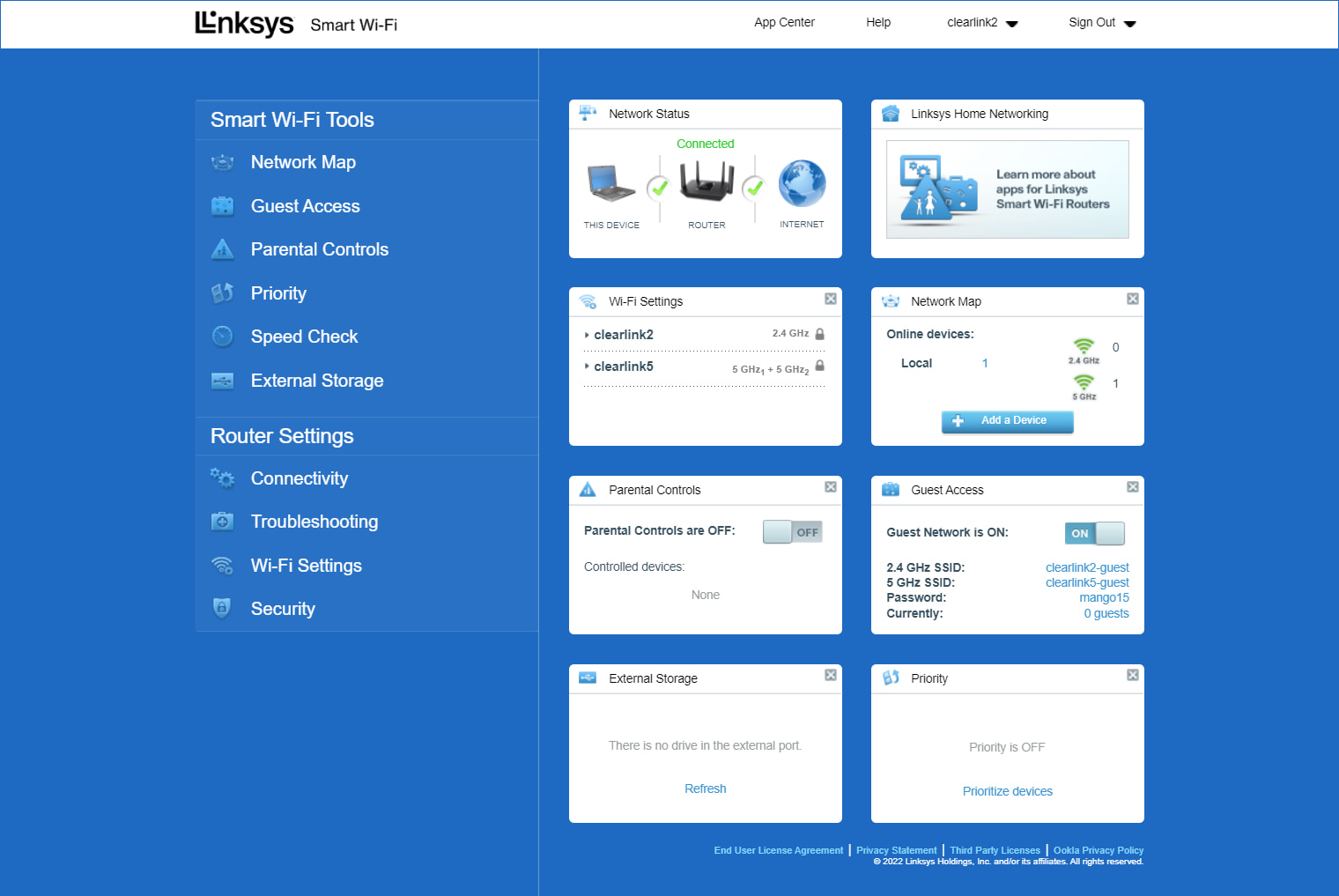
Access your router’s admin panel for a controlled reboot that preserves all settings without physical access. This method is essential when working remotely but requires your admin credentials.
Navigate to restart options:
- Smart Wi-Fi Routers: Log in → Router Settings → Troubleshooting → Reboot
- WRT Series: Enter 192.168.1.1 → Administration → Management → Reboot Router
- EA Series: Look for “Graceful Reboot” option showing real-time progress percentage
What happens during reboot:
– Your configuration saves automatically before shutdown
– LEDs flash purple (EA series) or amber (older models)
– Full restoration takes 2-3 minutes—do not unplug during this phase
– Network map shows devices reconnecting automatically
Warning: Never close the browser during reboot—this may corrupt firmware. Use this method only when connected via Ethernet for critical business networks.
Restart Linksys Router Using Mobile App
Reboot your network from the grocery store or vacation home using the Linksys app—perfect for resolving connectivity issues when away from home.
Complete in four taps:
1. Ensure your phone connects to the router’s Wi-Fi network
2. Open Linksys app → Tap menu (☰) → Select Network Administration
3. Choose Restart Router (single unit) or Restart Network (mesh systems)
4. Confirm action and watch progress bar complete
Velop mesh users: The app restarts all nodes sequentially—allow 5 full minutes for complete network restoration. After reboot, check the Network Map tab to verify all satellites show green status indicators. This method fails if your router lost internet connectivity; in those cases, use the physical power cycle method instead.
Fix Failed Linksys Router Restarts
When standard methods fail, these targeted solutions diagnose stubborn hardware or configuration issues.
No LED response after plugging in?
– Try a different power outlet (router requires 12V/1.5A minimum)
– Inspect cable for frayed wires or bent pins
– Test with compatible replacement adapter (check model-specific voltage)
Stuck in boot loop? Execute the 30-30-30 reset:
1. Hold reset button 30 seconds while powered on
2. Unplug while still holding for 30 seconds
3. Plug back in while holding for final 30 seconds
Persistent issues signal factory reset needed when:
– Router ignores all restart commands for 24+ hours
– Wi-Fi passwords reset unexpectedly after reboot
– Firmware update failures occur repeatedly
Model-Specific Linksys Router Restart Steps

Linksys Velop Mesh Systems
Restart affects all nodes—use the app’s Restart Network option for coordinated reboot. Individual satellites restart in 90-second intervals; total network restoration takes 4-5 minutes. During reboot, purple LEDs pulse on each node. Never restart single nodes—this disrupts mesh synchronization.
Linksys EA Series (EA6350/EA7300)
Leverage the “Graceful Reboot” feature in web interface that saves settings before shutdown. Watch for purple LED flashing during process—solid blue indicates completion. These models show real-time progress percentage (0-100%) in admin panel.
Linksys MR Series (MR7350 Wi-Fi 6)
Boots 40% faster (45 seconds) than older models. Post-restart, it automatically scans for optimal wireless channels—wait 2 minutes before testing speed. Dual-firmware design allows automatic recovery if reboot fails mid-process.
Why Restarting Your Linksys Router Boosts Performance
Regular restarts deliver measurable network improvements by clearing four critical congestion points:
- DNS cache clearance: Fixes “website not found” errors instantly
- DHCP lease refresh: Resolves IP address conflicts from multiple devices
- NAT table reset: Eliminates stuck connections slowing download speeds
- Memory leak purge: Recovers 15-30% lost bandwidth from firmware bloat
Optimal restart schedule:
– Gamers/streamers: Weekly (Sunday mornings)
– Families with 10+ devices: Bi-weekly
– Standard households: Monthly during low-usage hours
– Always restart immediately after firmware updates
Skipping restarts causes cumulative slowdowns—your router’s memory fills like a cluttered desktop, eventually requiring factory reset.
Secure Your Linksys Router After Restart
Restarting temporarily disables security protocols—verify these critical elements post-reboot:
- Firmware version matches pre-restart state (Settings → Router Settings → Firmware)
- Wi-Fi passwords remain unchanged (Test guest network access)
- Connected devices list shows no unknown entries (Network Map tab)
- Firewall status shows “Enabled” (Security → Firewall Settings)
- Parental controls enforce time limits on test device
Critical warning: During the 2-minute reboot window, your network is unprotected. Schedule restarts when no sensitive transactions occur—never during online banking or file transfers.
Verify Linksys Router Restart Success
Confirm full network restoration with these verification methods:
Using Linksys Smart Wi-Fi tools:
– Run Speed Test to ensure bandwidth matches ISP plan
– Check Network Map for all devices showing green status
– Validate Device Prioritization rules applied correctly
– Test Guest Network isolation from main network
Quick command line checks:
– ping 8.8.8.8 (Should show <20ms response)
– nslookup google.com (Verifies DNS resolution)
– Wi-Fi analyzer app scan (Confirms signal strength >-65dBm)
Bookmark 192.168.1.1 in your browser for instant restart access—this IP works for 95% of Linksys models.
Restarting your Linksys router properly solves most connectivity headaches in under three minutes when executed with precise timing and model-specific methods. The 30-second power wait and web interface “Graceful Reboot” options make the critical difference between temporary fixes and permanent solutions. Implement monthly restarts during low-usage hours using smart plugs for uninterrupted reliability—your EA, Velop, or MR series router will maintain peak performance for years. Bookmark this guide for your next outage, and remember: the fastest fix is often the simplest one. Schedule your first restart tonight using the method matching your router model, then set phone reminders to maintain smooth internet flow.