
Your home network suddenly stops working properly, and you suspect an IP address conflict is causing the problem. You need to reset your router’s IP address but aren’t sure where to begin. Changing your router’s IP from the default 192.168.0.1 to a new address resolves network conflicts, enables multiple network setups, and meets specific ISP requirements. This guide shows you exactly how to reset router IP address without technical confusion or unnecessary complications. By following these precise steps, you’ll regain control of your network configuration in under 10 minutes.
When your router’s IP address conflicts with another device or network, your entire internet connection suffers. You might experience intermittent disconnections, inability to access certain websites, or complete network failure. Resetting your router IP address solves these problems by establishing a clean communication pathway between your devices and the internet. Whether you’re a home user setting up a new smart home system or a small business owner expanding your network, understanding how to reset router IP address is essential knowledge for maintaining reliable connectivity.
Connect to Router Management Interface Before Making Changes
Before you can reset router IP address, you must establish a secure connection to your router’s administrative dashboard. This critical first step requires no internet connection—only local network access between your computer and router.
Launch Browser and Enter Current Router IP Address
Open any web browser on your connected device and type your router’s current IP address directly into the address bar. Most routers use 192.168.0.1 as the default address, but check your router’s label if this doesn’t work. Press Enter to load the login page—you’ll recognize success when the router’s login screen appears. If you encounter issues, verify your device is connected to the router via Wi-Fi or Ethernet cable.
Enter Correct Login Credentials to Access Dashboard
When the login screen appears, use the standard router credentials:
– Username: admin
– Password: [leave blank]
Click Log In to access your router’s administrative dashboard. If these credentials fail, check your router’s manual or the sticker on the device bottom for model-specific defaults. Some newer routers require creating a password during initial setup—if you’ve changed it previously, use your custom password instead of the default blank field.
Navigate to IP Configuration Section Efficiently
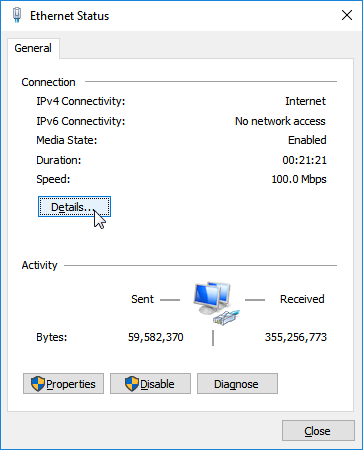
Once logged into your router interface, you need to locate the precise section where IP address modifications occur. This navigation path remains consistent across most router brands, saving you time searching through confusing menus.
Locate Setup Menu in Router Interface
Look for Setup in the main navigation menu at the top of your router’s interface. This menu option typically appears alongside other main categories like Wireless, Security, and Advanced. Click this option to reveal the dropdown choices—don’t be distracted by other menu items that might seem relevant but won’t lead you to IP configuration.
Access Network Settings for IP Modification
From the Setup dropdown menu, select Network Settings. This action opens the configuration page containing all necessary fields for modifying your router’s IP address. The Network Settings page displays your current router configuration, including the existing IP address and subnet mask information. Take a moment to note these values before proceeding—they’ll help you verify changes later.
Change Router IP Address with Precision

The Network Settings page contains all fields required to successfully reset router IP address. Making accurate entries here prevents network disruptions and ensures smooth transition to your new configuration.
Enter New IP Address Correctly
In the Router Settings subsection, find the Router’s New IP Address field. Type your desired IP address here. Common alternatives to the standard 192.168.0.1 include:
– 192.168.1.1 (most common alternative)
– 192.168.2.1
– 10.0.0.1 (for larger networks)
Choose an address that doesn’t conflict with other devices on your network. Avoid addresses ending in .0 or .255 as these serve special network functions and could cause connectivity issues.
Configure Subnet Mask Appropriately
Below the IP field, locate Subnet Mask Configuration. Enter 255.255.255.0 for most home networks. This standard subnet mask accommodates up to 254 devices on your network and works perfectly for typical residential setups. If you’re managing a larger network with more devices, consult your network documentation for appropriate subnet mask values.
Save Changes and Complete Router Reboot Process
After entering your new IP address values, you must properly implement these changes through the router’s save process. Rushing this step causes configuration errors that require starting over.
Click Save Settings and Confirm Changes
Review both the new IP address and subnet mask for accuracy before clicking Save Settings at the bottom of the page. Your router will display a confirmation message—read it carefully as it often includes important information about the reboot process. Click OK or Confirm to proceed with the changes. Don’t navigate away from this page until the confirmation appears.
Wait for Router Reboot Without Interruption
The router automatically restarts to apply your new IP configuration. This process takes 30-60 seconds—resist the urge to power cycle the router manually. During reboot, you’ll temporarily lose connection to the router interface and possibly your internet connection. This interruption is normal and necessary for the changes to take effect properly.
Reconnect Using Your New Router IP Address
Once the router finishes rebooting, you must establish connection using the new IP address you configured. This step often trips up users who forget to update their connection method.
Disconnect and Reconnect to Network Properly
On your computer, disconnect from the network through your Wi-Fi settings or unplug the Ethernet cable. Wait 10 seconds to allow your device to clear the old network information before reconnecting. This brief wait prevents cached connection data from interfering with your new configuration.
Access Router with New IP Address Successfully
Open your browser and enter the new IP address you configured instead of the previous one. The login page should load normally within 10-15 seconds after router reboot completes. Use the same admin credentials to verify the change succeeded—your username and password remain unchanged despite the IP address modification.
Verify Network Functionality After IP Reset
Completing the router IP reset isn’t enough—you must confirm everything works correctly with your new configuration to avoid future problems.
Test Router Access with New IP
Confirm you can reach the router interface using the new IP address by attempting to log in. If successful, the management dashboard loads normally, proving your router IP reset worked. If you encounter issues, double-check that you’re using the exact address you configured without typos.
Check Internet Connectivity Across Devices
Test internet access on multiple connected devices:
– Open several websites on your computer
– Stream video content on your smart TV
– Verify smartphones and tablets maintain connection
– Check smart home devices like thermostats and security cameras
Confirm All Devices Recognize New Network
Check that all devices properly obtain IP addresses through DHCP under the new configuration. Most devices reconnect automatically, but some may need manual Wi-Fi reconnection. If any device fails to connect, restart it or renew its IP address (use ipconfig /renew in Command Prompt for Windows devices).
Troubleshoot Common Router IP Reset Problems
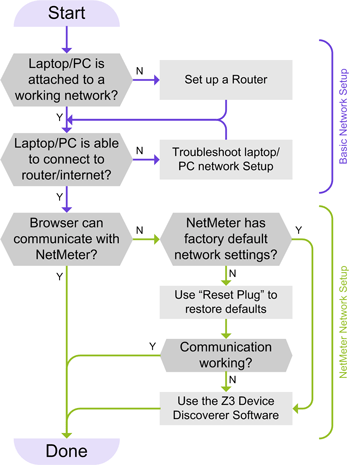
When resetting your router IP address doesn’t work as expected, these solutions resolve most issues without requiring a complete factory reset.
Fix “Cannot Access New IP” Error
If your new IP address doesn’t load after reset:
1. Double-check for typos in the address you’re entering
2. Clear your browser cache or try a different browser
3. Restart your computer to refresh network settings
4. Connect via Ethernet cable for more reliable access
Resolve Network Connection Loss Issues
When devices won’t connect after IP reset:
– Restart affected devices completely
– Forget and rejoin Wi-Fi networks on mobile devices
– Check if new IP range matches your device settings
– Verify DHCP server is enabled on your router
When Factory Reset Becomes Necessary
If major issues persist after resetting router IP:
1. Locate the small reset button on your router’s back
2. Hold for 10-15 seconds with a paperclip until lights flash
3. Wait 2-3 minutes for router to restore factory defaults
4. Reconfigure from scratch using the default 192.168.0.1 address
Prevent Future IP Address Conflicts Proactively
After successfully resetting your router IP address, implement these practices to avoid repeating the process unnecessarily.
Document New Network Settings Immediately
Write down your new IP address and store it in multiple secure locations:
– Save in your phone’s secure notes app
– Write it on the router’s label with a permanent marker
– Store in your password manager with other network details
Reserve Static IPs for Critical Devices
For devices needing permanent addresses (printers, servers, security systems), reserve specific IPs within your new range through your router’s DHCP reservation settings. This prevents conflicts when devices reconnect and ensures consistent network access to essential equipment.
Schedule Regular Network Maintenance
Set monthly reminders to:
– Log into your router using the new IP address
– Check for and install firmware updates
– Review the connected device list for unknown entries
– Verify your IP configuration remains intact
Resetting your router IP address takes just minutes when following these precise steps. Your new IP becomes the permanent gateway for all future router management, giving you complete control over your network configuration. Keep your new address documentation accessible, perform regular maintenance checks, and you’ll avoid most common network issues related to IP address conflicts. With this knowledge, you’ve transformed from a network user into an effective network manager—ready to handle connectivity challenges with confidence.



