Your new Wi-Fi router just arrived, and you’re eager to get online—but how long will it actually take to set up? Most homeowners complete basic router installation within 15-45 minutes, though several critical factors can significantly extend this timeframe. Whether you’re replacing an outdated model or installing your first home network, understanding the realistic time commitment prevents frustration and helps you plan your schedule effectively.
This comprehensive guide breaks down exactly what affects Wi-Fi router setup duration across different brands and configurations. You’ll discover why some setups take less than 20 minutes while others stretch to two hours, plus proven strategies to streamline your installation process regardless of your technical expertise.
Standard Router Setup Timeframes Explained
Single Router Installation: 15-45 Minutes
When you unbox a standard home Wi-Fi router, expect to spend 15-45 minutes from first power-on to fully connected devices. Plug-and-play models with automatic ISP detection often complete in under 20 minutes, especially when using the manufacturer’s mobile app. Manual configuration—required for many third-party routers—typically pushes the process toward the 45-minute mark as you enter ISP credentials and customize security settings.
What consumes the most time: Entering your ISP login details correctly and creating a secure Wi-Fi password that meets current security standards (minimum 12 characters with mixed letters, numbers, and symbols). Many users waste precious minutes re-entering these credentials due to case sensitivity or special character requirements.
Mesh Network Systems: 30-90 Minutes

Whole-home mesh Wi-Fi systems demand significantly more setup time due to additional hardware components. A typical three-unit system like Google Nest WiFi or eero Pro requires 30-90 minutes to complete, with each satellite node adding 5-10 minutes to the process. The extra time comes from strategically placing nodes for optimal coverage, synchronizing them with the main router, and running signal tests between units.
Pro Tip: Place your first satellite node while the primary router setup completes—this parallel task can save 10-15 minutes compared to sequential setup.
Advanced Configuration Setups: 45-120 Minutes
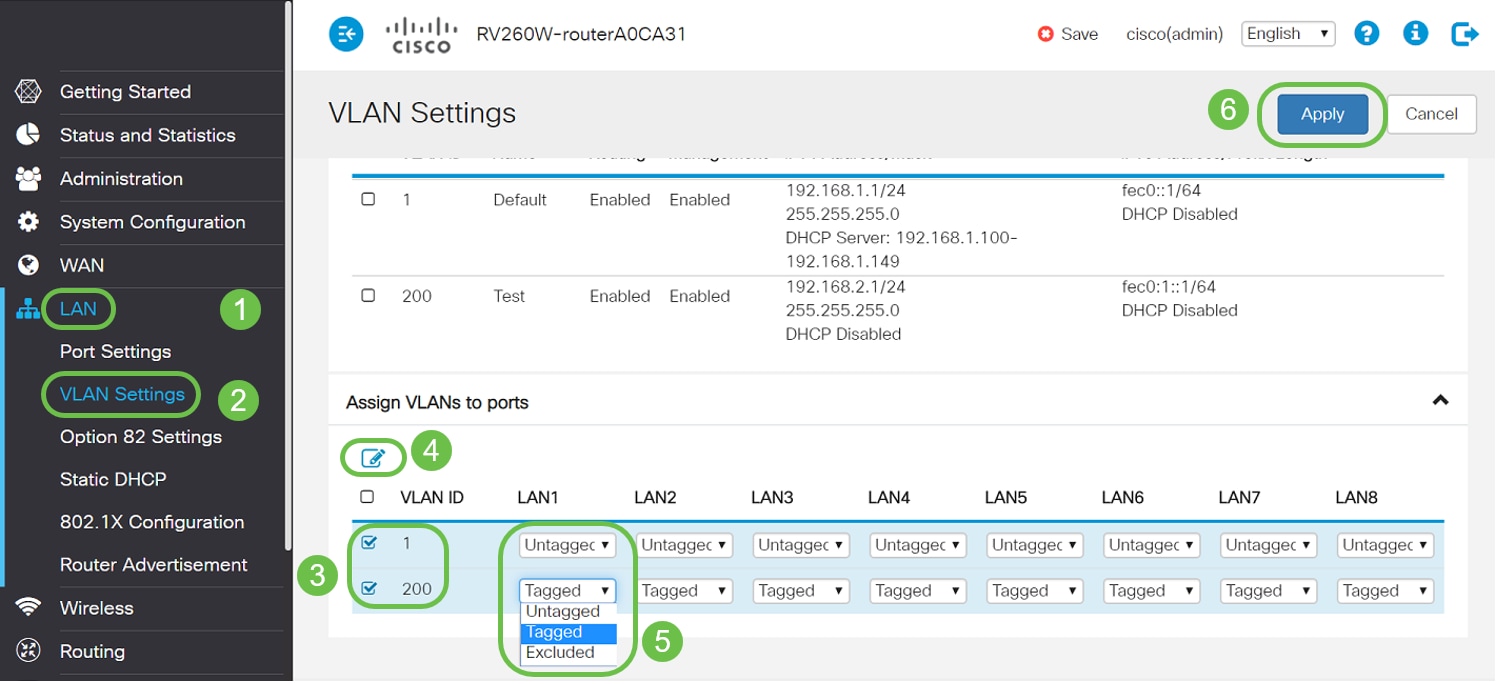
Routers with business-grade features push setup times to 45-120 minutes as you navigate complex menus for VLAN segmentation, guest network isolation, or parental controls. These configurations require additional testing phases where you verify each feature works before proceeding—time most casual users don’t anticipate when purchasing advanced hardware.
Speed Boosters: What Cuts Down Setup Time
Mobile Apps vs. Web Interfaces
Router manufacturers’ mobile apps reduce setup time by 25-40% compared to traditional web browser interfaces. The TP-Link Tether app guides you through visual setup steps with color-coded indicators, while Netgear’s Nighthawk app uses augmented reality to show optimal router placement. These apps eliminate confusing IP address entries and provide real-time feedback during configuration.
What to do: Download your router’s companion app before unboxing—this single step can save 10 minutes during initial setup.
ISP-Preconfigured Hardware Advantage
Routers provided directly by your internet service provider often connect immediately after activation, eliminating manual configuration entirely. AT&T gateway devices and Comcast xFi pods typically achieve internet connectivity within 5 minutes of power-on because they’re pre-loaded with your account credentials and network settings.
Warning: Third-party routers require manual entry of your ISP username/password—have these credentials ready before starting setup to avoid time-wasting trips to your email or account portal.
Common Time Traps That Extend Setup
Firmware Update Delays
Nearly all new routers require firmware updates immediately after connecting to the internet, adding 5-20 minutes to your setup time. These updates happen automatically and cannot be skipped—they’re critical for security and performance but often catch users by surprise. Outdated routers may need multiple sequential updates, extending the process significantly.
How to avoid: Check the manufacturer’s website for the latest firmware version before purchasing. Some retailers offer pre-updated units upon request.
Wi-Fi Password Complexity Challenges
Creating and entering a secure Wi-Fi password (12+ characters with uppercase, numbers, and symbols) adds 2-5 minutes to setup time, with most users needing 2-3 attempts to enter it correctly across multiple devices. This step becomes exponentially longer when connecting numerous smart home devices that lack traditional keyboards.
Solution: Write your password on paper before starting setup. Use a password manager to store it securely for future device connections.
Device Connection Bottleneck
Connecting household devices after router configuration typically requires 10-15 minutes for 5-10 devices. Smart TVs, gaming consoles, and IoT devices often need manual network selection and password entry—time many users don’t factor into their initial setup estimate.
Time-saver: Connect only essential devices during initial setup (phone and laptop), then connect others later when you’re not timing the process.
Brand-Specific Setup Durations Compared
Netgear Routers: 20-45 Minutes
Netgear’s Nighthawk series completes setup in 20-30 minutes when using their mobile app, but jumps to 35-45 minutes with the Genie web interface due to additional configuration screens. Mesh systems like Orbi add 15 minutes per satellite for placement and synchronization. The auto-detection feature works reliably with major ISPs, but manual configuration becomes necessary with smaller regional providers.
Linksys Smart Wi-Fi: 25-35 Minutes
Linksys routers typically need 25-35 minutes for initial setup, with their Smart Wi-Fi interface providing efficient guidance through essential configuration steps. Older models without app support require the full timeframe as users navigate the web interface. Mesh systems add 10-15 minutes per satellite, with the main time sink being the physical placement optimization process.
TP-Link Archer Series: 15-25 Minutes
TP-Link’s Tether app streamlines setup to 15-25 minutes for most Archer models, making them among the fastest to configure. The app’s visual interface minimizes text entry and provides immediate feedback on connection status. When using the web interface as backup, setup extends by 10-15 minutes due to additional menu navigation requirements.
ASUS Routers: 30-40 Minutes
ASUS setup averages 30-40 minutes due to comprehensive configuration options, even for basic functionality. The ASUS Router app simplifies initial connection but advanced features like AiMesh require significant additional time. Users consistently report spending extra minutes exploring the extensive feature set before completing essential setup steps.
5-Minute Router Setup Checklist
Physical Connection Sequence
- Power off your modem and wait 30 seconds (critical for clean handshake)
- Connect router to modem using the included Ethernet cable (2 minutes)
- Power on router and wait for status lights to stabilize (7 minutes)
- Position router centrally away from metal objects and microwaves
Visual cue: When the internet/WAN light turns solid (not blinking), your physical connection is ready for configuration.
Configuration Phase Essentials
- Connect your phone to the router’s default network (appears in Wi-Fi settings)
- Launch the setup app or enter the router’s IP address in your browser
- Follow the guided wizard—don’t skip security setup steps
- Create two network names (one for 2.4GHz, one for 5GHz) with identical passwords
Critical step: Enable automatic firmware updates during setup to prevent future update delays.
Troubleshooting Time Extensions
ISP Activation Delays
New internet service installations often require 15-60 minutes of waiting for signal provisioning—time completely outside your control. Major providers like Spectrum and Xfinity typically complete this remotely, but you’ll need to call support if the router shows “no internet” after 20 minutes.
Modem Compatibility Issues
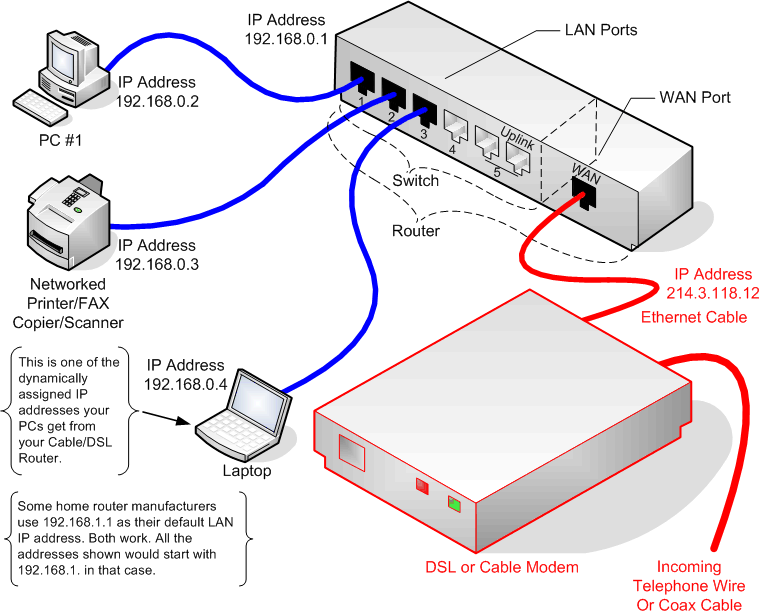
Older cable modems frequently cause 10-30 minutes of troubleshooting when paired with new routers. The most common fix involves power-cycling both devices in sequence: modem first, wait 2 minutes, then router. Check your ISP’s compatibility list before purchasing third-party equipment.
When Professional Installation Makes Sense
Consider professional setup ($50-150) if you’re installing:
– Mesh networks with 3+ satellites
– Business-grade equipment with VLAN requirements
– Integrated smart home systems requiring network segmentation
– Multiple guest networks with bandwidth controls
Professionals complete standard setups in 30-60 minutes while handling complex configurations that might take inexperienced users 2-4 hours. For most basic home setups, however, DIY installation saves money and provides valuable network knowledge.
Speed Up Your Setup: Expert Time-Saving Tactics
Preparation Strategies That Work
- Screenshot current network settings from your old router before disconnecting
- Write down all device MAC addresses needing priority connection
- Schedule setup during off-peak hours (early morning) when ISP servers respond faster
Pro Tip: Keep your phone’s hotspot active during setup—this lets you look up solutions if you lose internet connectivity temporarily.
Setup Order That Minimizes Delays
- Complete all physical connections before powering devices (prevents error states)
- Use mobile app setup exclusively when available (avoid web interface unless necessary)
- Update firmware immediately rather than postponing (prevents future reboots)
- Test one device thoroughly before connecting others (verifies core functionality)
Most users successfully complete basic Wi-Fi router setup within 30 minutes when following these optimized procedures. Mesh systems naturally require more time, but proper preparation transforms what could be a frustrating hour-long ordeal into a smooth 45-minute process. The key lies in understanding your specific equipment requirements and having realistic expectations for each phase—especially the unavoidable firmware update that happens after initial configuration. By anticipating these time factors and avoiding common pitfalls, you’ll be online faster with a more reliable network.