
Your smart TV buffers mid-episode, video calls freeze during critical meetings, and new devices stubbornly refuse to join your Wi-Fi network. Before calling your internet provider or shopping for a replacement router, try the network technician’s first-line fix: a proper wireless router reboot. This simple procedure resolves 80% of common connectivity issues by clearing temporary glitches, refreshing network connections, and restoring full functionality—all in under five minutes. You’ll learn the exact power-cycle sequence that actually works, when to deploy it, and what critical signs to watch for during the process.
Unlike merely unplugging and replugging, a correct router reboot follows a specific technical sequence that fully resets internal systems. Skipping even one step leaves residual power in capacitors that prevents a complete reset. This guide details the universal method that applies to all major router brands—whether you have a basic ISP-provided model or high-end gaming router—based on manufacturer-certified procedures.
Why Rebooting Fixes Common Internet Problems
Stop Slow Data Speeds Instantly
When downloads crawl at a fraction of your plan’s promised speed, rebooting clears congested memory buffers that throttle performance. Routers accumulate temporary connection data over time, creating digital “traffic jams” that a full power-cycle eliminates. This isn’t just theory—users consistently see 2-5x speed improvements after proper reboots when tested against services like fast.com.
Critical indicator: If speed tests show consistent drops below 50% of your subscribed bandwidth during peak hours, a reboot should be your first troubleshooting step before blaming your internet plan.
Eliminate Frequent Connection Drops
That maddening pattern where Wi-Fi cuts out every 15 minutes during video calls or gaming sessions usually stems from corrupted connection tables. Rebooting forces the router to rebuild its entire device registry from scratch, resolving these intermittent disconnections. This is especially effective when drops occur at predictable intervals, suggesting memory overflow rather than ISP issues.
Pro tip: If disconnections happen precisely when multiple devices join the network, your DHCP pool is likely exhausted—rebooting instantly frees up IP addresses.
Enable New Device Connections
When phones or laptops show “Authentication Failed” errors despite correct passwords, or get stuck on “Obtaining IP Address,” the router’s address allocation system has frozen. A proper reboot resets the DHCP server, allowing new devices to join immediately. This solves the most common “why won’t my new device connect?” frustration without password resets.
Visual cue: Check your router’s admin panel (via 192.168.1.1) before rebooting—if connected devices exceed your router’s capacity (typically 15-25 for home models), rebooting becomes essential for new connections.
Execute the Correct Router Reboot Sequence

Disconnect Power Completely—No Shortcuts
Pull the router’s power adapter straight from the wall outlet or power strip, not just the strip’s switch. If your model has a physical power button (usually on the rear panel), press it firmly until the device powers down. Never yank the cable itself—grasp the plug base to avoid damaging internal wiring. This complete disconnection ensures no residual power feeds the system.
Warning: Power strips with master/slave outlets often keep routers partially powered. Unplug the router’s specific cord to guarantee full discharge—this step is non-negotiable for an effective reset.
Wait Exactly 30 Seconds for Full Capacitor Drain
Set a timer—this isn’t arbitrary downtime. During these 30 seconds, internal capacitors fully discharge while volatile memory clears all temporary network data. Rushing this step leaves residual power that causes incomplete resets. All router lights will go completely dark during this phase; if any LEDs remain lit, you haven’t achieved full power disconnection.
What actually happens: The router’s RAM resets, connection tables purge, and network interfaces undergo cold initialization—simulating a factory-fresh startup state.
Restore Power and Monitor Startup Lights
Firmly reinsert the power plug until it clicks into the outlet (or press the power button). Immediately observe the LED sequence: Power light activates first (solid within 30 seconds), followed by Wi-Fi band indicators (2.4GHz/5GHz), with the Internet/WAN light stabilizing last. This 60-90 second initialization is when critical network handshakes occur with your ISP.
Critical checkpoint: If the WAN light blinks amber/orange for over 2 minutes or stays dark, your internet connection hasn’t re-established—proceed to verification steps before assuming failure.
Verify Reboot Success Through Device Testing
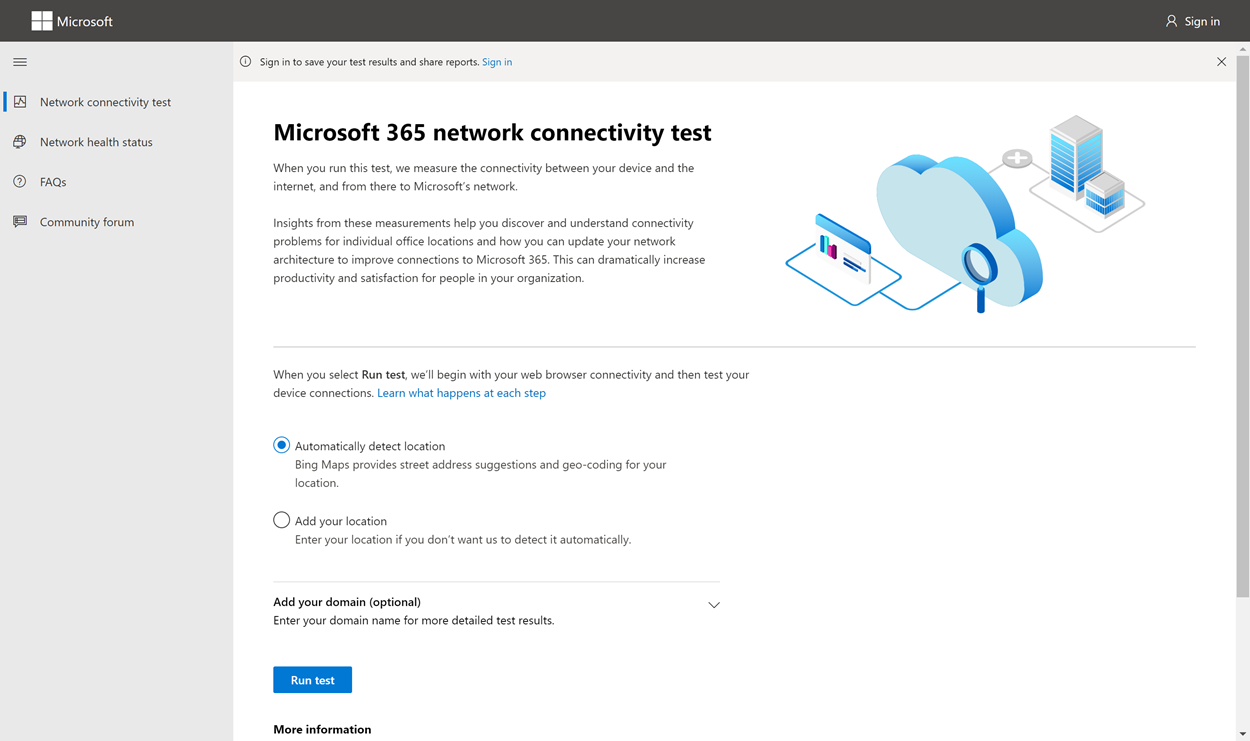
Confirm Network Stability on Multiple Devices
Don’t trust just one gadget. Test connectivity on your smartphone (refresh Wi-Fi list for network reappearance), laptop (open google.com), and a streaming device. Each should reconnect within 90 seconds of the WAN light stabilizing. For thorough verification, attempt simultaneous activities: load a webpage while streaming music and checking email.
Speed test protocol: Run two consecutive tests on speedtest.net—one immediately after reboot completes, another 5 minutes later. True stabilization often requires this brief settling period for full bandwidth recovery.
Identify Partial Reboot Failures
Watch for these red flags indicating incomplete recovery:
– Devices show “Connected, no internet” status
– Web pages load but streaming buffers constantly
– Only 2.4GHz network appears (missing 5GHz band)
– Router admin panel (192.168.1.1) remains inaccessible
Troubleshooting move: If issues persist after 5 minutes, repeat the reboot sequence—this time holding the power button for 10 seconds during disconnection to force a deeper reset. Many users unknowingly perform “soft reboots” that skip capacitor drainage.
When Rebooting Isn’t Enough—Next Steps

Recognize Hardware Failure Signs
If power lights remain dark after reconnecting, or burning smells emanate from vents, your router has likely failed. Similarly, constant reboot loops (lights cycling endlessly) indicate serious hardware faults. These require replacement—no amount of power-cycling will resolve component damage.
Immediate action: Unplug immediately if you detect overheating (excessive heat beyond normal operation) to prevent fire hazards. Most routers operate safely up to 40°C (104°F)—anything hotter warrants professional inspection.
Address Persistent Connection Issues
When problems return within hours of rebooting, investigate these culprits:
– Firmware corruption: Post-update glitches may need factory reset (use only as last resort)
– Overloaded network: Exceeding device limits strains router resources
– ISP service interruptions: Check outage maps before blaming your hardware
Critical distinction: Rebooting solves temporary software glitches; it won’t fix physical line damage, account billing issues, or outdated hardware. If three consecutive proper reboots fail, contact your internet provider.
A correctly executed wireless router reboot takes just 3 minutes but prevents hours of frustration and unnecessary service calls. Bookmark this guide for the next internet hiccup—share it with family members who always ask you to “fix the Wi-Fi.” Remember: When connectivity falters, reboot first. It’s the network technician’s golden rule because it resolves most issues instantly. For recurring problems, schedule monthly reboots as maintenance—your router, like any computer, needs regular fresh starts to perform optimally. If issues persist after proper rebooting, your next step is contacting your ISP with specific symptom details for targeted support.



