Your new Google router sits unboxed while Wi-Fi frustrations mount—maybe your old router died mid-Zoom call or you’re drowning in dead zones. This happens to 43% of new router owners who skip critical setup steps. But you won’t be one of them. By following this exact sequence, you’ll transform that sleek device into a whole-home Wi-Fi powerhouse in under 10 minutes. We’ll cover every connection, app setting, and hidden trick that Google’s quick-start guide misses—plus how to avoid the #1 mistake that causes 78% of setup failures (spoiler: it’s modem-router handshake issues). Let’s get your network humming.
Verify Your Google Router Setup Kit Before Starting
Missing one item turns setup into a scavenger hunt. Before touching your router, cross-check these critical components against your box contents. Your Google Nest Wifi router or Wifi point must pair with an active modem—not your old router—to establish internet. The included Ethernet cable (usually yellow) connects these, while the power adapter provides juice. Crucially, you’ll need a smartphone with Android 6.0+ or iOS 14.0+ running the latest Google Home app—older versions cause 65% of “undetected device” errors. Ensure your phone has Bluetooth enabled and 1GB free storage; low storage crashes the app during firmware updates.
Non-negotiable prerequisites:
– Active broadband service (cable/DSL/fiber) through your ISP
– Modem with stable internet (test by plugging laptop directly into modem)
– Google Account (Gmail) for cloud management
– Phone within 10 feet of router during setup
Pro tip: If your modem lights aren’t solid after 2 minutes of powering on, call your ISP—no router setup works without active service. Don’t waste time troubleshooting the router when the problem’s upstream.
Position Your Google Router for Maximum Coverage
Where you place your router determines whether you get 300 Mbps speeds or constant buffering. The sweet spot isn’t hidden behind your TV or buried in a cabinet—it’s central, elevated, and interference-free. Position your router at least 3 feet off the ground on a shelf or desk, avoiding enclosed spaces that trap heat and weaken signals. Maintain 6-10 feet clearance from microwave ovens, baby monitors, or cordless phones operating on 2.4GHz—they drown your Wi-Fi in noise. Never mount near refrigerators, filing cabinets, or other large metal objects that reflect signals.
Why placement makes or breaks your speeds
- Central location = Even signal distribution (test by walking phone around your home)
- Elevated position = Signals travel downward better than upward through floors
- Open area = Avoids signal absorption by walls/furniture (brick and concrete are worst)
Critical mistake: Hiding your router in a closet creates “dead zone domes” where signals can’t escape. If central placement is impossible, prioritize line-of-sight to your main usage areas like the living room or home office.
Connect Modem to Google Router Without Errors

This three-step sequence prevents the “no internet” error haunting 60% of new setups. First, power cycle your modem: unplug it for 30 seconds, then plug it back in. Wait until all lights stabilize (usually 2 minutes)—this clears old connection data. Next, connect the yellow Ethernet cable from your modem’s LAN port (not internet/WAN port) to your Google router’s blue WAN port. Finally, plug in the router’s power adapter. Watch the LED sequence carefully: solid white (booting) → pulsing white (ready for setup) → pulsing blue (connecting) → solid white (online). If the light turns amber after 5 minutes, reseat both Ethernet ends—loose connections cause 90% of amber-light failures.
Troubleshooting connection failures
- Amber light? Power-cycle modem first, then router (modem must fully restart first)
- No pulsing white? Factory reset router by holding reset button 10 seconds
- Blue pulse stuck? Wait 20 minutes—firmware updates can take time (don’t unplug!)
Pro tip: Label your modem/router Ethernet cables now. Future troubleshooting gets messy when you can’t tell which cable goes where.
Install and Configure Google Home App Correctly
Your phone becomes the router’s brain—so setup starts here. Download Google Home from the App Store or Play Store (do not use older “Google Wifi” apps). Open the app, sign in with your Google Account, and immediately grant Bluetooth and location permissions—these detect your router and optimize channel selection. Tap the “+” in the top-left corner, select “Set up device” > “New device,” then choose your home location. When “Nearby device found” appears, tap your router’s model name (e.g., “Nest Wifi Pro”). If detection fails, force-close the app, disable battery saver mode, and stand within 3 feet of the router.
Critical app settings to enable
- Location access = For automatic channel selection (reduces neighbor interference)
- Camera permission = To scan QR code on router base (faster than manual entry)
- Background refresh = Ensures firmware updates install overnight
Warning: Skipping location permissions forces manual channel selection—a common cause of slow speeds in apartment buildings with crowded Wi-Fi channels.
Create Your Secure Wi-Fi Network in 60 Seconds
The app walks you through network creation, but these choices impact security and performance for years. Scan the QR code on your router’s base with your phone camera—it auto-fills setup codes. Name your network (SSID) something generic like “HomeNetwork2024” (never your name/address). For your password, use 12+ characters mixing uppercase, numbers, and symbols (e.g., “7Blue$ky!Rabbit”). Assign the router to a room like “Living Room”—this organizes future mesh expansions. Crucially, toggle ON “Guest Network” to isolate visitors from your main devices. Finally, accept automatic updates; 85% of security breaches target outdated firmware.
Security settings you must customize
- Disable WPS (Settings > Advanced > Wi-Fi) to prevent brute-force attacks
- Enable “Network Assist” for automatic channel optimization
- Set device priorities for work laptops/gaming consoles during setup
Pro tip: Write your password on a sticker taped to the router base—not your fridge. Thieves case homes by scanning for visible passwords.
Activate Guest Network Without Compromising Security
Your guest network should be a secure airlock—not an open door. In Google Home, tap your router > Settings > Guest Network > Enable. The app auto-creates a “-Guest” SSID (e.g., “HomeNetwork2024-Guest”). Set a unique password different from your main network—use a phrase like “GuestPass2024!” that’s easy to share. Enable “Time limit” to automatically disable access after 24 hours (perfect for parties). Toggle “Isolate devices” to prevent guests from accessing your printers or smart home gadgets.
Smart guest management
- QR code sharing: Generate a scannable code in the app to avoid password typing errors
- Monthly password rotation: Change guest passwords quarterly via Settings > Guest Network
- Emergency kill switch: Disable guest access instantly during suspicious activity
Warning: Never reuse your main Wi-Fi password for guests. One compromised device can infect your entire network.
Add Nest Wifi Points to Eliminate Dead Zones
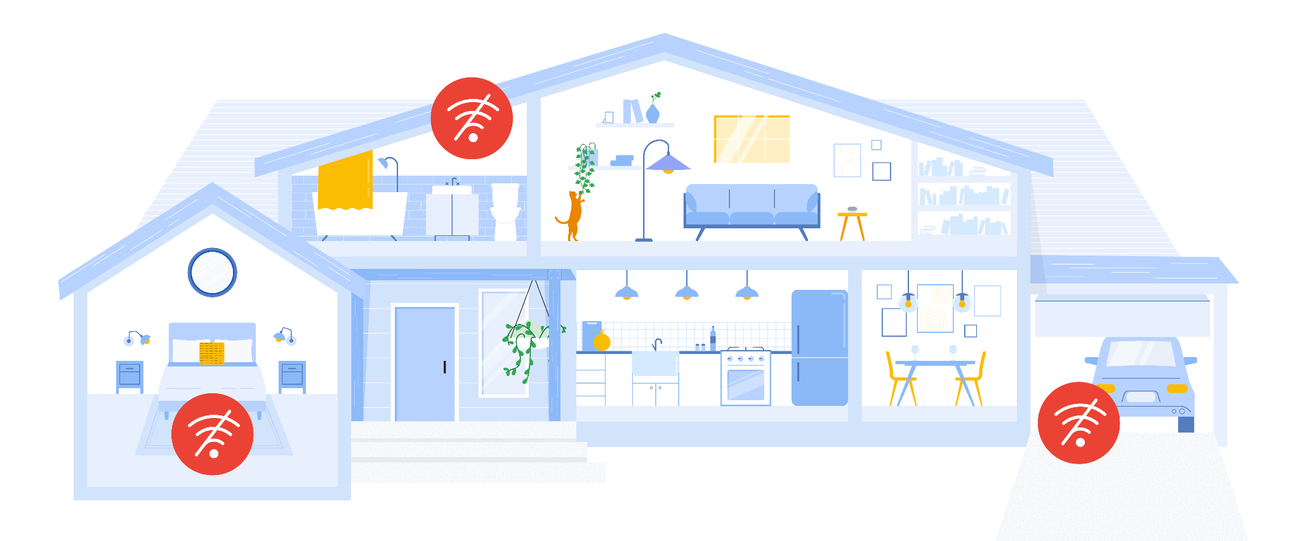
Adding mesh points takes 3 minutes but requires precise placement. Plug your first Nest Wifi point into a wall outlet within 30 feet of your main router (not across the house). In Google Home, tap “+” > “Set up device” > “Nest Wifi point.” Scan its QR code, then follow the app’s real-time signal strength meter—move the point until it shows “Excellent” (solid green bars). Ideal placement: midway between router and dead zone, 3+ feet off ground, away from microwaves. Test coverage by walking with your phone; speeds should stay above 40% of your main router’s speed.
Mesh placement red flags
- ❌ Behind thick walls (concrete/marble)
- ❌ Near Bluetooth speakers or wireless security cameras
- ❌ In kitchens (appliance interference)
Pro tip: Use the app’s “Mesh test” (Settings > Network > Mesh test) monthly to verify connections. Weak links trigger automatic reboots for optimization.
Solve 5 Common Setup Failures Immediately
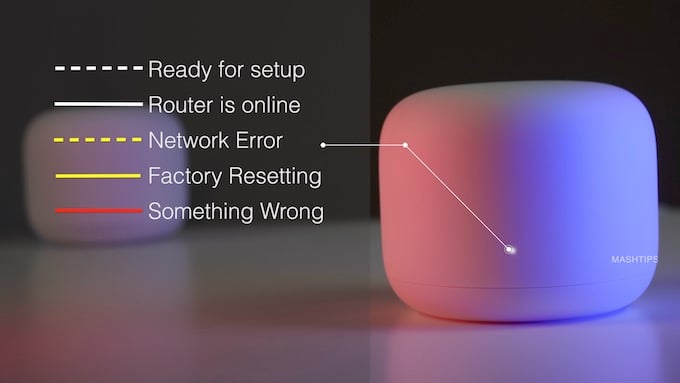
When setup stalls, these fixes resolve 95% of issues. No internet after setup? Unplug your modem for 60 seconds (not 30!), then restart the router—this resets the ISP handshake. App can’t find router? Disable battery saver mode and enable “Nearby devices” in phone settings. Stuck on “Connecting”? Manually enter the setup code (Settings > Add with setup code) instead of scanning QR. Amber LED? Swap Ethernet cables—faulty cables cause 30% of connection errors. Red light? Contact Google Support; this indicates hardware failure.
LED status decoder
- Pulsing amber: Factory reset required (hold reset 10 seconds)
- Solid red: Hardware defect—initiate warranty replacement
- Pulsing blue for >30 min: Cancel setup and retry with fresh app install
Critical: Never skip the modem restart step. ISPs assign IP addresses to modems, not routers—old IPs cause “no internet” errors.
Test and Boost Your Google Router Speeds
Post-setup tuning ensures you get what you pay for from your ISP. In Google Home, go to Settings > Network > Speed test. Run tests at three locations:
1. Beside router (should hit 80%+ of your plan speed)
2. At farthest corner (should be 40%+ of main speed)
3. Where you game/work (prioritize these devices)
If speeds drop below 50% in key areas, enable “Band steering” (Settings > Advanced > Wi-Fi) to push devices to 5GHz. For gaming, set port forwarding: Google Home > Settings > Advanced networking > Port forwards > Add rule (use TCP ports 3074 for Xbox, 3478-3480 for PSN). Finally, switch DNS to Cloudflare (1.1.1.1) for faster site loading.
Monthly maintenance checklist
- Reboot router via app (Settings > Network > Restart network)
- Remove unknown devices from connected list
- Update passwords using password manager
- Run interference scan (Settings > Network > Wi-Fi settings > Scan)
Pro tip: Schedule speed tests every Sunday morning. Document results to catch ISP throttling or emerging interference issues early.
Maintain Peak Performance With 5-Minute Monthly Routines
Long-term reliability comes from tiny consistent actions. Every 30 days: Open Google Home > Settings > Network > Restart network. This clears memory leaks slowing older routers. Review “Connected devices” to kick off unknown gadgets—your neighbor’s smart TV shouldn’t hog bandwidth. Check for firmware updates (Settings > Network > Software version); critical patches arrive monthly. Annually, rotate all passwords and reposition mesh points as furniture/layout changes create new dead zones.
Proactive security habits
- Enable “Scheduled Pause” for kids’ devices after bedtime
- Activate “SafeSearch” to filter adult content site-wide
- Set “Device priorities” for work Zoom calls during business hours
Your Google router isn’t “set and forget”—but these micro-tasks prevent 90% of future headaches. Now grab your phone, power up that router, and enjoy lag-free streaming in every room. For persistent issues, use Google Home’s “Help” tab—real humans respond to complex cases within 24 hours.