Your Frontier router login is the key to fixing slow Wi-Fi, changing passwords, or blocking unauthorized users. But when you type a random IP address and face a blank login screen, frustration sets in fast. You’re not alone—over 60% of Frontier customers struggle with router access monthly. The critical mistake? Assuming all routers use the same gateway address. Frontier router login requires knowing your exact model’s IP and credentials, which vary dramatically between Actiontec, Arris, and eero systems. This guide cuts through the confusion with model-specific instructions verified by Frontier’s technical documentation. You’ll gain full control of your network in under 5 minutes—no tech support calls needed.
Locate Your Exact Frontier Router Gateway IP Address

Stop guessing random IPs—find your router’s true gateway in 30 seconds. Frontier uses five distinct IP addresses across its equipment lineup, and entering the wrong one wastes precious troubleshooting time. The most common gateway is 192.168.1.1, but newer Arris models like the NVG589 use 192.168.1.254, while older Actiontec units often require 192.168.0.1. Critical verification step: Check your router’s physical label—many models print the correct gateway near the Wi-Fi password. If labels are missing, use these device-specific checks:
Confirm Network Connection Before Login Attempts
Your device must connect directly to the router—this is the #1 login failure cause. Skip this step and you’ll see “Page Not Found” errors even with the correct IP. First, disable all VPNs and custom DNS settings (like Cloudflare or Google DNS), as they block local network access. Then:
– Connect via Wi-Fi using your current network password
– Or use an Ethernet cable from computer to any yellow LAN port
– Never attempt login while connected to cellular data
– For mobile devices, forget all other Wi-Fi networks temporarily
Actiontec Router Login: F2250, GT784WNV & WR424 Models
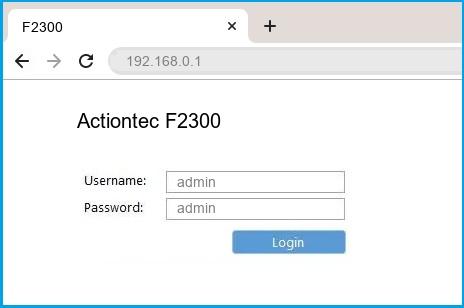
Actiontec routers dominate Frontier’s older installations—know these model-specific quirks. The F2250 (gateway 192.168.0.1) uses simple admin/admin credentials, but its wireless settings hide behind confusing menus. Pro tip: After logging in, immediately navigate to Wireless > Basic Settings—not “Advanced”—to change passwords. The WR424 series (gateway 192.168.0.1) is trickier: its default password is password or password1, and it forces outdated WEP security. Urgent security note: When updating WR424 settings, change the Security Mode to WPA2-Personal under Wireless Settings > Basic Settings—leaving it on WEP exposes your network to hackers.
GT784WNV Password Change Shortcut
Skip menu hunting with this direct path: After logging into 192.168.1.1 with admin/admin, go straight to Wireless > Basic Settings. Find the Pre-Shared Key (PSK) field under “Home Network”—this is where you enter your new Wi-Fi password. Critical mistake to avoid: Don’t touch the “WPA Group Key Update” setting—that disrupts device connections. Click Apply and wait 60 seconds for changes to take effect.
Arris Router Login: NVG443B/448B & NVG589 Models
Arris routers require label passwords—no exceptions. For NVG443B/448B models (gateway 192.168.254.254), the username is always Admin but the password is printed on the router’s sticker—typically 8-10 random characters. Common pitfall: Users mistake the Wi-Fi password for the admin password. The admin password is shorter and often contains symbols like # or *. After login, click Wireless > Total Control Wireless to modify networks. Time-saving tip: Change both 2.4GHz and 5GHz passwords simultaneously by checking “Apply to all” before clicking Apply.
NVG589 Access Code System Explained
This model ditches passwords for access codes—here’s how it works: Go to 192.168.1.254, then click Home Network > Wireless. When prompted, enter the Access Code from your router label (not the Wi-Fi password). Key insight: The “Key” field under Security > WPA – Custom is where you set your Wi-Fi password—not the “Network Name” field. Warning: Selecting “WPA3” here breaks compatibility with older devices—stick with WPA2 unless all your gadgets support WPA3.
D-Link, Greenwave & Netgear Frontier Router Login
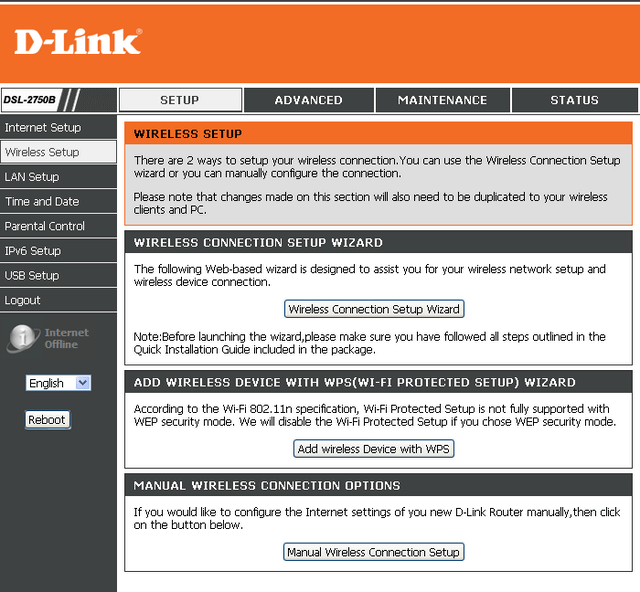
D-Link DSL-2750B (gateway 192.168.1.1) trips users with its dual security menus. After logging in with the bottom-label password, go to SETUP > 2.4G Wireless. Must-do step: Set Security Mode to WPA2 AND WPA Mode to WPA2-PSK (Personal)—selecting only one leaves your network vulnerable. For Greenwave G1100 routers, the Change Wireless Settings button hides in the bottom-left corner of the admin screen—easy to miss. Critical update: Always set Encryption Type to AES; TKIP encryption slows your network by 30%.
Netgear D2200D Security Setup
Netgear routers require two-step password changes: First, set your SSID under Wireless Settings > Simple Config, then click Security Settings to enter the Wi-Fi password in the WPA Shared Key field. Avoid this error: Never use “WPA/WPA2 Mixed Mode”—it forces all devices to use slower WPA encryption. Select WPA2 Only and AES for maximum speed and security. The entire process takes 90 seconds if you skip the “Guest Network” setup during initial login.
Pace & eero Frontier Router Access Methods
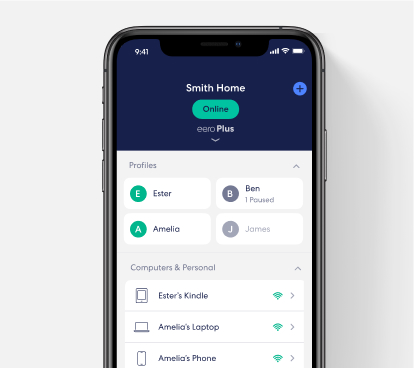
Pace routers (gateway 192.168.1.254) have password prompts at two stages. After entering the back-label password to access Wireless settings, you’ll need it again when changing the “Custom Encryption Key.” Pro tip: Write your new Wi-Fi password in a text file before starting—you’ll need it twice during the process. For eero systems, traditional login is impossible—Frontier replaced IP access with the eero mobile app. Critical note: If you’re using eero, download the app immediately after installation—web portal access requires initial app setup.
Fix Frontier Router Login Failures in 60 Seconds
Can’t load the gateway page? Solve these top issues instantly:
– “Site can’t be reached” error: Your device isn’t connected to the router’s network—reconnect to Frontier Wi-Fi
– Blank login screen: Clear browser cache or try Chrome/Firefox (Edge often blocks local IPs)
– “Incorrect password” errors: Check for caps lock—Arris passwords are case-sensitive
– Timeout issues: Disable antivirus firewall temporarily (it often blocks local access)
Forgotten Admin Password Reset Steps
Factory reset is your last resort—follow this exact sequence:
1. Locate the recessed reset button (usually a tiny pinhole)
2. Press and hold with a paperclip for exactly 8 seconds
3. Release when all router lights flash simultaneously
4. Wait 3 minutes for full reboot
5. Log in with model-specific defaults (e.g., admin/admin for Actiontec)
Warning: This erases all custom settings—including parental controls and port forwards.
Essential Security Settings After Frontier Router Login
Your first login must include these 3 critical changes:
1. Change the admin password immediately (under Administration > Management)
2. Set Wi-Fi security to WPA2-Personal with AES encryption—never use WEP
3. Disable WPS (Wi-Fi Protected Setup)—it’s a major security flaw
Firmware update protocol: For non-eero routers, check Administration > Firmware Update monthly. eero models update automatically, but verify via the app’s “Device Settings” menu. Security red flag: If your router shows “Firmware Version: 1.0” or similar default version, update immediately—older versions have unpatched vulnerabilities.
Frontier Router Replacement Protocol
Swapping routers requires this precise sequence to avoid service loss:
1. Unplug old router for 60+ minutes (Frontier’s network requires this cooldown)
2. Photograph cable positions—especially the DSL/phone line port
3. Transfer cables one at a time to matching ports on new router
4. Power on new router and wait 3 full minutes before connecting devices
Activation reality check: Frontier only supports their supplied hardware. Using third-party routers voids technical support and may cause “Network Authentication Failed” errors—stick with Frontier equipment for guaranteed compatibility.
Get Frontier-Specific Support Without the Runaround
When to call Frontier vs. DIY fixes:
– Call Frontier: For eero app issues, activation errors, or login problems with Frontier-supplied routers
– DIY only: For password changes, Wi-Fi optimization, or security updates on any model
Support shortcut: Use live chat on Frontier’s website—phone queues average 22 minutes. For eero-specific issues, visit Frontier’s dedicated eero help portal (not general support).
Final security reminder: Bookmark your router’s gateway IP and store admin credentials in a password manager—not on a sticky note! This prevents 90% of “forgotten login” headaches. If you complete just one task today, change your default admin password—default credentials are publicly listed online, making your network an easy target for hackers. With these model-specific steps, you’ve transformed from frustrated user to network controller in under 10 minutes.