Your video calls keep freezing during important meetings. Netflix buffers endlessly despite your expensive internet plan. The problem isn’t your ISP—it’s likely your router broadcasting on the same frequency as dozens of neighboring networks. Changing your router frequency can transform spotty WiFi into reliable connectivity in just minutes, without spending a dime on new equipment.
This isn’t about upgrading hardware—it’s about optimizing what you already own. Millions of households suffer from WiFi interference because they’ve never adjusted their router’s frequency channels. In this guide, you’ll learn exactly how to change router frequency across all three bands (2.4 GHz, 5 GHz, and 6 GHz), avoid common pitfalls, and identify which channels actually work in your specific environment. You’ll be troubleshooting like a network professional before your coffee gets cold.
Connect to Router Admin Panel Without Losing Access
Locate Your Router’s Gateway Address
Before changing router frequency, you need secure access to your router’s settings. Flip your router over and find the sticker showing the default IP address—typically 192.168.1.1 or 192.168.0.1. Connect your computer directly to the router via Ethernet cable if possible; this prevents disconnection when you change WiFi settings. If using WiFi, ensure you’re connected to the network you’re optimizing.
Access Wireless Settings Safely
Open any web browser and type your router’s IP address into the address bar. When prompted, enter the username (usually “admin”) and the password from your router’s label or your custom password. Never use public WiFi for this process—security risks could expose your network. Once logged in, immediately navigate to the Wireless Settings section; most routers organize these under clear tabs like “WiFi” or “Wireless.”
Fix 2.4 GHz Interference with Proper Channel Selection

Why Only Channels 1, 6, and 11 Work in Crowded Areas
The 2.4 GHz band suffers most from interference because it’s used by everything from microwaves to Bluetooth devices. Contrary to what you might think, channels 2-5 and 7-10 overlap with adjacent channels, creating signal collisions. Your router frequency must use channels 1, 6, or 11—they’re the only non-overlapping options in the 2.4 GHz spectrum. Attempting to use other channels actually worsens performance by creating interference with multiple networks simultaneously.
Test Channels During Peak Usage Hours
Don’t just pick a channel and hope for the best—test methodically:
1. Change to channel 1 and run a speed test for 2 minutes
2. Switch to channel 6 and repeat the test
3. Try channel 11 with another test cycle
4. Compare results and select the fastest channel
Check signal strength in problem areas like your bedroom or home office during each test. Many people make the mistake of testing only near the router, missing dead zones where interference matters most.
Optimize 5 GHz Performance with Strategic Channel Width
Match Channel Width to Your Environment
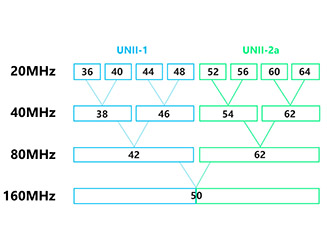
Unlike the crowded 2.4 GHz band, 5 GHz offers cleaner spectrum but requires smarter configuration. The channel width setting dramatically impacts performance:
- 20 MHz: Best for apartment buildings with many networks (maximum stability)
- 40 MHz: Ideal for suburban homes (balanced speed and reliability)
- 80/160 MHz: Only use in rural areas with minimal interference (maximum speed)
Resist the temptation to always select the widest channel—this often backfires in dense neighborhoods by capturing more interference. Start with 40 MHz and only increase if speed tests show significant improvement without connectivity drops.
Verify Regional Channel Restrictions First
Your location determines available 5 GHz channels due to government regulations. When accessing your router settings, look for the region selector—changing this incorrectly may violate local laws. Most modern routers automatically detect your region, but verify it matches your country before making changes. If you see channels like 120-144 unavailable, this is normal for North American routers due to regulatory restrictions.
Configure 6 GHz Band Correctly for WiFi 6E/7 Devices
Select Valid Preferred Scanning Channels
When changing router frequency on the new 6 GHz band (available only on WiFi 6E and WiFi 7 routers), you must choose from specific Preferred Scanning Channels (PSCs). These are predefined 20 MHz channels that ensure compatibility with all WiFi 6E/7 devices. Randomly selecting any channel within the 6 GHz spectrum will cause connection issues—your router’s interface should clearly label PSC options. If you don’t see PSC selections, your router may not properly support 6 GHz optimization.
Maintain Dual-Band Networks During Transition
Don’t disable your 2.4 GHz and 5 GHz networks when configuring 6 GHz. Most devices still can’t access 6 GHz, so turning off older bands will disconnect phones, laptops, and smart home devices. Keep all bands active while optimizing—designate 6 GHz for bandwidth-heavy tasks like 4K streaming while using 5 GHz for general computing and 2.4 GHz for IoT devices.
Execute NETGEAR Frequency Changes Without Disruption
Navigate NETGEAR Interface Efficiently
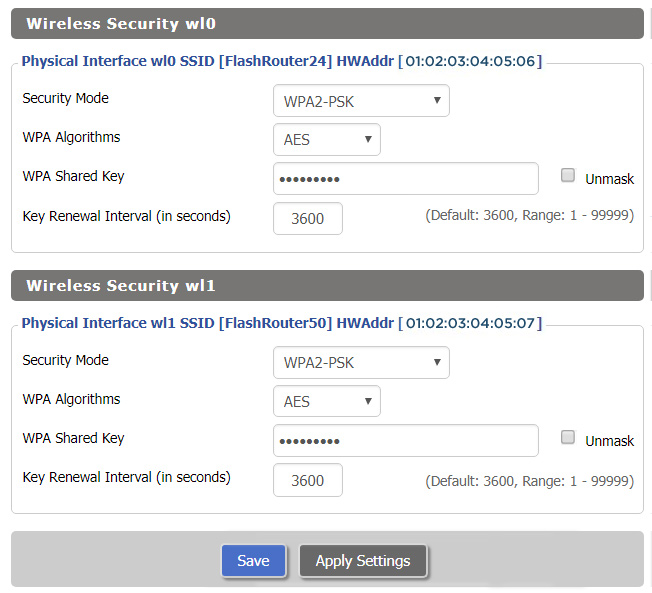
For NETGEAR routers, skip typing IP addresses—simply visit routerlogin.net in your browser while connected to the network. After logging in with “admin” and your password:
- Click “Wireless” on the BASIC Home screen
- Select your region from the dropdown menu
- Choose the band (2.4GHz, 5GHz, or 6GHz)
- Pick your channel from the Channel menu
- Click “Apply” and wait for router to restart
This process takes under 30 seconds. Never skip verifying your region setting—incorrect region selection limits available channels and may cause legal compliance issues.
Synchronize Extenders Immediately After Changes
If you use NETGEAR WiFi extenders, they must mirror your router’s channel settings. After changing your router frequency, log into each extender and update its channel to match. Mismatched channels create “dead zones” where devices struggle to roam between router and extenders. The NETGEAR Nighthawk app automatically detects channel mismatches—use this free tool to verify proper configuration.
Verify Channel Changes with Real-World Testing
Conduct Practical Performance Checks
Don’t rely solely on speed test numbers—validate real-world usability after changing router frequency:
- Stream a 4K YouTube video for 5 minutes without buffering
- Make a Zoom call while walking through your home
- Download a large file to multiple devices simultaneously
- Check smart home device responsiveness
Many users make the mistake of testing only one device or one location. Interference problems often appear only in specific areas or during certain activities.
Monitor Performance for 24 Hours
WiFi interference varies throughout the day as neighbors use different devices. Check your network performance during:
– Morning rush hour (6-9 AM)
– Workday midday (1-3 PM)
– Evening peak (7-10 PM)
– Late night (11 PM-1 AM)
A channel that works perfectly at noon might fail during evening streaming hours when more neighbors are online. This 24-hour monitoring reveals patterns automatic channel selection often misses.
Prevent Sonos and Extender Conflicts When Changing Frequency
Configure Sonos Systems Properly
Your Sonos setup determines how you should change router frequency:
– Wired Sonos: Manually set router channel away from Sonos’ channel
– Wireless Sonos: Leave router on “Auto” channel selection
Changing router frequency while Sonos connects wirelessly to your WiFi often causes playback interruptions. If you have wired Sonos speakers but wireless surrounds, configure your router manually but keep the 5 GHz band on Auto for Sonos connectivity.
Match Extender Channels Exactly
WiFi extenders must use identical channels as your main router—no exceptions. After changing router frequency, log into each extender’s admin panel and set its channel to match. Different channels create network confusion where devices repeatedly disconnect and reconnect. For mesh systems like Orbi, the satellite units automatically sync, but verify this in your router’s topology view.
Maintain Optimal WiFi Performance Long Term
Schedule Monthly Channel Checks
Wireless environments change constantly—new neighbors move in, devices get added, and seasonal factors affect signals. Set a monthly calendar reminder to:
1. Run a WiFi analyzer scan
2. Test alternative channels
3. Document current settings
4. Note any performance changes
Apartment dwellers should check channels quarterly, while suburban users can stretch to bi-monthly checks. Documenting your settings creates a performance baseline to compare against.
Reboot Router Before Reconfiguring
Always reboot your router before changing frequency channels. This forces the router to re-scan the wireless environment and often resolves temporary interference without manual changes. Simply unplug your router for 30 seconds, then reconnect—many “channel problems” disappear after this simple step. If issues persist after reboot, then proceed with channel changes.
Key Takeaway: Changing router frequency properly takes just 8 minutes but delivers immediate WiFi improvements. Start with 2.4 GHz channels 1, 6, or 11—never others—and test during your actual usage times. Verify 5 GHz channel width matches your environment, and always use PSCs for 6 GHz. Most importantly, test real-world performance beyond speed tests. Within one evening, you’ll transform frustrating connectivity into reliable WiFi that finally matches the internet speeds you’re paying for—no new hardware required.