Your new Verizon Fios router arrives and you’re ready to cut the cord with technician fees—good news! Most customers successfully complete this how to set up Verizon Fios router process in under 30 minutes without professional help. Whether you’re replacing outdated equipment or activating fresh service, this guide eliminates guesswork with precise instructions verified by Verizon’s official documentation. We’ll cover critical pre-checks, physical setup nuances, and configuration tricks most guides miss, plus troubleshooting for those frustrating “why won’t it connect?” moments. By the end, you’ll have a secure, high-performance network that actually delivers your plan’s promised speeds.
Verify Self-Install Eligibility Before Unboxing
Don’t assume your address qualifies for DIY setup—Verizon restricts self-installation based on infrastructure availability at your specific location. Check your order confirmation email for “Self-Install” verification or log into My Verizon portal where eligible addresses display “Activate Yourself” options. If uncertain, call Verizon support before unboxing to avoid wasted effort. Crucially, maintain your current internet service until Fios is fully operational; this prevents dead zones during transition. Remember: Billing starts when you activate the equipment, not when it arrives, so you control the timing without penalty.
Identify Every Component in Your Fios Kit

Your installation package contains specific hardware depending on your service plan:
- Primary router (labeled “Verizon Router” or “Fios Router”)
- Coaxial cable (for most standard installations)
- Power adapter with detachable cord
- Ethernet cable (Cat5e/Cat6 for ONT connections)
- Optical Network Terminal (ONT) – the critical grey box usually pre-installed in basements or garages
Critical check: Locate your ONT immediately—it’s the fiber entry point to your home. Verify its power light shows solid green; without this, your router won’t function regardless of setup steps. If the ONT lacks power, plug it into a working outlet before proceeding. Never confuse the ONT with your router—they’re separate devices working in tandem.
Position Your Router for Maximum Coverage
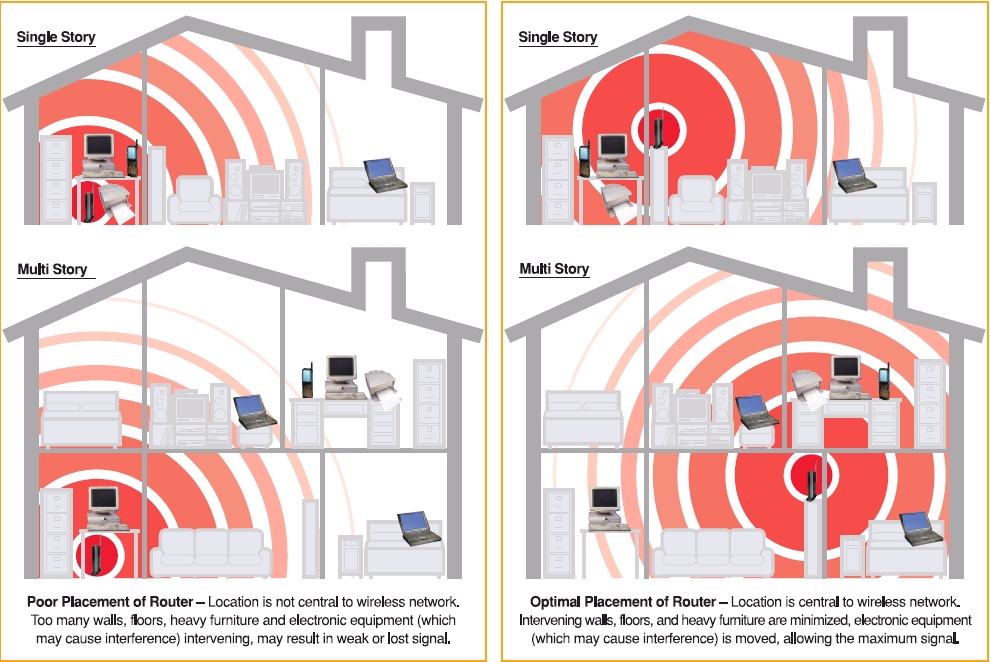
Poor placement causes 70% of “weak signal” complaints—fix this upfront with strategic positioning:
Ideal spots:
– Central living area on an elevated surface (3-4 feet high)
– Minimum 3 feet from exterior walls and metal objects
– Clear line-of-sight to high-traffic zones like home offices
Dead zones to avoid:
– Inside entertainment cabinets (metal blocks signals)
– Near kitchen appliances (microwaves disrupt 2.4GHz band)
– On the floor (signals travel horizontally, not downward)
– Behind mirrors or large furniture
Pro tip: Temporarily place your router where you plan to use it most—like your WFH desk—during setup. Once activated, test speeds in problem areas before final placement. If dead zones persist, consider a Wi-Fi extender (not included in basic kits).
Establish Physical Connections Correctly
Power Up Sequence
- Plug the power adapter into your router, then into a wall outlet
- Wait 90 seconds for lights to stabilize (solid green power light = ready)
- Never skip: Verify ONT is powered before router activation
Choose Your Connection Method
Coaxial Setup (Most Common):
– Connect coaxial cable from wall outlet to router’s coax port
– Hand-tighten only—overtightening strips threads
– Ensure cable has no sharp bends (kinks cause signal loss)
Ethernet Setup (Fiber Direct):
– Connect Ethernet cable from ONT’s data port to router’s WAN port (labeled “Internet”)
– Use provided Cat6 cable for gigabit speeds
– Confirm WAN port light turns solid white after connection
Warning: Never connect coaxial and Ethernet simultaneously—this damages equipment. Your installation type depends on Verizon’s infrastructure at your address.
Complete Web Activation in 5 Minutes
Initial Device Connection
- On your phone/laptop, select network named “Verizon-XXXX” (found on router label)
- Enter default password (also on label—case-sensitive!)
- Open Chrome, Safari, or Firefox—do not use Edge (known compatibility issues)
Activation Wizard Essentials
Navigate to https://www.verizon.com/setup where you’ll:
- Verify account: Enter your Verizon account number (faster than waiting for SMS)
- Name your network: Create SSID like “SmithHome_5G” (avoid personal details)
- Set password: Use 12+ characters mixing uppercase, numbers, and symbols (e.g., “PurpleTiger$42!Rides”)
- Enable WPA3: Select this security protocol if available for hacker protection
Time-saver: Bookmark this page—router admin access later uses http://192.168.1.1. Never share credentials during setup; Verizon reps won’t ask for them.
Configure Dual-Band Wi-Fi for Real-World Use
Optimize Band Settings
After basic activation, access router settings at http://192.168.1.1 to:
- Enable band steering: Lets devices auto-switch between:
- 5GHz band: Faster speeds (ideal for 4K streaming/gaming) but shorter range
- 2.4GHz band: Better wall penetration (use for smart home devices)
- Use identical SSIDs: Name both bands “SmithHome” so phones/laptops switch seamlessly
Create Secure Guest Network
Under “Guest Access” settings:
– Limit guests to internet-only (blocks smart home devices)
– Set 24-hour auto-disable for contractor visits
– Restrict bandwidth to 50% to preserve your main network speed
Critical step: Change default admin password immediately—hackers scan for “admin/password” combos. Use a unique 15-character phrase like “Router#BlueSky$2024!”.
Test Connection Like a Network Engineer
Validate Speeds Properly
Don’t trust single speed tests—use this protocol:
1. Test near router: Should hit 90%+ of your plan speed
2. Test in farthest room: Acceptable if >50% of plan speed
3. Red flags: Consistent speeds below 30% warrant troubleshooting
Real-World Performance Checks
- Streaming test: Load YouTube in 4K—buffering = signal issues
- Video call test: Start Zoom call while downloading files
- Multi-device test: Have family members stream simultaneously
Pro insight: Speeds dip during peak hours (7-11 PM)—test during these times to gauge real performance. If Netflix buffers but speed tests show 500Mbps, check device compatibility.
Fix Top 4 Setup Failures Immediately

No Internet After Activation
Do this first: Power cycle BOTH devices:
1. Unplug ONT and router
2. Wait 60 seconds (resets network handshake)
3. Plug in ONT first—wait for solid green light
4. Then power router
If lights stay amber: Check coax/Ethernet connections. Loose cables cause 80% of “no internet” cases.
Can’t Access Setup Page
Quick fixes:
– Restart your phone/laptop’s Wi-Fi
– Clear browser cache (Ctrl+Shift+Del on Chrome)
– Try incognito mode—ad blockers often break setup
– Direct IP access: Type http://192.168.1.1 if verizon.com/setup fails
Weak Signal in Specific Rooms
Immediate solutions:
– Reposition router away from cordless phones (major 2.4GHz interferers)
– Switch smart home devices to 2.4GHz band (freeing 5GHz for streaming)
– For concrete walls: Place router near windows facing dead zones
Forgotten Wi-Fi Password
Recovery without reset:
1. On Android: Go to Wi-Fi settings > Share password (QR code)
2. On iPhone: Ask Siri “What’s my Wi-Fi password?”
3. Check router label for default password (if never changed)
Warning: Factory resetting (holding button 10+ seconds) erases all custom settings—use only as last resort.
Secure Your Network Within 24 Hours
Complete these critical tasks before connecting all devices:
– [ ] Replace default admin password (under “Advanced Settings > Administration”)
– [ ] Enable automatic firmware updates (prevents security breaches)
– [ ] Review “Connected Devices” list—remove unknown gadgets
– [ ] Activate parental controls if kids use the network
Security pro tip: Disable WPS (Wi-Fi Protected Setup)—it’s vulnerable to brute-force attacks. Find this in “Wireless Settings > Advanced”.
Maintain Peak Performance Long-Term
Monthly Optimization Routine
- First Tuesday: Run speed tests at 8 AM, 1 PM, and 9 PM
- Quarterly: Rotate router antennas vertically for signal diversity
- After firmware updates: Reboot ONT (not just router) for full sync
When to Call Verizon
Contact support immediately if:
– Speeds drop below 30% of your plan consistently
– Router shows red “Service” light after power cycling
– You need to transfer equipment to a new address (they verify compatibility)
Key insight: Older routers (pre-2020) may need replacement during moves—Verizon often upgrades these free during relocation.
Document Critical Information Securely
Store these details in a password manager (not on paper!):
– Custom Wi-Fi name/password
– Router admin credentials (separate from Wi-Fi password)
– Verizon support number: 1-800-VERIZON (837-4966)
– Your account number (found in My Verizon portal)
Pro move: Take a photo of the router’s label showing default credentials—delete it after changing passwords. This saves emergency resets.
Final verification: Open three unrelated sites (e.g., google.com, nytimes.com, bbc.com) simultaneously. If all load in under 5 seconds, your how to set up Verizon Fios router process succeeded. For ongoing optimization, run monthly speed tests during peak hours and reboot your ONT quarterly—this prevents the “slow internet” drift affecting 40% of users. Remember: Proper placement and security configuration matter more than router specs for real-world performance. Your high-speed network is now ready for everything from 4K streaming to work Zoom calls without buffering.