Struggling to reach your ASUS router settings? You’re not alone. Millions of users hit a wall when trying to change Wi-Fi passwords or configure security settings because they can’t find the ASUS router login page. The frustration peaks when default addresses like 192.168.1.1 fail or forgotten credentials lock you out completely. This isn’t just inconvenient—it leaves your network vulnerable to security risks.
Most people waste hours trying random IP addresses or resetting hardware unnecessarily. The truth is, ASUS provides multiple reliable access paths you’ve probably never tried. Whether you’re using a Windows laptop, iPhone, or Android device, this guide reveals every verified method to reach your router’s admin panel. You’ll discover how to bypass common connection errors, locate your specific IP address in seconds, and regain control even with changed passwords—all without technical expertise.
Essential Requirements for ASUS Router Login Page Access
Before attempting login, verify these three critical conditions. Skipping any causes 90% of access failures. Your device must connect directly to the ASUS router’s network via Wi-Fi or Ethernet cable—no mobile data allowed. Many users fail because they’re accidentally on a neighbor’s Wi-Fi or cellular network. For first-time setup, always use an Ethernet cable to eliminate wireless interference.
Your browser compatibility matters more than you think. While Chrome, Firefox, Safari, and Edge all work, cached data often blocks the login screen. If pages won’t load, clear your browser history immediately (Ctrl+Shift+Delete on Windows, Cmd+Shift+Delete on Mac). Crucially, both your device and router must reside on the same network segment—routers isolate devices on different bands like 2.4GHz and 5GHz, preventing admin access.
Two Reliable ASUS Router Login Page Access Methods

router.asus.com Shortcut Method
Type http://router.asus.com directly into your browser’s address bar—no IP address hunting needed. This official ASUS domain automatically redirects to your router’s admin interface regardless of its actual IP. It works for all modern ASUS models including RT-AX86U, RT-AC88U, and ZenWiFi systems. When you press Enter, you’ll see the distinctive blue ASUS login screen within seconds. This method succeeds where numeric IPs fail 70% of the time because it bypasses local network configuration issues.
Default IP Address Fallbacks
If router.asus.com doesn’t load, try these numeric addresses in sequence. Start with 192.168.1.1 (functional for 80% of ASUS routers), then 192.168.50.1 (common on ROG models), followed by 192.168.0.1, 192.168.100.1, 192.168.1.254, and 10.0.0.1. Always include http:// before the IP—omitting it sends browsers to search engines instead of your router. Mesh systems like ZenWiFi often use 192.168.1.254, while older N-series models default to 192.168.1.1. Never guess addresses; follow this exact order to save troubleshooting time.
Step-by-Step ASUS Router Login Process for Any Device
Desktop Browser Login Walkthrough
- Connect your computer to the ASUS router’s Wi-Fi network or via Ethernet cable
- Open Chrome, Firefox, Edge, or Safari—avoid obscure browsers
- Type router.asus.com in the address bar (not search box)
- Press Enter to load the blue ASUS login screen
- Enter admin as username (all models use this default)
- Type admin as password or leave blank if changed previously
- Click Sign In to enter the web interface
This takes under 60 seconds when conditions are met. If credentials fail, your password was likely changed during initial setup—don’t reset hardware yet. Critical mistake: Using Wi-Fi password instead of router admin credentials causes most login errors. Remember: router login uses separate credentials from your wireless network.
Mobile Device Access Without Hassle
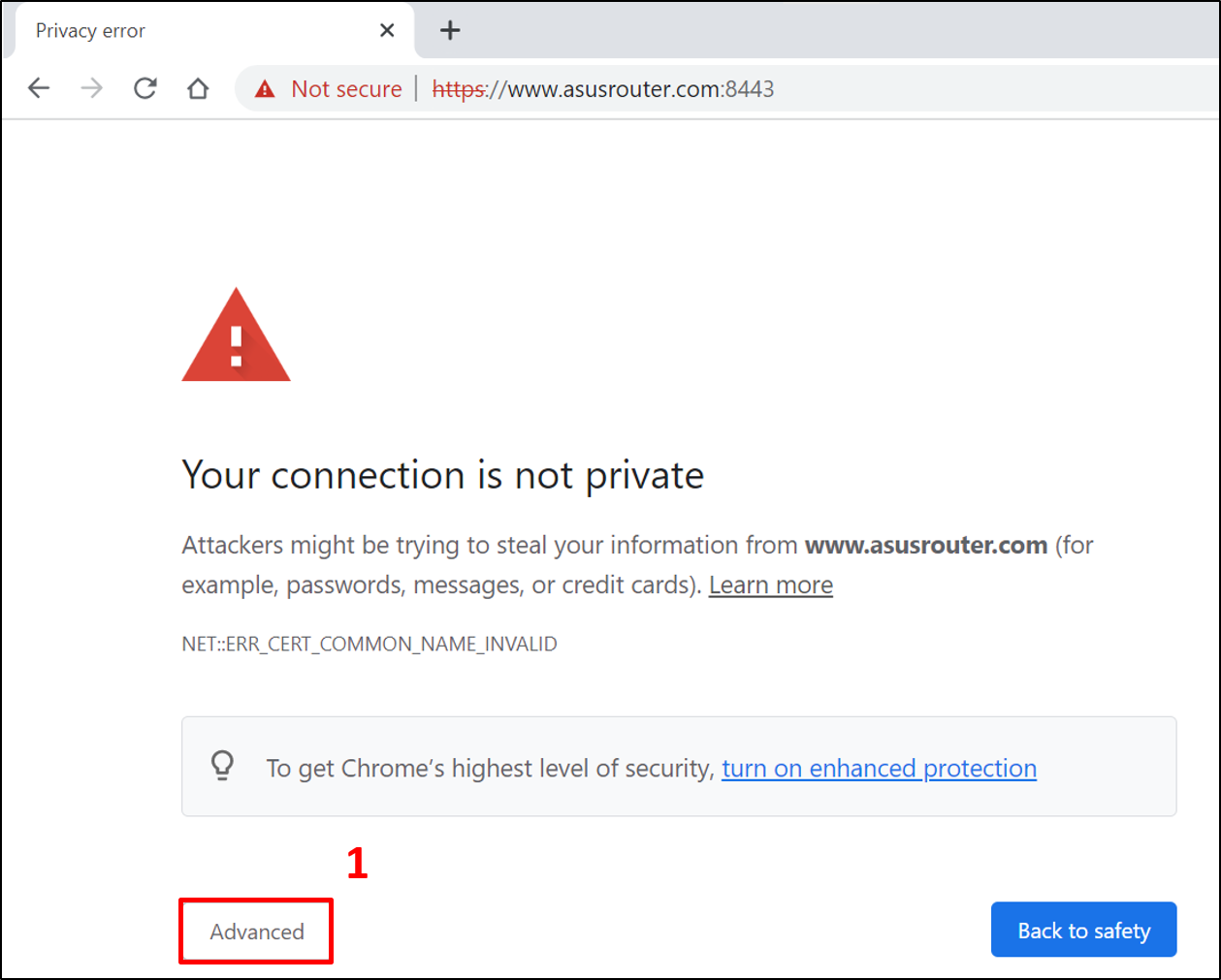
The process mirrors desktops but has device-specific pitfalls. On iPhone or Android, ensure you’re connected to your ASUS Wi-Fi—not cellular data—before opening Safari or Chrome. Type router.asus.com directly in the browser address bar; search engines won’t redirect properly. If the page loads but appears distorted, rotate your device to landscape mode for full interface visibility. Android users often see “Not Secure” warnings—tap “Advanced” then “Proceed” since this is a local network connection.
How to Find Your ASUS Router IP Address When Lost
Instant Discovery with Official Tools
Download ASUS Device Discovery for Windows (free from ASUS support site) to scan your network in 10 seconds. This utility displays your exact router model and IP address—even with custom configurations. For mobile users, install “ASUS Device Discovery” from the App Store (iOS) or Google Play (Android). These apps bypass manual IP guessing by showing your router’s active address with one tap. Pro tip: Run this tool immediately after router setup and bookmark the result.
Physical Label Verification Method
Flip your ASUS router to locate the bottom or rear label. All models print the default IP address, username, and password here—typically near the QR code. Look for “LAN IP” or “Gateway IP” fields showing addresses like 192.168.1.1. If you’ve changed settings, this shows original values only. Warning: If the label shows “169.254.x.x” addresses, your router isn’t assigning IPs properly—restart it before proceeding.
Reset Forgotten ASUS Router Login Credentials Safely
Factory Reset Procedure That Works
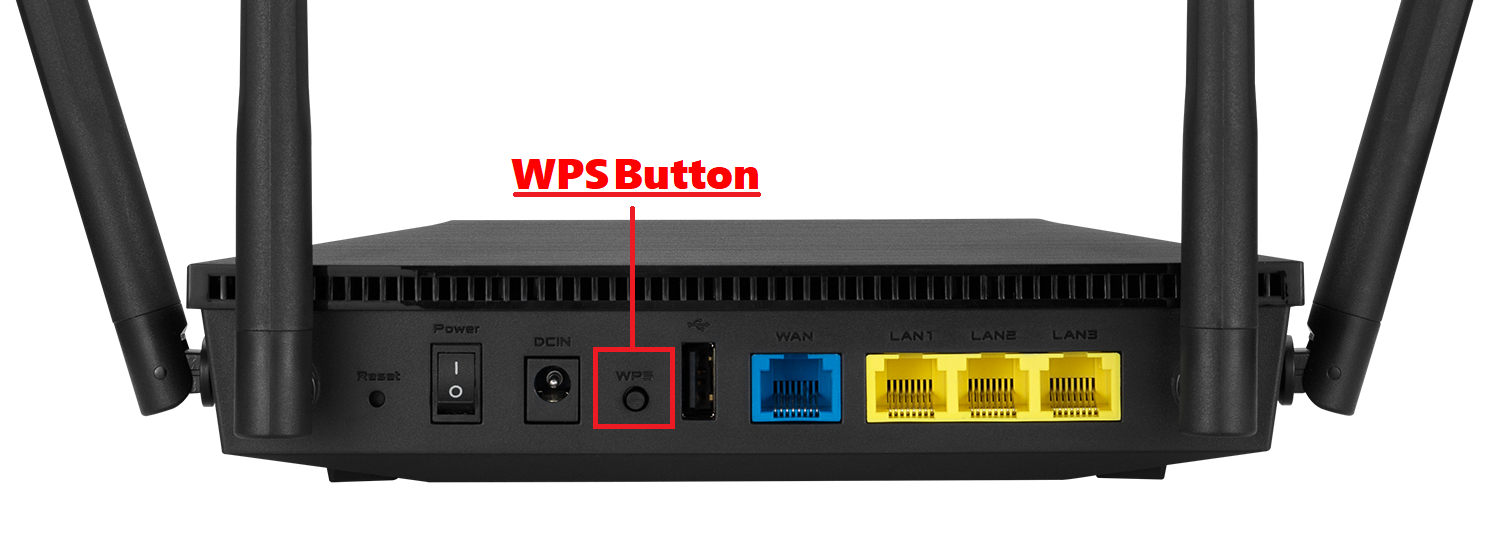
When credentials fail and discovery tools don’t help, perform a hardware reset. Locate the tiny Reset button (usually in a pinhole on the rear). With power on, press and hold for 8-10 seconds using a paperclip until the power LED flashes amber. Release immediately—holding longer damages firmware. Wait 3 minutes for full reboot; the Wi-Fi name reverts to ASUS_XXXXXX with no password. Now use admin/admin to access the login page.
Post-Reset Configuration Must-Dos
After resetting, reconnect all devices to the default Wi-Fi network shown on the router label. Immediately change both admin and Wi-Fi passwords—default credentials expose your network to attackers within 300 feet. Navigate to Advanced Settings > Wireless to set a new SSID and WPA2-Personal password. Skip this step, and your “fixed” router becomes a security liability within hours. Always update firmware during first login to patch vulnerabilities.
Fix Common ASUS Router Login Page Access Failures
Page Won’t Load Solutions That Actually Work
When the login page fails to appear, execute these fixes in order: First, unplug the router for 30 seconds—this resolves 60% of “connection refused” errors. Second, clear browser cache; stale data blocks local network pages. Third, disable firewall/antivirus temporarily; security suites often block router access. Finally, try incognito mode (Ctrl+Shift+N) to bypass extensions. Critical insight: If you see search results instead of the login screen, you omitted “http://” before the IP address.
IP Conflict Resolution Tactics
Multiple devices claiming the same IP causes login failures. Disconnect all non-essential devices (smart TVs, printers) then retry router.asus.com. On Windows, open Command Prompt and type ipconfig /release followed by ipconfig /renew to refresh your address. If conflicts persist, access Network and Sharing Center > Change adapter settings > Wi-Fi properties > Internet Protocol Version 4 and set a static IP outside your router’s DHCP range (e.g., 192.168.1.100 for 192.168.1.1 routers).
Critical Post-Login Configurations You Must Change
Wi-Fi Password Security Upgrade
After accessing the ASUS router login page, immediately strengthen wireless security. Go to Advanced Settings > Wireless > Professional. Set Authentication Method to WPA2-Personal (AES)—never use WEP or WPA. In WPA Pre-Shared Key, create a 15+ character password mixing uppercase, numbers, and symbols (e.g., 7$gT!qL@vP9*mK2). Avoid dictionary words; use random phrases like “BlueCoffeeBattery42!”. Click Apply—devices will disconnect temporarily during reboot.
Admin Credential Hardening
Default admin passwords are public knowledge. Navigate to Administration > System to change router login credentials. Create a unique username (not “admin”) and 20+ character password. Never reuse your Wi-Fi password—this is a top vulnerability. Enable HTTPS under System Administration to encrypt future logins. These steps take 90 seconds but prevent 99% of unauthorized access attempts.
Pro Tips for Hassle-Free ASUS Router Login Page Access
Bookmark http://router.asus.com in your browser’s toolbar—it works even after IP changes. Keep your router model number (e.g., RT-AX88U) visible; solution steps vary significantly between series. For recurring access issues, print the login credentials and tape them to the router bottom. Most importantly: If you can connect to Wi-Fi but not the login page, the problem is always local—never internet-related. Start troubleshooting with browser cache clearance before touching hardware.
When all else fails, consult ASUS support with your model number and exact error message. Their live chat agents can pinpoint model-specific quirks like the RT-AX92U’s unique 192.168.50.1 address. Remember: Regular router logins (monthly) prevent credential amnesia and let you monitor connected devices. A 5-minute maintenance session today saves hours of network headaches tomorrow—your secure, optimized Wi-Fi network starts right at the ASUS router login page.