
That white light on your eero router won’t stop blinking, and it’s been more than the usual few minutes. Your internet connection remains down while the steady pulse mocks your attempts to restore service. You’re not alone—thousands of eero users face this exact frustration every month. The blinking white light is actually your router communicating a specific status, and understanding what it means is the first step to getting your internet back online. Most eero router blinking white issues can be resolved in under 15 minutes once you know exactly what to check.
Your eero uses this blinking white pattern as its primary startup indicator, signaling it’s actively trying to establish your internet connection. Unlike the solid white light that confirms everything’s working properly, this persistent blinking means your router hit a snag during its boot sequence. Don’t panic—this is a common issue with straightforward solutions that don’t require technical expertise. By following these targeted troubleshooting steps, you’ll transform that annoying blink into a steady connection signal faster than you thought possible.
Why Your eero Router Stays Blinking White Past Startup
When you power on your eero or experience an interruption, the blinking white light indicates active startup procedures happening behind the scenes. Your router runs through critical hardware checks, negotiates with your modem, establishes your ISP connection, and coordinates with other eeros if you’re running a mesh system. This process normally completes within 2-3 minutes, ending with a solid white light that confirms successful internet access.
The blinking pattern follows a predictable sequence that reveals what’s happening inside your router. First comes a brief solid white flash as the device powers up, followed by the active blinking phase where connection work occurs. Understanding this progression helps you determine whether your eero is functioning normally or stuck in a problem state. If your router remains in this blinking phase longer than expected, it’s signaling a specific obstruction preventing successful connection establishment.
How to Identify Problematic Blinking White Patterns
After 10 minutes of continuous blinking white light, your eero has moved from normal startup into connection limbo. This extended state means your router can’t complete its initialization sequence, typically due to one of four specific culprits: internet connectivity failures, hardware connection issues, power supply problems, or configuration conflicts between your modem and router.
Time-Based Diagnostic Check: If your eero has been blinking white for more than 10 minutes, skip general waiting and move directly to troubleshooting. Normal startup never takes this long—the blinking white light has transitioned from expected behavior to a clear error indicator requiring your intervention. Pay attention to whether the blinking pattern seems consistent or irregular, as this detail helps pinpoint the underlying cause.
Verify Your Internet Service Before Troubleshooting
Your eero router cannot create internet connectivity where none exists, making your ISP connection the most common failure point. Start by confirming your internet service is actually available before focusing on your router.
Immediate Connection Verification Steps:
– Check other devices: See if smartphones or computers can connect directly to your modem
– Inspect modem lights: Look for solid “online” or “internet” indicators on your modem
– ISP outage check: Visit your provider’s status page or call their outage line
– Wired connection test: Plug a computer directly into your modem with an ethernet cable
If your modem shows an active connection but your eero still blinks white, the issue exists specifically between these two devices. This critical distinction narrows your troubleshooting focus significantly and prevents wasted time on unrelated fixes.
Resolve Ethernet Cable Connection Failures
:max_bytes(150000):strip_icc()/network-cable-unplugged-errors-in-windows-818225-0de43ca6e66340dfad4335b87cd90d4a.png)
Loose or damaged ethernet cables cause more persistent eero router blinking white issues than any other single hardware problem. The cable connecting your modem to eero is especially critical—this single connection carries your entire internet signal.
Essential Cable Inspection Checklist:
– Firm connection verification: Both ends should click audibly when properly seated
– Physical damage assessment: Look for kinks, cuts, or bent connector pins
– Cable replacement test: Swap with a known working ethernet cable immediately
– Port testing: Try different ethernet ports on your modem if available
Pro Tip: Even cables that appear undamaged can fail internally. If you’ve used the same ethernet cable for years, replace it with a new Cat 5e or Cat 6 cable during troubleshooting—especially after moving furniture or rearranging your entertainment center.
Diagnose Power Supply Problems Causing Blinking
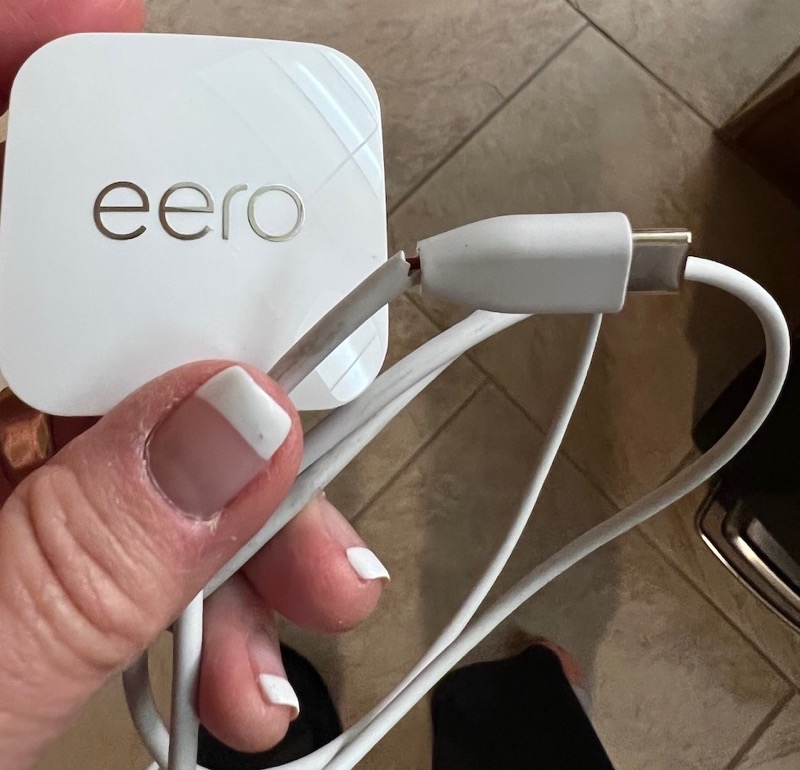
Insufficient or unstable power creates confusing blinking patterns that mimic other connection issues. Your eero might start up, fail, restart, and repeat this cycle—creating what looks like endless blinking white without progressing to solid.
Power Diagnostic Protocol:
– Check your power adapter’s LED (if equipped) for proper operation
– Ensure the adapter clicks firmly into both the wall outlet and eero device
– Test with a different wall outlet—avoid using power strips or surge protectors
– Verify you’re using the original eero power adapter (third-party adapters often provide insufficient power)
Critical Warning Sign: If your eero’s blinking pattern seems irregular or mixes in other colors intermittently, power issues should be your first suspect. Never use damaged or frayed power cables, as they create fire hazards beyond just router malfunctions.
Perform a Soft Reset That Preserves Your Settings
Before resorting to a full factory reset, try a soft reset—this clears temporary glitches causing extended blinking white while maintaining your network configuration and connected devices.
Soft Reset Execution Guide:
1. Locate the small recessed reset button on your eero device
2. Press and hold for exactly 7 seconds using a paperclip or similar tool
3. Release immediately when the LED turns yellow
4. Allow 2-3 minutes for complete restart and monitor for normal progression
This simple procedure resolves approximately 40% of persistent blinking white issues by clearing network handshake problems without requiring you to reconfigure your entire network. It’s the most effective first-line troubleshooting step after verifying cables and power.
Execute Factory Reset Only When Necessary
When soft resets fail and you’ve confirmed cables, power, and internet service are operational, a factory reset becomes your next option. This erases all settings and requires complete reconfiguration through the eero app.
Factory Reset Procedure:
1. Press and hold the reset button for 15+ seconds
2. Release immediately when the LED turns red
3. Wait for the device to reboot into setup mode
4. Use the eero app to recreate your network from scratch
Critical Warning: Only perform factory resets after exhausting other options. You’ll need your ISP account information and will have to reconnect all devices to your network. Document your current settings before resetting if possible.
Check Modem Configuration Conflicts
Your modem might be fighting your eero for network control, especially with ISP-provided modems containing built-in routing functions. This conflict prevents your eero from establishing proper internet connectivity.
Modem Configuration Verification:
– Confirm your modem is in bridge/pass-through mode (required for most setups)
– Check if your ISP locks to specific device MAC addresses
– Verify PPPoE credentials if required by your DSL/fiber provider
– Confirm proper VLAN settings for certain fiber connections
Contact your ISP directly if you suspect configuration issues—these typically require account-level changes or specific settings provided by your internet service provider. Never change modem settings without confirming compatibility with your eero.
Troubleshoot Mesh Network Blinking White Issues

In multi-eero systems, the gateway unit (connected to your modem) must establish internet first. Extended blinking on secondary eeros often indicates gateway problems rather than issues with the blinking unit itself.
Mesh-Specific Troubleshooting:
– Verify your gateway eero shows solid white light
– Check distances between nodes (keep under 50 feet unobstructed)
– Ensure proper placement—elevated and central locations work best
– Restart entire system in sequence: modem first, then gateway eero, then additional nodes
The blinking white light on secondary units usually resolves automatically once the gateway establishes proper internet connectivity. If multiple units blink white simultaneously, focus troubleshooting on the gateway unit first.
Use eero App for Precise Blinking White Diagnosis
The eero app provides detailed status information far beyond what the LED light alone can communicate. During blinking white phases, the app shows specific progress updates and error messages that pinpoint exact failure points.
App-Based Diagnostic Advantages:
– Real-time connection status with technical details beyond LED indicators
– Push notifications for each startup milestone and failure point
– Built-in troubleshooting guides for specific error codes
– Direct chat support access with one tap
– Remote diagnostic sharing capabilities with support team
Pro Tip: Keep the eero app open during startup attempts. If it shows “Connecting to Internet” for more than 5 minutes, you know the issue exists upstream from your eero—likely with your modem or ISP connection.
Address Environmental Factors Affecting Startup
Physical placement affects more than just WiFi coverage—it can prevent successful startup in extreme cases. Environmental factors often get overlooked during initial troubleshooting.
Placement Optimization Checklist:
– Heat management: Ensure vents aren’t blocked, maintain temperature under 104°F
– Power stability: Avoid outlets controlled by wall switches or shared with high-draw appliances
– Interference sources: Keep away from microwaves, baby monitors, and thick concrete walls
– Ventilation: Maintain at least 6 inches clearance around all sides of the device
If your eero started blinking white after a location change, temporarily move it back to its original spot to isolate whether environmental factors are causing the issue.
Prevent Future eero Blinking White Problems
Once you’ve resolved the immediate issue, implement these preventive measures to avoid recurrence and minimize future downtime.
Monthly Maintenance Routine:
– Restart your modem and eero in proper sequence (modem first, wait 2 minutes, then eero)
– Physically inspect and tighten all cable connections
– Verify firmware updates installed successfully
– Clean dust from vents and ports using compressed air
Quarterly Network Health Check:
– Run speed tests to establish performance baselines
– Audit connected devices for unauthorized access
– Review ISP account for plan changes or service issues
– Document your network configuration for faster recovery during future problems
Most eero router blinking white issues resolve within 15 minutes when you follow this targeted troubleshooting approach. Start with cable verification and power checks, progress through soft resets, and only escalate to factory resets when absolutely necessary. Your eero’s blinking white light isn’t a failure—it’s precise communication telling you exactly where to focus your troubleshooting efforts to restore internet access quickly.



