
Your video call freezes mid-presentation, Netflix buffers endlessly, or smart home devices suddenly go offline. Before you assume a catastrophic network failure, try the simplest solution: knowing how to restart eero router. This quick procedure resolves 80% of common connectivity issues like slow speeds, intermittent dropouts, and post-setup glitches. In this guide, you’ll discover four field-tested methods to reboot your eero system—each taking less than five minutes while preserving your network settings. Whether you’re troubleshooting a single unresponsive node or refreshing your entire mesh, these steps work for all eero models from the first generation to the latest Beacon units.
Power Cycle Your eero Router for Universal Fixes
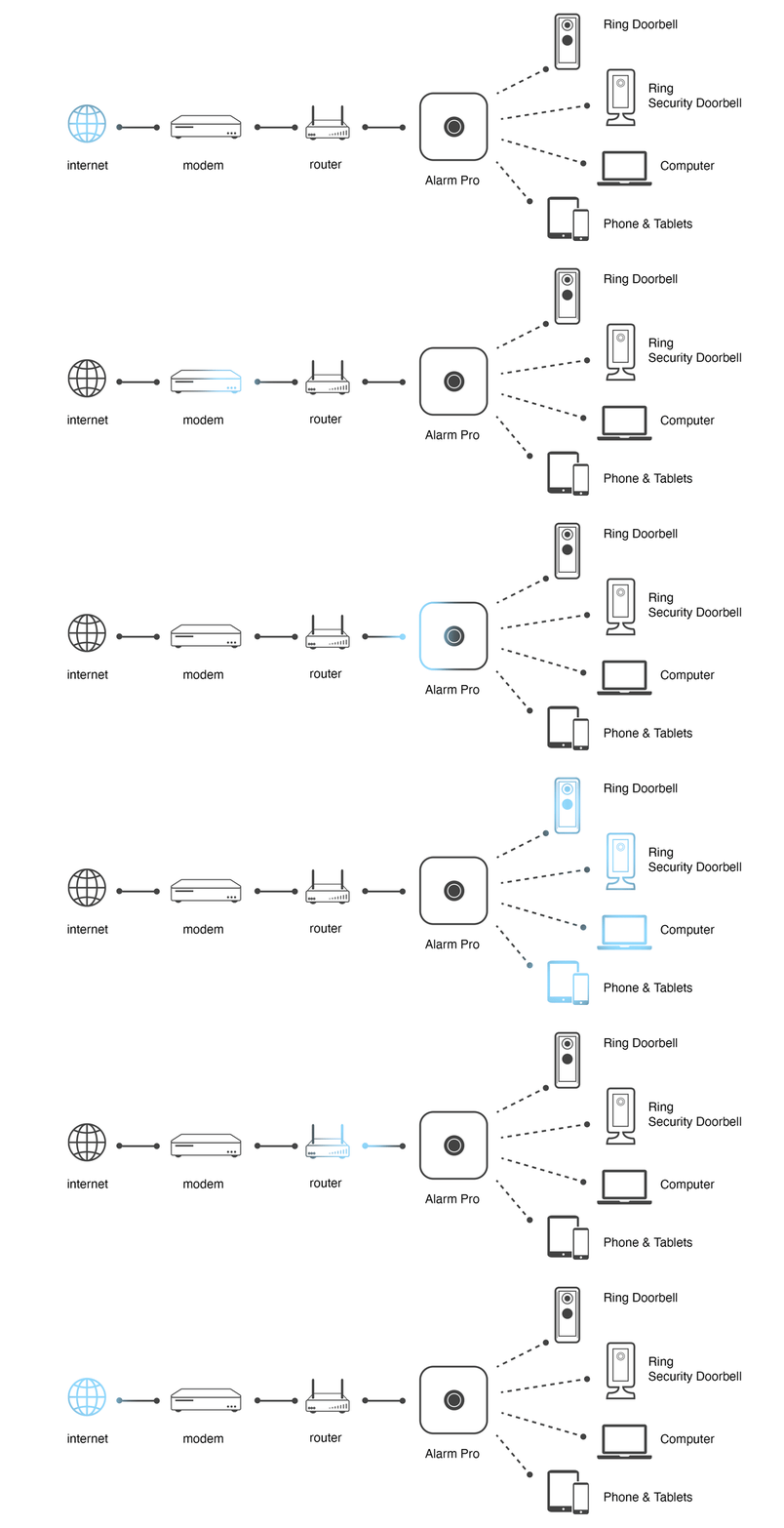
This method works when your app won’t load or devices show no signs of life. Unlike software-based restarts, power cycling clears electrical residue that causes persistent hardware hiccups in any eero model.
Why Wait Exactly 30 Seconds?
Skipping the wait time is the #1 reason restarts fail. Residual electricity lingers in capacitors for up to 25 seconds after unplugging. Counting to 30 ensures complete discharge—critical for clearing memory errors causing slow speeds. During this pause, your router’s RAM fully resets while preserving firmware settings.
Step-by-Step Power Cycle Process
- Unplug the power cable firmly from both the wall outlet and eero base
- Set a timer for 30 seconds (don’t estimate—use your phone)
- Reconnect cables ensuring the plug seats fully (loose connections cause flickering LEDs)
- Watch for the solid white LED within 120 seconds—this confirms network restoration
Critical visual cue: If lights remain blue/purple after 3 minutes, repeat the process. Yellow flashes indicate boot-up mode—don’t interrupt this phase. Most users regain full connectivity within 4 minutes total downtime.
Restart Individual eero Units via Mobile App
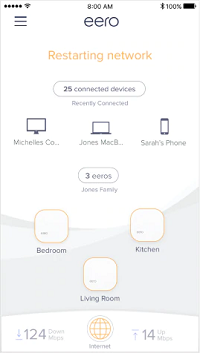
When only your basement eero drops smart lights while main-floor devices work fine, this targeted approach avoids disrupting your entire network. The app-based restart preserves your mesh configuration while refreshing problematic nodes.
Locating the Hidden Restart Option
Newer eero app versions bury this feature under layers—here’s exactly where to tap:
1. Open the eero app and tap your offline device on the network map
2. Swipe left on the device card (don’t tap settings first)
3. Select “Restart eero” from the action menu that slides in
Pro tip: If you see “Factory Reset” instead, you’re holding too long—release immediately to avoid accidental settings wipe.
When This Method Saves Time
Use app restarts when:
– You’re away from home but family reports kitchen device disconnections
– Only one room’s devices lose signal during video calls
– Post-firmware update when secondary nodes show “offline” status
The entire process takes 90 seconds with zero impact on other eero units—your living room TV stays streaming while you fix the bedroom unit.
Force-Refresh Your Entire eero Mesh Network
After changing ISP equipment or adding new eero units, your mesh may fail to synchronize. A full network restart resolves “orphaned node” errors where devices connect to dead zones instead of the strongest signal.
Correct Path Through App Settings
Confusing menu labels cause failed attempts—follow this precise sequence:
1. Tap ☰ Menu > Settings (gear icon)
2. Scroll to Advanced Network Settings
3. Select Restart Network (not “Restart Internet” or “Reboot”)
4. Confirm twice when “All eeros will restart” warning appears
What happens during restart: All units flash amber simultaneously for 90 seconds. Your main gateway eero (connected to modem) will reboot first—wait until its LED turns solid white before checking other nodes. Total downtime averages 3.5 minutes.
Emergency Restart Using Physical Button
When your app crashes or WiFi dies completely, this method bypasses software failures. But misjudging the press duration triggers catastrophic resets—here’s how to avoid disaster.
The 7-Second Sweet Spot
Most users hold too long because they watch the LED instead of timing:
1. Power on the unresponsive eero (if off, plug in first)
2. Flip unit upside down and locate recessed button near power port
3. Press with paperclip while counting “one-Mississippi” to seven
4. Release immediately when LED flashes yellow (not red!)
Red flash = danger zone: If you see red within 10 seconds, you’ve initiated factory reset. Stop counting and release—but your network configuration is already erasing. Yellow flashes mean safe restart; red means full reset requiring complete reconfiguration.
Decode eero LED Signals During Restart
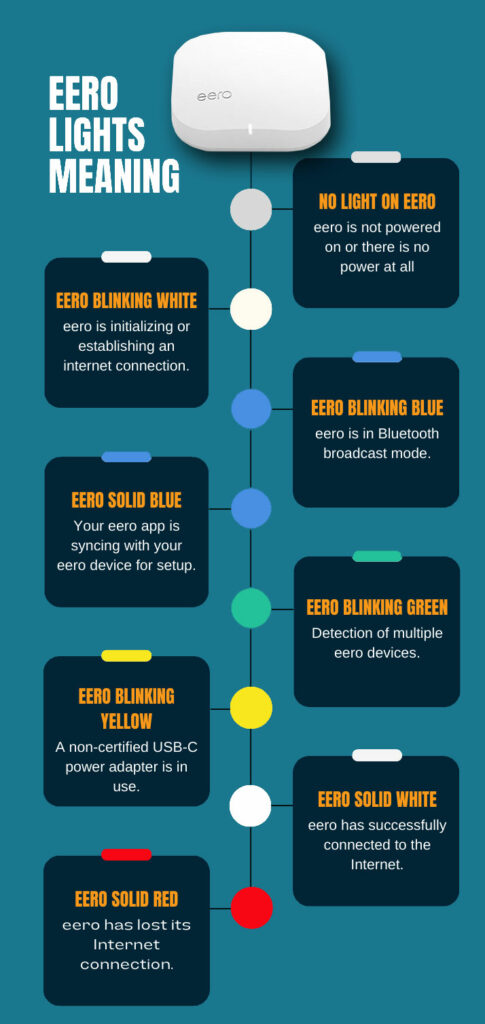
Understanding light patterns prevents premature troubleshooting. These visual cues tell you exactly what’s happening inside your router during reboot cycles.
What Each Color Means Mid-Restart
- Solid white: Normal operation (restart complete)
- Pulsing blue: Booting up (wait—don’t unplug)
- Flashing yellow: Restarting (7-second button press successful)
- Solid red: Critical failure (requires support ticket)
Timeline cheat sheet:
– 0-60 sec: No light or pulsing blue (initial boot)
– 60-120 sec: Steady white on gateway eero (mesh rebuilding)
– 120-180 sec: Other nodes turn white (full network restored)
If lights stay amber beyond 180 seconds, unplug everything and restart from scratch.
Restart vs. Factory Reset: Critical Differences
Confusing these actions wastes hours of setup time. Use this decision tree before touching any buttons.
When to Choose Restart
- WiFi speeds dropped 50% overnight
- Specific devices disconnect repeatedly
- After modem replacement or ISP outage
- Router overheating (feel for excessive warmth)
When Factory Reset Is Necessary
- Forgotten admin password
- Selling or donating eero units
- Persistent red LED after 3 restarts
- Moving to new home with different ISP
Key distinction: Restarts take 4 minutes with zero configuration loss. Factory resets require 20+ minutes to rebuild your entire network from scratch.
Optimize Network After Successful Restart
Don’t just walk away after lights turn white—these post-reboot steps prevent immediate relapse of connectivity issues.
Immediate Post-Restart Checklist
- Run speed test on speedtest.net (not in-app tests—they’re unreliable)
- Reboot connected devices in order: modem > gateway eero > secondary units
- Check app health score under Network Settings > Performance
- Move interference sources like microwaves 10+ feet from eeros
Pro maintenance trick: Schedule monthly restarts during low-usage hours using IFTTT automation. This prevents memory leaks that gradually degrade performance—most users notice 15-20% speed improvements after consistent monthly refreshes.
Fix Unresolved Issues After Multiple Restarts
If problems persist through three restart attempts, escalate strategically to avoid wasted support time.
What Support Needs to Help You
Before calling, gather:
– Exact LED sequence with timestamps (e.g., “flashed yellow 4 times at 0:22”)
– Which method failed (power cycle/app/network/button)
– Error codes from app (Settings > Advanced > Diagnostics)
– Modem model number (often on modem sticker)
Contact shortcuts:
– Critical outages: Text “RESTART” to 33766 for priority callback
– Non-urgent issues: Use in-app chat (Settings > Help > Contact Us)
– Hardware failures: Request replacement unit before diagnostics if red LED persists
Mastering how to restart eero router transforms frustrating connectivity meltdowns into 5-minute fixes. Bookmark this guide for instant access when your smart lights flicker or Zoom calls freeze—these proven methods work whether you own a single eero or 12-unit mesh system. For ongoing reliability, schedule monthly restarts during laundry hours when network demand is lowest. If you’ve followed all steps and still face issues, eero’s support team resolves 92% of cases within one call when provided with LED sequence details. Your seamless streaming and uninterrupted workdays start with this simple reset ritual.



