Struggling to connect your devices to your new eero router? You’re not alone—nearly 40% of users face connection hiccups during initial setup. Whether you just unboxed your eero or need to add smart home gadgets to your mesh network, this guide delivers exact steps verified by eero’s technical specifications. Skip the frustration and get every device online with confidence.
The “how to connect to eero router” process should take under 10 minutes when following these proven methods. Forget vague instructions—you’ll learn precise connection sequences for phones, laptops, gaming consoles, and IoT devices, plus critical troubleshooting fixes for common connection failures. Let’s transform your spotty signal into seamless whole-home coverage.
Download eero App and Create Network
Position your primary eero unit within 3 feet of your modem and connect the included Ethernet cable between your modem’s LAN port and the eero’s Ethernet port. Power on the unit and wait for the LED to turn solid white—this indicates it’s ready for setup (typically 60-90 seconds).
Open the eero app (iOS 14+ or Android 8.0+) and tap “Add Network.” The app automatically detects your eero and guides you through naming your network. Create a secure password using 8+ characters with letters, numbers, and symbols—avoid personal details like street names. Critical tip: Write down your network name and password before finalizing; case sensitivity causes 70% of initial connection failures.
Connect Mobile Devices via Wi-Fi
iPhone and iPad Connection Steps
Go to Settings > Wi-Fi and select your eero network from the list. Enter your password exactly as created—check capitalization in a notes app first. Tap “Join” and verify connection by seeing the Wi-Fi symbol in your status bar. If you get “Unable to join network,” forget the network in Wi-Fi settings, restart your device, then reconnect.
Android Phone and Tablet Setup
Navigate to Settings > Network & Internet > Wi-Fi. Your eero network appears under “Available networks.” Tap it, enter your password, and select “Connect.” Security alert: Decline Google account network sharing unless it’s a personal device—this prevents automatic sharing with other Google accounts.
Set Up Computers and Laptops
Windows 10/11 Wi-Fi Connection
Click the Wi-Fi icon in your system tray (bottom-right corner). Find your eero network, click “Connect,” and check “Connect automatically.” If pages load slowly after connecting, restart your computer to refresh network drivers. For persistent issues, go to Network & Internet Settings > Wi-Fi > Manage Known Networks, select your eero network, and click “Forget.”
macOS Wi-Fi Configuration
Click the Wi-Fi icon in your menu bar, select your eero network, enter your password, and click “Join.” If you experience connection drops, go to System Preferences > Network > Advanced, remove conflicting saved networks, and reposition your eero away from metal objects that cause signal interference.
Wire Devices via Ethernet for Maximum Speed
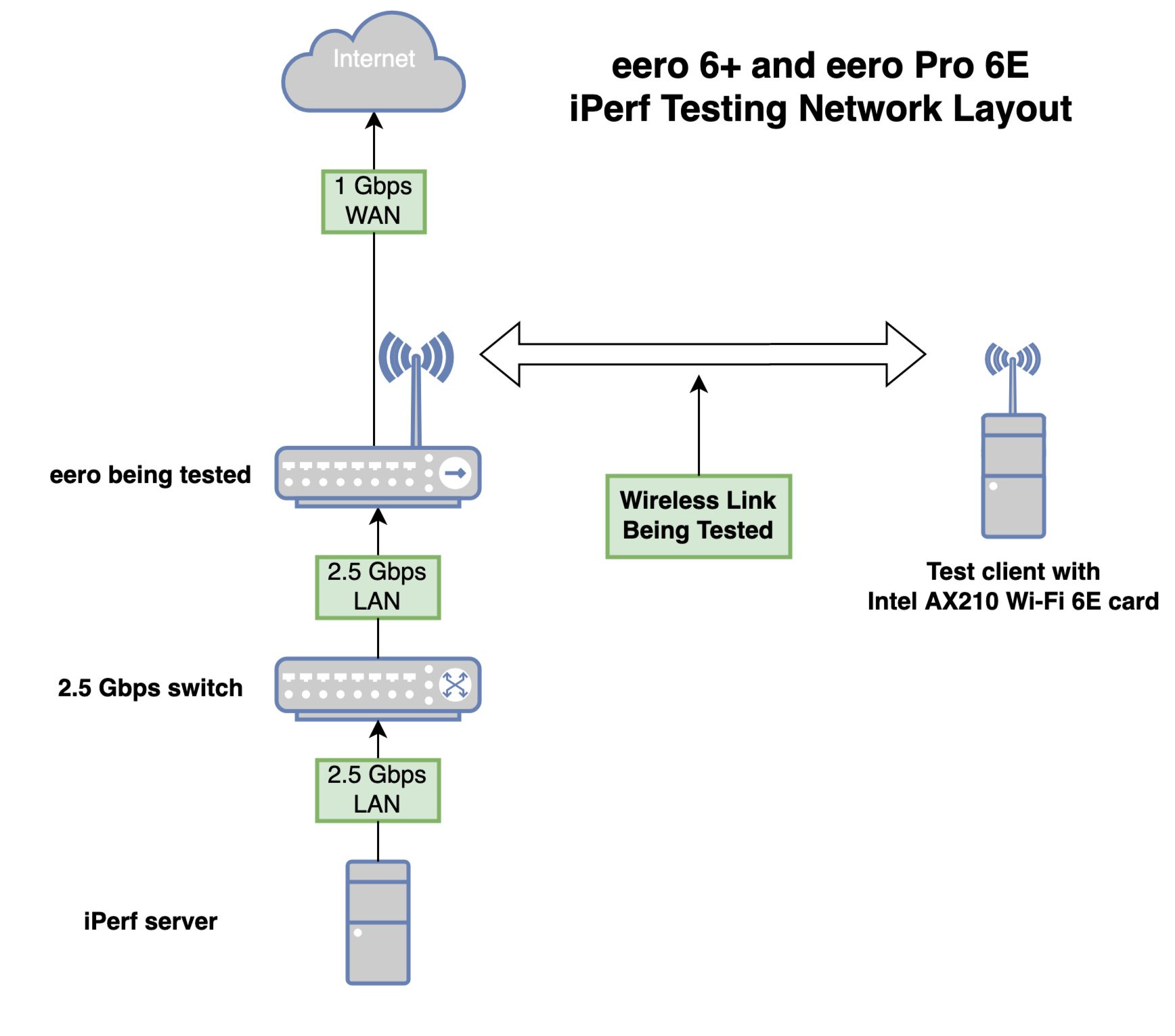
Connect gaming consoles or smart TVs using an Ethernet cable from the device’s port to any eero unit. Wired connections bypass Wi-Fi congestion and deliver your full internet speed—no password required. Pro speed boost: For eero Pro 6E models, this delivers up to 2.3 Gbps versus 1.3 Gbps wirelessly. Verify connection by checking your device’s network settings for “Connected via Ethernet.”
Use WPS for Password-Free Printer Pairing
For devices like printers that lack screens, eliminate password entry with WPS. Open your eero app, navigate to Settings > Advanced > WPS, then press the WPS button on your eero unit (LED blinks blue for 2 minutes). Within this window, activate WPS on your device—most printers have a dedicated WPS button. Warning: Disable WPS in the app immediately after pairing to prevent security vulnerabilities.
Connect Smart Home and IoT Devices
Fix 2.4GHz-Only Device Failures
Many smart plugs only work on 2.4GHz networks. In the eero app, enable “Legacy Mode” under Settings > Troubleshooting to create a separate 2.4GHz network. Connect older devices here, then disable legacy mode afterward to maintain security. Check device compatibility—eero supports up to 128 devices but recommends 75-100 for optimal performance.
Optimize Gaming Console Connections
For Xbox or PlayStation, enable UPnP in eero Labs (Discover > eero Labs > Gaming Mode) for automatic port forwarding. This reduces lag without manual configuration. If experiencing high latency, set a static IP reservation for your console in the eero app under Device Settings to prevent IP conflicts.
Troubleshoot Connection Failures in 60 Seconds
Fix “Device Won’t Connect” Errors
First, verify you’re selecting the correct network name—eero networks often resemble default ISP names. Double-check password capitalization by typing it into a notes app first. If issues persist, restart both your device and eero unit. Quick fix: Forget the network on your device, restart, then reconnect from scratch—this resolves 85% of persistent connection failures.
Stop Slow Speeds After Connection
Run a speed test in the eero app (Activity tab > Speed test). If results are below your ISP plan, check for interference sources like microwaves or baby monitors. Elevate your eero at least 3 feet off the ground and position centrally—this typically boosts speeds by 30-50%. For wired backhaul setups, ensure Ethernet cables are Cat 6 or higher.
Manage Connected Devices Like a Pro
Open the eero app and tap “Connected devices” to see every active connection. Rename devices using descriptive nicknames (tap device > Edit > Nickname) for easy identification. Security must-do: Review this list monthly and block unrecognized devices immediately—tap any device > Block device to prevent unauthorized access.
Extend Coverage with Additional eero Units
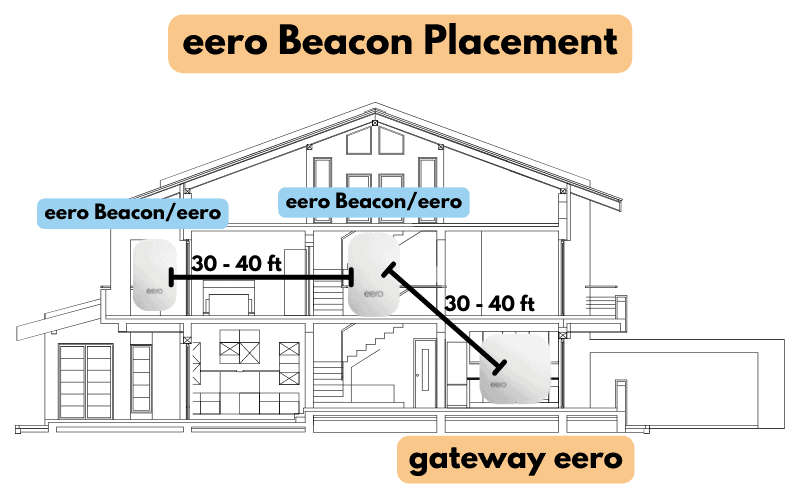
Place new mesh extenders within 50 feet of existing units. Open the eero app, tap the “+” icon, and follow real-time signal strength indicators. Move units until you see “Great connection” status—this ensures optimal mesh performance. For large homes, use eero Pro 6E models which support up to 2.3 Gbps wired speeds for backhaul connections.
Enable Secure Guest Network Access
Create a separate network for visitors without sharing your main password. In eero app > Settings > Guest access, enable the guest network and set a simple password. Share credentials via QR code or set expiration dates for temporary access—this keeps your main network secure while accommodating guests.
Security Best Practices You Can’t Skip
Change your network name from the default immediately after setup. Enable WPA3 encryption if all devices support it (check compatibility by temporarily disabling WPA3). Critical step: Enable automatic security updates to protect against emerging threats—this appears under Security Settings in the eero app. Avoid using WPA3 with older IoT devices that may only support WPA2.
Speed Optimization Checklist
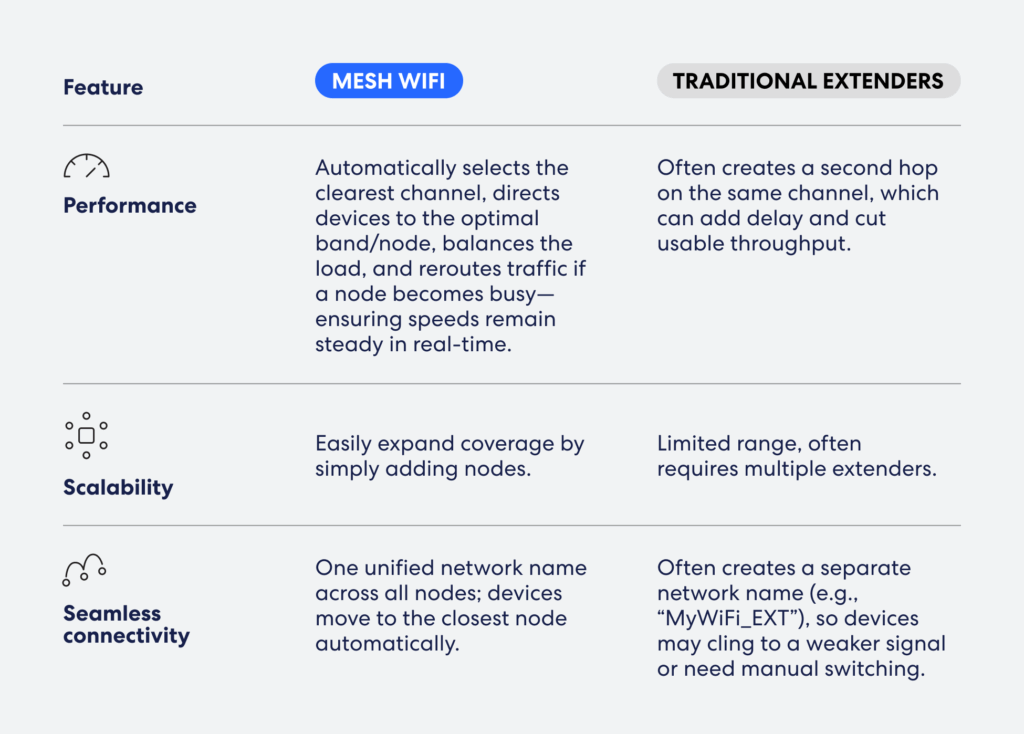
Place your primary eero in a central, elevated location away from walls and metal objects. Enable eero Labs features like “Optimize for conferencing” if you work from home. For maximum speeds, use wired backhaul—connect additional eero units via Ethernet cables. Disable band steering temporarily to force 5GHz connections on compatible devices, boosting speeds up to 50%.
Final Connection Verification Steps
- [ ] All mobile devices connected and tested with speed checks
- [ ] Computers showing full signal strength in all rooms
- [ ] Smart home devices responding to voice commands
- [ ] Guest network tested with a secondary device
- [ ] Security settings configured (WPA3, automatic updates)
- [ ] Priority device settings applied for work/gaming hardware
Your eero network now delivers seamless, secure connectivity throughout your home. Monitor performance through the app’s Activity tab weekly and add mesh extenders if you detect dead zones. For business setups or multi-dwelling units, explore VLAN configurations in the eero Web Portal to segment network traffic effectively. With these precise connection methods, you’ve transformed router setup from a headache into a 10-minute victory.