
That pulsing blue light on your Verizon router just caught your eye, and you’re wondering if it’s signaling trouble. Don’t panic—this blinking blue indicator is actually your router’s way of communicating important status updates. Whether you’re setting up a new device, connecting additional gadgets, or simply noticed this behavior during routine use, understanding what that blinking blue light means will save you hours of frustration and prevent unnecessary service calls.
Most Verizon router owners encounter this specific blue blinking pattern during three critical scenarios: initial setup after installation, device pairing via WPS, or when the router is downloading and installing firmware updates. The good news? In nearly 90% of cases, this is completely normal behavior that resolves itself within expected timeframes. However, when your Verizon router blinking blue continues beyond these standard durations, you’ll need specific troubleshooting steps to restore your network connection before work, streaming, or gaming gets disrupted.
What Your Verizon Router’s Blue Blinking Pattern Actually Means
Normal Blue Light Duration by Scenario
Your router communicates through precise timing patterns that indicate specific processes. Here’s exactly what each timeframe means for your Verizon router blinking blue:
Initial Setup Phase (2-5 minutes)
– First-time activation after unboxing your new router
– Post-factory reset initialization process
– Network discovery and configuration sequence
– This is completely normal and requires no intervention
WPS Pairing Mode (2 minutes maximum)
– Active window for password-free device connections
– Automatic security key exchange with new devices
– Solid blue indicates successful pairing completion
– If blinking continues beyond 2 minutes, cancel pairing and restart
Firmware Updates (5-15 minutes)
– Download progress from Verizon’s servers
– Installation and verification cycles
– Automatic reboot sequences during update
– Never interrupt this process—doing so can brick your router
When Blue Blinking Signals Real Trouble
Extended blinking beyond these timeframes indicates your Verizon router blinking blue has moved from normal operation to a potential problem. If your router continues this pattern after 30 minutes, you’re likely facing:
- Incomplete firmware downloads caused by unstable internet connections
- Hardware initialization failures from corrupted configuration files
- Signal interference disrupting the setup process
- Loose cable connections preventing proper communication with Verizon’s network
Essential First Checks Before Troubleshooting

Power and Physical Connection Verification
Before diving into complex fixes, perform these immediate checks:
Power Supply Status
– Ensure your router’s power adapter is firmly seated at both ends
– Test different wall outlets as some circuits may have voltage issues
– Verify the power LED remains solid white or blue during the blinking sequence
– Check for damaged power cables showing visible wear or fraying
Cable Integrity Tests
– Inspect your coaxial cable for damage, kinks, or crushing
– Confirm Ethernet connections click securely into place with audible feedback
– Check for bent pins in cable connectors that prevent proper contact
– Examine cable connections at both the router and wall outlet
Signal Path Analysis
– If using a splitter, ensure it’s Verizon-approved and properly connected
– Test by connecting the coaxial cable directly to the wall without splitters
– Check for area-wide outages using the My Verizon app
– Verify your service account is active and in good standing
Decoding LED Progression Patterns
Understanding the sequence of light patterns helps pinpoint issues quickly:
Successful Sequence
– Blinking blue → Solid blue → Solid green
– Total duration: Under 10 minutes for most operations
– Indicates normal completion with full internet connectivity
Failure Pattern
– Blinking blue → Solid amber (yellow)
– Immediate support contact required
– Indicates connection failure to Verizon’s network
Hardware Issues
– Blinking blue → Complete LED shutdown
– Power supply or internal hardware failure
– Requires immediate attention and possible replacement
Step-by-Step Fixes for Persistent Blue Blinking
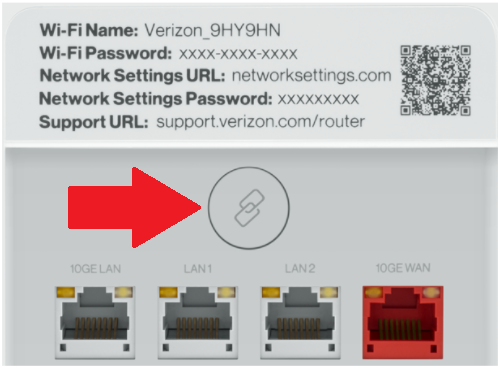
Power Cycle Method: The 90-Second Fix
This first-line solution resolves 70% of extended Verizon router blinking blue issues:
- Unplug your router completely from the power source for exactly 30 seconds
- Disconnect all cables including coaxial and Ethernet connections
- Reconnect cables firmly, ensuring they click into place
- Restore power and wait 2-3 minutes for initialization without interruption
Pro tip: Set a timer—impatiently checking your router or restarting the process too soon interrupts critical initialization sequences and extends downtime.
Advanced Reset Procedures When Power Cycling Fails

When basic power cycling doesn’t stop your Verizon router blinking blue, escalate to these methods:
Soft Reset Process
– Locate the recessed reset button on your router’s rear panel
– Use a paperclip to press and hold for exactly 10 seconds
– Release when all LEDs flash simultaneously
– Wait 5-10 minutes for full reconfiguration without touching the device
Factory Reset Protocol
– Hold reset button for 15+ seconds until all lights turn off
– All LEDs will cycle through colors during reboot
– Your router returns to original factory settings
– Requires complete reconfiguration of Wi-Fi networks and passwords afterward
Firmware Recovery Steps for Stubborn Cases
Corrupted firmware causes the most persistent Verizon router blinking blue issues:
Manual Update Process
1. Access router admin panel via 192.168.1.1 in your browser
2. Navigate to the administration or maintenance section
3. Check for available firmware updates from Verizon
4. Follow on-screen prompts to complete the update process
Recovery Mode Activation
– Power off router completely
– Hold reset button while powering on
– Continue holding for 20+ seconds
– Router enters recovery mode for manual firmware restoration
Prevent Future Blue Light Problems Before They Start
Monthly Maintenance Checklist
Connection Integrity
– Verify all cable connections remain tight and secure
– Clean router vents monthly to prevent overheating
– Check for automatic firmware update notifications
– Reboot your router once monthly during low-usage periods
Optimal Router Placement Strategies
Environmental Factors
– Position your router in a central, elevated location away from obstructions
– Avoid direct sunlight and heat sources like radiators or appliances
– Maintain at least 6 inches of clearance around all sides for airflow
– Keep away from metal objects that can interfere with signal transmission
Interference Reduction
– Separate your router from microwaves and cordless phones by 6+ feet
– Distance from baby monitors and Bluetooth speakers reduces interference
– Use the 5GHz band for devices near interference sources
– Consider wired connections for stationary devices like smart TVs
When to Contact Verizon Support Immediately
Critical Warning Signs
Call Support Right Away If:
– Blue blinking continues beyond 45 minutes despite troubleshooting
– Complete LED shutdown occurs after multiple reset attempts
– You detect burning smells or unusual sounds from the router
– Visible physical damage exists on the router housing
Maximizing Your Support Call Success
Before Contacting Verizon:
– Document the exact LED pattern and duration with timestamps
– Note all troubleshooting steps you’ve already attempted
– Have your account information and router model number ready
– Check for area-wide outages via the My Verizon app first
Support Escalation Process:
1. Tier 1 Support: Basic diagnostics and remote testing procedures
2. Tier 2 Support: Advanced troubleshooting and replacement authorization
3. On-site Technician: Dispatched for persistent hardware issues or signal problems
Key Takeaway: That Verizon router blinking blue light isn’t an emergency—it’s your router’s communication system at work. Most instances resolve within expected timeframes with minimal intervention. Remember this golden rule: a proper 30-second power cycle fixes 70% of persistent blue blinking issues. When basic troubleshooting fails, follow these systematic steps to diagnose and resolve the problem efficiently.
Don’t become one of the thousands of users who unnecessarily replace functioning equipment—understanding these blinking patterns empowers you to take appropriate action at the right time. Keep this guide handy for your next router issue, and you’ll spend less time waiting for support and more time enjoying seamless connectivity.



