
That persistent orange blink on your Cox router isn’t just annoying—it’s your internet screaming for help. When you’re working against a deadline, streaming a crucial game, or simply trying to connect with loved ones, a flashing amber light can derail your entire day. This specific indicator means your router has detected a connection failure with Cox’s network, unlike the brief solid orange light during normal startup. The good news? Over 80% of these issues are fixable in under 30 minutes with the right approach. In this guide, you’ll learn exactly why your Cox router blinks orange and how to restore your white-light connection permanently.
Decode Your Router’s Emergency Signals
Blinking Orange vs Solid Orange: Critical Distinction
Solid orange is completely normal—it appears for 60-90 seconds during startup while your router syncs with Cox’s network. Blinking orange is your router’s distress signal, indicating it received an initial signal but lost stable connection. Confusing these two wastes precious troubleshooting time. If the light blinks continuously beyond the startup phase, your connection has failed at the authentication stage.
Full Color Pattern Decoder
- Blinking orange + green: Firmware update in progress—never unplug during this 5-10 minute process
- Blinking orange only: Failed connection handshake with Cox’s network (your immediate priority)
- Solid red: Hardware failure requiring replacement—call Cox immediately
- Blinking white: Router searching for signal after reset—give it 10 minutes before acting
- Solid white: Success! Internet is fully restored
Pinpoint the Exact Cause of Your Orange Blink
Service Outages: The 5-Minute Reality Check
Before touching cables, verify Cox isn’t down in your area. Visit Cox.com/service-status or call their automated outage line at 1-800-234-3993. Over 40% of orange light cases stem from neighborhood outages—often caused by weather or scheduled maintenance. If Cox confirms an outage, skip all troubleshooting steps and check their estimated restoration time.
Coaxial Cable Failures: The #1 Culprit
Loose or damaged coax cables cause 60% of preventable orange light issues. Your coaxial cable carries the vital signal from the wall to your router—any interruption triggers blinking orange. Check these critical points:
– Wall outlet connection: Hand-tighten until snug (over-tightening cracks fittings)
– Splitter damage: Replace splitters older than 2 years—they degrade signal quality
– Cable kinks: Inspect for bends sharper than 90 degrees near connectors
Overheating Traps: The Silent Router Killer
Routers operate best between 32-104°F (0-40°C). When vents get blocked by dust or furniture, thermal protection activates—shutting down connections to prevent damage. Touch test: If the router feels uncomfortably hot on top, overheating is likely your cause. Move it away from direct sunlight and electronics like TVs that generate heat.
Execute These Critical Diagnostic Steps
30-Second Physical Inspection Checklist
- Power cycle count: Unplug router for exactly 30 seconds (not 10!)
- Cable wiggle test: Gently nudge coax connections—any light flicker means looseness
- Vent clearance check: Ensure 6+ inches of open space around all sides
- Outlet verification: Plug into a different wall outlet to rule out power issues
Signal Level Test: Your Router’s Vital Signs
Access diagnostics at 192.168.0.1 using admin/password from your router label. Navigate to Connection Status and verify these numbers:
| Signal Parameter | Healthy Range | Danger Zone |
|---|---|---|
| Downstream Power | -10 to +10 dBmV | Below -15 or above +15 |
| Upstream Power | 35-50 dBmV | Below 30 or above 55 |
| SNR (Signal Quality) | Above 30 dB | Below 25 dB |
Values outside these ranges explain why your Cox router blinks orange—indicating signal too weak or noisy for stable connection.
Power Cycling That Actually Works
The 30-30-30 Reset Method
Forget basic rebooting. This professional sequence clears stubborn connection failures:
1. Unplug ONLY power cable from router (leave coax connected)
2. Wait 30 seconds—this drains residual power clearing memory errors
3. Reconnect power and wait 3 full minutes for signal reacquisition
4. Watch for solid white light—success confirmed!
Coax-Integrated Reset for Stubborn Cases
When power cycling fails, add coaxial intervention:
1. Unplug BOTH power and coax cables
2. Wait 60 seconds—allows Cox network to recognize device removal
3. Reconnect coax FIRST (hand-tighten to 1/4 turn after finger-tight)
4. Plug in power SECOND
5. Wait 5 minutes—full initialization takes longer with coax reset
Fix Cable Connection Failures Permanently
Coaxial Tightening Protocol: The Goldilocks Method
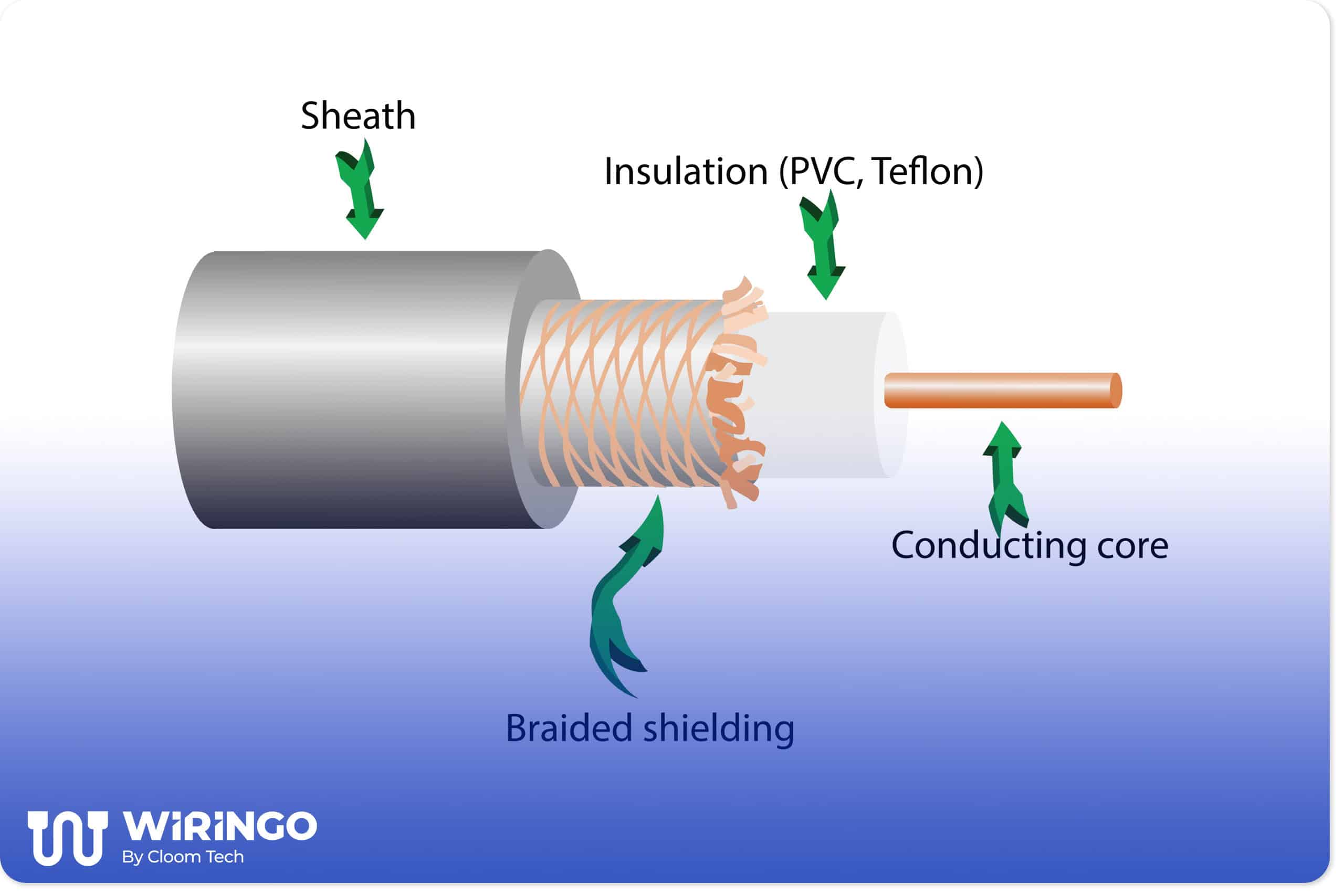
Your coax connection needs precise tension—too loose causes signal leaks, too tight cracks fittings. Here’s the pro technique:
– Finger-tighten until resistance increases
– Add 1/4 turn with pliers using a soft cloth for grip
– Check for corrosion: White/green powder on connectors requires cable replacement
– Test alternative wall outlets—some homes have “dead” coax ports
Splitter Replacement Strategy
Old splitters murder signal strength. If you have cable TV splitters:
– Replace with 5-2000MHz high-frequency splitter (critical for Gigablast service)
– Eliminate unnecessary splits: Each split reduces signal by 3.5dB
– Use shortest cable runs possible—never exceed 6 feet between wall and router
Cox-Specific Fixes That Work
Panoramic WiFi Gateway Troubleshooting
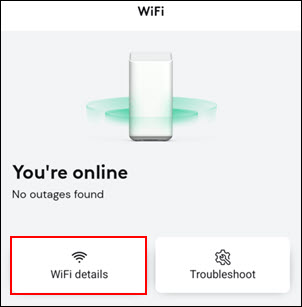
Cox’s all-in-one devices need special handling:
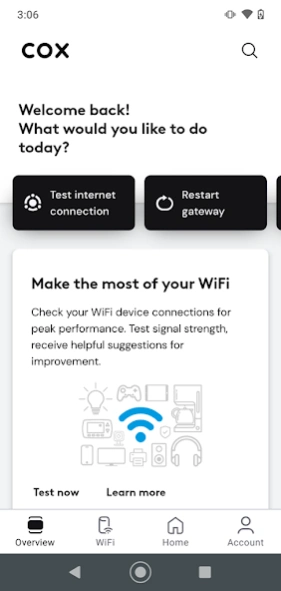
– Run Cox app diagnostics: Open Panoramic WiFi app → Troubleshoot → “Fix Connection”
– Reset WiFi pods: Unplug each mesh pod for 30 seconds if using multi-unit setup
– Verify app updates: Outdated apps cause false error reports—check Play Store/App Store
Manual Reactivation: Bypassing Cox’s System Glitches
When Cox’s network “forgets” your router:
1. Call 1-855-324-7700 with account details ready
2. Provide MAC address (found on router label under “WAN MAC”)
3. Request “signal refresh”—technicians can force-provision your device
4. Stay on hold until they confirm white light status (saves callback time)
Prevent Future Orange Light Emergencies
Router Placement Rules That Matter
- Temperature control: Keep in climate-controlled room (never garages/basements)
- Ventilation buffer: 6+ inches clearance on all sides—no books or papers on top
- Elevation sweet spot: 3-5 feet high on open shelf (not inside cabinet)
- Electronic distancing: Minimum 6 feet from microwaves, cordless phones, baby monitors
Quarterly Maintenance Rituals
- Restart router monthly to clear memory leaks
- Blow dust from vents with compressed air every 3 months
- Check cable tension quarterly—vibrations loosen connections over time
- Verify signal levels via 192.168.0.1 quarterly to catch degradation early
When to Call Cox Support Immediately
Red Flags Requiring Professional Help
Stop troubleshooting and call 1-855-324-7700 if:
– Orange light persists after 30 minutes of all steps above
– All services down (TV, phone, internet simultaneously)
– Visible cable damage like exposed copper or chew marks
– Burning smell or unusual buzzing sounds from router
Speed Up Support with This Information Package
Have these ready to cut hold times:
– Your Cox account number
– Router model (e.g., SBG7600AC2) and serial number
– MAC address from device label
– Exact steps you’ve tried (reference this guide)
– Downstream/upstream readings from 192.168.0.1
Temporary Fixes While Waiting for Resolution
Mobile Hotspot Setup That Won’t Break Your Data Cap
- Enable hotspot in phone settings (Android: Network → Hotspot; iOS: Personal Hotspot)
- Connect 1-2 essential devices only—streaming eats 3GB/hour
- Disable background updates on connected devices
- Set data warnings at 80% of your monthly cap
Cox WiFi Hotspot Network Access
As a Cox customer, you get free access to 1.5 million hotspots:
– Download Cox Connect app to find nearest locations
– Log in with Cox credentials—no separate password needed
– Use for email/light browsing only—avoid financial transactions on public networks
– Enable phone’s auto-hotspot as backup when home internet fails
Key Takeaway: Most Cox router blinking orange issues stem from loose coax connections or temporary network glitches—fixable within 15 minutes using the 30-30-30 reset method. Always rule out service outages first, then methodically check cables and signal levels. When hardware fails or signal degradation persists, Cox support becomes essential—have your MAC address ready to cut resolution time in half. That blinking light isn’t a death sentence for your internet; it’s a precise diagnostic signal telling you exactly where to focus your efforts. By following these steps, you’ll transform that frustrating orange blink into solid white connectivity faster than ordering takeout.



