
When your Verizon router’s lights start flashing unexpectedly, it’s easy to feel frustrated and confused. These colorful LED indicators are actually your first line of defense against connectivity issues, providing instant visual feedback about your network’s health. Understanding Verizon router lights meaning transforms you from a helpless user into an effective troubleshooter who can quickly identify and resolve problems before they disrupt your work or entertainment.
Your router’s LED display acts as a silent diagnostic system, constantly communicating the status of your internet, Wi-Fi, and voice services. When that solid green internet light suddenly turns amber or disappears completely, knowing exactly what it means can save you hours of frustration and potentially avoid unnecessary service calls. This guide decodes every light pattern on Verizon’s Internet Gateway (WNC-CR200A) so you can diagnose issues like a pro.
Power LED Status Meanings
Your router’s power LED serves as the foundation for all other diagnostics—when this light misbehaves, your entire network is compromised. Located prominently on the front panel, this indicator tells you whether your router has the basic electrical support it needs to function.
Solid Green Power Light
A steady green power LED confirms your router has successfully completed its boot sequence and is operating within normal parameters. This means your internal power supply is stable and all diagnostic checks have passed. If you’re experiencing connectivity issues but see this solid green light, the problem lies elsewhere in your network chain, not with your router’s basic functionality.
Power Light Completely Off
When your power LED shows no illumination, your router has lost all electrical connection. This typically indicates your AC adapter has become unplugged, the power cord disconnected from the router, an internal power supply failure, or a malfunctioning electrical outlet. Start troubleshooting by checking the wall outlet with another device, then verify both ends of the power cable are firmly connected before contacting Verizon support.
Blinking Green Power Light
A flashing green power LED signals your router is actively working through its startup sequence, including initial boot after power-on, restart cycles from firmware updates, or system self-tests. This pattern should resolve to solid green within 2-3 minutes. If it continues blinking beyond this timeframe, your router may be stuck in a boot loop requiring intervention—unplug the router for 30 seconds before reconnecting power to reset the process.
Internet LED Connection Guide
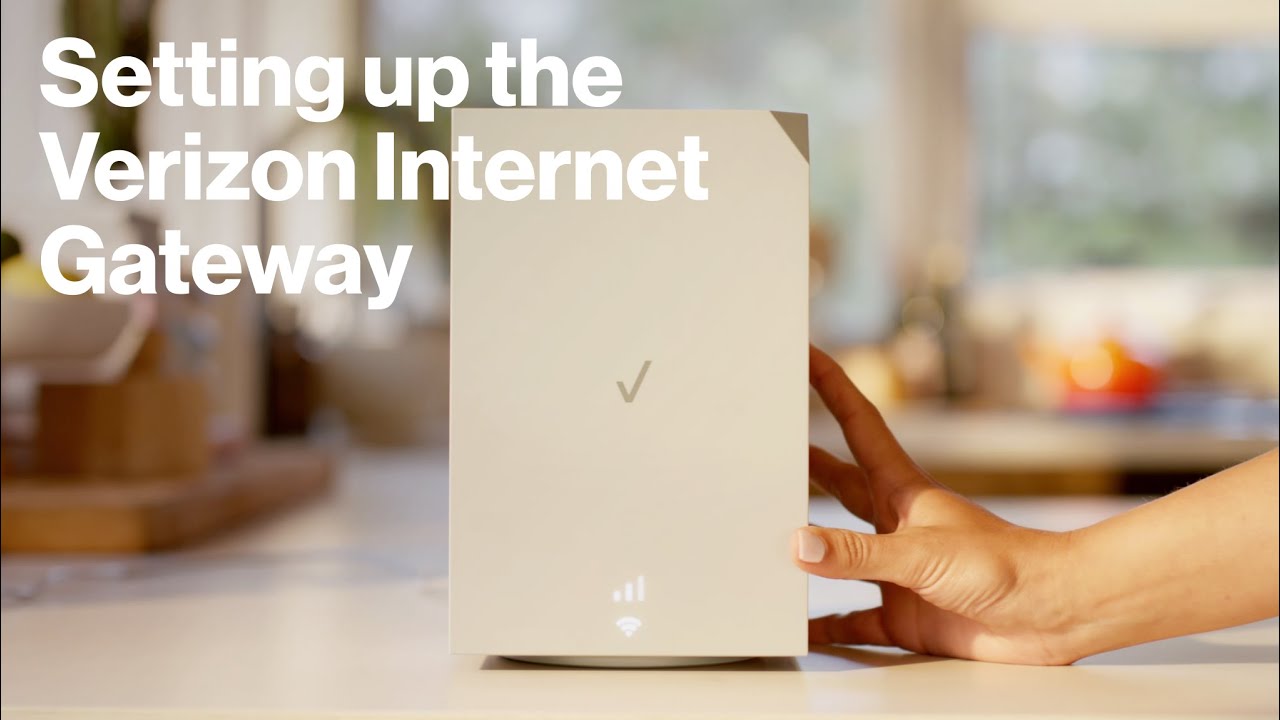
The internet LED sits directly below the power indicator on your router’s front panel and serves as your primary connection health monitor. This single light tells you whether Verizon’s service is successfully reaching your home network.
Solid Green Internet Connection
When your internet LED glows solid green, you’ve achieved successful authentication with Verizon’s network. Your Optical Network Terminal (ONT) is communicating properly, your account is in good standing, and signal strength exceeds minimum thresholds. You’re cleared for all online activities from streaming to gaming without restrictions.
Blinking Green During Usage
A flashing green internet LED indicates active data transmission between your router and Verizon’s servers during normal operation. This is expected behavior showing your devices are actively using the internet connection. You’ll see this pattern during file downloads, video streaming, or background firmware updates—don’t be alarmed by this normal activity indicator.
Internet Light Completely Off
When the internet LED shows no illumination, your router isn’t detecting any connection to Verizon’s network. This suggests either a physical disconnection between your router and ONT, a service outage, account suspension, or hardware failure. Check your coaxial or ethernet cable connection first before assuming major issues—often the fix is as simple as reseating a loose cable.
Amber Blinking Connection Attempt
An amber flashing internet LED reveals your router is actively attempting to establish connectivity. This transitional state occurs during initial connection after power-on or reconnection attempts following service interruptions. This pattern should resolve to solid green within 5 minutes—if it persists, your router may be experiencing authentication failures requiring Verizon’s assistance.
Wi-Fi LED Wireless Status

The Wi-Fi LED governs your wireless network visibility and functionality. When this light misbehaves, your devices can’t connect wirelessly even if your internet service remains active through wired connections.
Solid Green Wireless Broadcasting
A steady green Wi-Fi LED confirms both 2.4GHz and 5GHz networks are actively broadcasting with security protocols (WPA2/WPA3) functional. Your SSIDs appear in device scan lists, and wireless devices can authenticate normally. This is your baseline for healthy wireless operation—if devices can’t connect despite this solid light, check individual device settings first.
Blinking Green Wireless Activity
Flashing green Wi-Fi LED indicates active wireless data transmission between your router and connected devices. This shows normal usage patterns including connected devices streaming content, IoT sensors reporting data, or guest network activity. Frequent blinking during heavy usage periods is expected behavior, not a sign of malfunction.
Wi-Fi Light Turned Off
When the Wi-Fi LED remains dark, your wireless radios are either manually disabled through the admin panel, experiencing hardware failure, operating in bridge mode, or following a scheduled Wi-Fi shutdown. Access your router’s web interface to verify Wi-Fi settings haven’t been inadvertently changed, particularly if you’ve recently adjusted parental controls or network schedules.
Ethernet Port LED Diagnostics
Each numbered ethernet port (1-4) on your router’s rear panel features independent LED indicators. These micro-diagnostic lights help troubleshoot wired connection issues without logging into your router.
Solid Green Port Connection
A steady green LED on any ethernet port confirms successful physical connection with your device powered on and link speed negotiated. Each port operates independently, so failure on port 2 doesn’t affect port 3. This solid light means your wired connection is physically sound—if you still have issues, check device-specific network settings.
Blinking Green Data Transmission
Flashing green ethernet LEDs show active data transmission through specific ports during file transfers between devices, gaming traffic from consoles, or streaming from wired smart TVs. The blink rate often correlates with data volume—rapid flashing during large downloads is completely normal and indicates healthy network activity.
Dark Ethernet Port LED
When an ethernet port LED remains off despite cable connection, this suggests either no cable connected, the connected device is powered off, cable failure, the port disabled in router configuration, or the connected device’s ethernet adapter disabled. Try a different cable and verify the connected device has ethernet enabled before concluding router port failure.
VoIP Service LED Indicators
Not all Verizon routers include VoIP functionality, but those supporting voice services feature a dedicated LED for phone service status. This becomes crucial when your home phone service stops working unexpectedly.
Solid Green Voice Service
A steady green VoIP LED indicates your voice over IP service is fully operational with dial tone available, emergency 911 service active, and voicemail system accessible. This confirms successful registration with Verizon’s voice servers—if phones aren’t working despite this light, check individual phone connections first.
Blinking Green During Calls
Flashing green VoIP LED shows active voice communication in progress during outbound calls, inbound call reception, or voicemail retrieval. The light returns to solid green after call completion. This normal behavior indicates your voice service is functioning correctly during usage.
VoIP Light Disabled
When the VoIP LED remains dark, voice service isn’t active. This happens when voice service isn’t subscribed, service is suspended, hardware failure occurs, or the phone cable has disconnected from the router’s phone port. Verify your service plan includes voice features and check the phone cable connection to the router’s Tel 1/2 ports before contacting support.
Reset Button Function and LED Response
https://www.verizon.com/support/residential-networking/routers/wnc-cr200a-factory-reset/
The reset button sits recessed on your router’s rear panel, deliberately designed to prevent accidental activation. Understanding proper reset procedures can save you from unintended network outages.
Physical Reset Location
Find the reset button as a small, recessed micro-switch on the router’s rear panel, typically requiring a paperclip or similar thin object for activation. The deliberate inset design prevents accidental presses during cable management or routine cleaning—never force this button as it could cause physical damage.
Proper Reset Procedure
To execute a factory reset, press and hold the reset button continuously for exactly 10 seconds using a paperclip. Maintain steady pressure throughout the countdown—releasing early cancels the process. Watch for LED pattern changes indicating reset initiation, typically all lights flashing simultaneously.
Reset Consequences and Recovery
Factory reset completely erases all custom configurations including Wi-Fi network names, passwords, port forwarding rules, DNS settings, and parental controls. After reset, your router restarts automatically and launches an initial setup wizard. Default Wi-Fi credentials appear on the router’s label—all devices require reconnection and previous settings cannot be recovered.
LED Pattern Troubleshooting Guide

Understanding combined LED patterns helps diagnose complex issues beyond single-light failures. These patterns reveal the full story of your router’s operational state at a glance.
Normal Operational Patterns
The healthiest pattern shows all LEDs solid green, indicating full functionality with internet, Wi-Fi, and all services active. Power and internet solid green with Wi-Fi blinking represents normal operation with active wireless usage. Power green with internet blinking green indicates standard internet usage with data transmission occurring.
Problem Diagnostic Patterns
Complete LED darkness across all indicators signals total power failure—check your electrical outlet first. Power green with internet LED off suggests no internet connection detected, requiring ONT or cable checks. Power blinking green with internet off indicates a router stuck in boot loop, potentially requiring factory reset. Power green with internet amber blinking shows the router attempting to establish connection, which should resolve within 5 minutes.
Emergency LED Sequences
During firmware updates, brief simultaneous blinking of all LEDs indicates installation progress—never interrupt power during this sequence as it could brick your router. Configuration changes being applied trigger brief diagnostic LED sequences. If all LEDs blink erratically without pattern, possible hardware failure or firmware corruption has occurred requiring technical support.
Understanding Verizon router lights meaning transforms confusing blinking patterns into clear diagnostic information. Bookmark this guide for quick reference when troubleshooting connectivity issues—most problems resolve within minutes when you understand what each light is telling you. When in doubt, power cycle your router first (unplug for 30 seconds) before attempting more complex solutions, as this resolves many common issues without requiring technical support.



