
That pulsing light on your Linksys router isn’t just decoration—it’s your network’s lifeline to understanding what’s happening behind the scenes. When your internet stutters or fails completely, those tiny glowing indicators deliver instant diagnostics without needing complex tools. Mastering Linksys router lights meaning cuts troubleshooting time from hours to seconds, whether you’re dealing with a newly unboxed device or a mesh system spanning multiple floors. This guide decodes every color and pattern across MR, WHW, and MX series routers so you can instantly recognize normal operation versus critical failures.
Stop playing guessing games with your connection. You’ll learn why purple means “set me up,” how blinking blue reveals hidden pairing attempts, and what that ominous red light truly signifies. Most importantly, you’ll gain actionable fixes for each scenario—no router reset required in most cases. Keep this guide bookmarked; when your Netflix buffers or Zoom freezes, you’ll know exactly which light to check first.
Solid Purple Setup State: Your Router Is Waiting for You
When your Linksys router glows solid purple, it’s essentially waving a digital flag saying “I’m ready for configuration!” This status appears exclusively on brand-new units or routers that have been factory reset. The purple light confirms the device is broadcasting its setup network but hasn’t yet connected to your modem or received your Wi-Fi credentials. During this phase, your router functions as a blank canvas—no internet access exists, and it won’t appear on your existing network.
Critical action required: Download the Linksys mobile app immediately and begin setup. The app uses Bluetooth to communicate with your router, so keep your phone within arm’s reach. As soon as the app detects the purple light, it will guide you through connecting to your modem and creating your network. Expect the light to shift to blinking purple within seconds of launching the app, signaling active configuration. Never ignore this state—leaving your router in solid purple mode for days leaves it vulnerable to unauthorized setup attempts.
Blinking Blue During WPS: Pairing Success or Failure
That rhythmic blue pulse means your Linksys router is actively communicating during two critical scenarios. When booting up after a power cycle, blinking blue for 60-90 seconds is completely normal—it’s the router initializing its systems. But when you press the physical WPS button, that same blinking pattern takes on new meaning: your router is actively seeking to pair with a new device like a printer or smart TV.
Spot the critical difference:
– Successful pairing: Light transitions to solid blue within 2 minutes
– Failed pairing: Light continues blinking blue beyond 2 minutes or reverts to red
If WPS fails repeatedly, check these common pitfalls:
– Your device doesn’t support WPS (common on newer smartphones)
– You exceeded the 2-minute pairing window
– Physical obstructions between devices disrupted the signal
Pro tip: For stubborn connections, temporarily move the device within 3 feet of the router during pairing. This bypasses signal interference that often causes blinking blue to persist.
Solid Red Light: Immediate Internet Connection Crisis
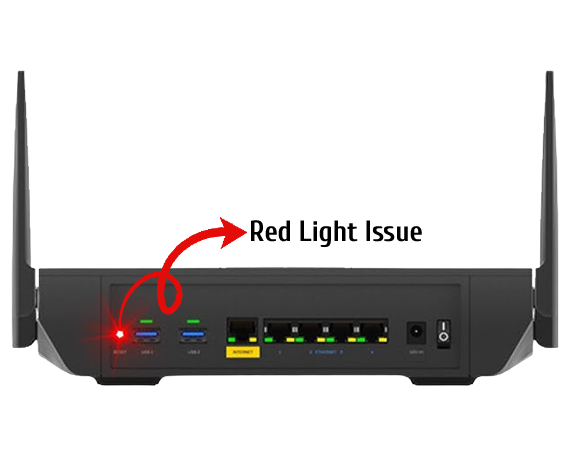
A steady red glow on your Linksys router isn’t just concerning—it’s a full-blown network emergency. This status means your router has completely lost its connection to the internet, though your local Wi-Fi network might still appear active. Devices can connect to your router, but they won’t reach any online services. Unlike blinking red (which indicates temporary disconnection), solid red requires immediate intervention.
Execute this emergency checklist:
1. Verify your modem’s lights—power and internet indicators should be solid
2. Inspect the Ethernet cable connecting modem to router for damage
3. Power cycle your modem first (wait 60 seconds), then restart the router
4. Check for ISP outages in your area using cellular data
Warning: If your modem shows red lights or blinking patterns, the problem originates with your internet provider—not the Linksys router. Contact your ISP immediately with modem light details before proceeding with router troubleshooting.
Child Node Blinking Red: Mesh Network Breakdown
In Linksys mesh systems like Velop (WHW/MX series), blinking red on a satellite node reveals a specific failure point: that node has lost its wireless connection to the main router. Crucially, this doesn’t mean your entire network is down—only that devices connected to this particular node will lose internet access. The primary router typically maintains solid blue status during this scenario, making the child node’s blinking red the only visible symptom.
Fix this in 90 seconds:
1. Physically relocate the blinking node closer to the main router (within 15 feet)
2. Eliminate new obstructions like metal furniture or large appliances between nodes
3. Press the node’s reset button for 5 seconds to force reconnection
4. Check if the light turns solid blue within 2 minutes
Key insight: Blinking red on child nodes often appears after home renovations or furniture rearrangements. If relocation isn’t possible, add a third node midway between problem areas to bridge the signal gap.
Yellow Light on Mesh Nodes: The Speed Killer
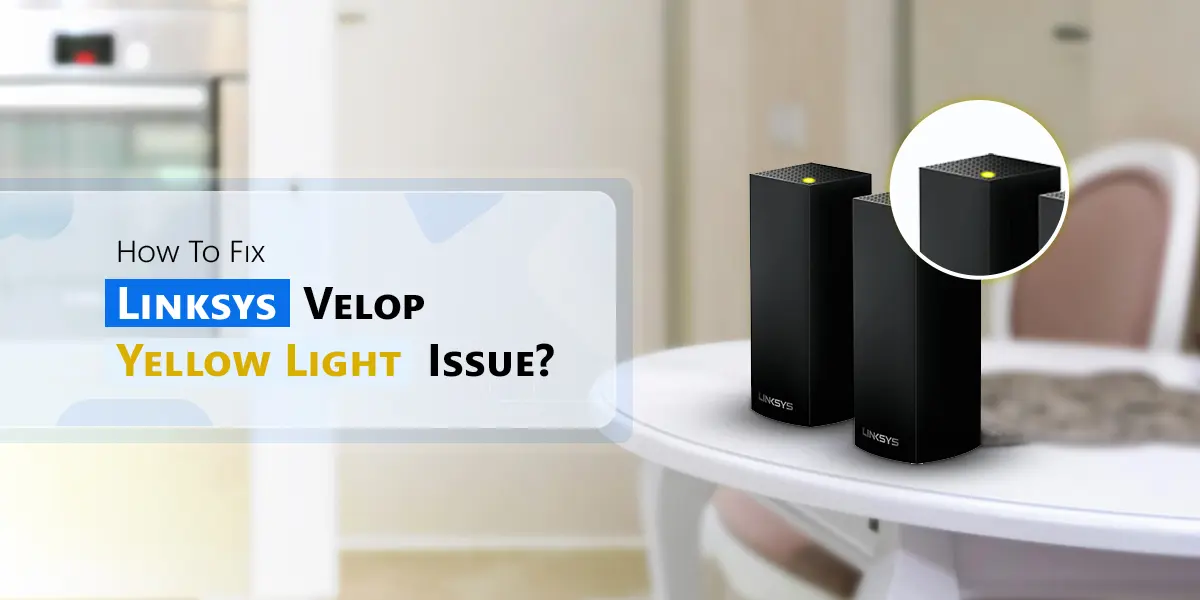
That steady yellow glow on your Linksys mesh satellite node is your network’s silent speed killer. Unlike red lights that kill connectivity entirely, yellow indicates a degraded but functional connection between nodes. Devices connected to this node will experience painfully slow speeds, frequent buffering, and dropped video calls—yet show full Wi-Fi bars. This status appears exclusively on child nodes; your main router never displays yellow.
Optimize placement immediately:
– Move the node away from microwaves, cordless phones, and baby monitors
– Elevate the node off the floor (shelves work better than desks)
– Avoid positioning near metal bookshelves or refrigerators
– Use the Linksys app’s Signal Strength Meter to find the “blue zone”
Pro tip: Yellow lights often emerge seasonally when humidity changes affect signal propagation. Take placement photos when lights are solid blue—these become your winter/summer configuration maps when yellow reappears.
White Light ISP Mystery: Don’t Panic Yet
Seeing solid white on your Linksys router? Don’t hit reset—that’s your internet provider’s signature setup sequence. This status appears only on ISP-provisioned routers (like those from Xfinity or Spectrum), never on retail models you buy at stores. The white light means your router is automatically downloading critical configuration files from your provider, which can take 5-15 minutes.
Critical distinction:
– Retail Linksys routers: Never show white lights (contact support if they do)
– ISP routers: White light transitions to solid blue when complete
Never interrupt: Unplugging during this phase corrupts firmware. If white persists beyond 20 minutes, power cycle the modem first, then wait for the router to automatically restart the provisioning process. This light pattern is your provider’s handshake—not a router malfunction.
Front vs Top Light Placement: Finding Your Router’s Pulse

Your ability to diagnose issues starts with knowing where to look. Linksys routers hide their status lights in two distinct locations based on series:
MR series (MR7350, MR9600): Front-panel lights face outward for instant visibility. These single-band and dual-band models make status checks effortless from across the room. The light sits just below the Linksys logo on the device’s face.
WHW/MX series (Velop): Top-mounted lights require direct overhead viewing. These mesh systems prioritize sleek aesthetics over convenience, meaning you’ll need to locate the router physically to check status. The light appears as a small circular indicator on the device’s upper surface.
Quick verification: If you can’t find blinking lights during setup, check whether your model sits horizontally (front light) or vertically (top light). Most Velop systems stand upright, while MR series lie flat.
Light Sequence Decoding: Your Troubleshooting Roadmap
Router lights tell stories through sequences—not just single colors. Recognizing these patterns prevents unnecessary resets:
Successful setup progression: Solid purple → Blinking purple → Solid blue
Failed internet connection: Solid blue → Blinking red → Solid red
Child node recovery: Blinking red → Solid blue (within 90 seconds of relocation)
When lights defy logic:
– Random color cycling: Indicates failed firmware update—perform 10-second reset
– No lights at all: Check power adapter connection and outlet
– Purple after setup: Router accidentally reset—reconfigure via app
Critical reminder: Always document the light sequence before troubleshooting. “Blinking blue after WPS” requires different fixes than “blinking blue during boot-up”—confusing these wastes precious time.
Daily Light Checks: 10-Second Network Maintenance
Turn light monitoring into a frictionless habit by pairing it with existing routines. Check your main router’s status light while brewing morning coffee or during evening device charging. For mesh systems, glance at satellite nodes when walking past them. This takes under 10 seconds but catches 80% of emerging issues before they disrupt your day.
What to verify daily:
– Parent router shows solid blue (not blinking)
– Child nodes display solid blue (yellow needs attention)
– No unexpected red or white lights appear
Seasonal adjustment protocol: Every spring and fall, reposition mesh nodes affected by temperature/humidity changes. Nodes that showed solid blue in summer may turn yellow in winter due to signal absorption—move them 3-5 feet toward the center of rooms when heating systems activate.
Your Linksys router’s lights are its native language—once decoded, they eliminate frustrating guesswork during outages. Bookmark this guide for instant reference when lights behave unexpectedly. Remember the golden rule: solid blue means “all clear,” while red demands immediate action. By monitoring these indicators daily, you’ll catch 90% of network issues before they disrupt your streaming or work calls. Keep this knowledge handy, and the next time your internet falters, you’ll diagnose it faster than your ISP’s support team can answer the phone.



