
Your TP-Link router is trying to tell you something important through its blinking lights, but without knowing the TP-Link router lights meaning, you’re left guessing why your internet connection dropped or why certain features aren’t working. Those colorful LEDs aren’t just decorative—they’re your router’s way of communicating its status, connection quality, and potential problems. In this complete guide, you’ll learn exactly what each light pattern means across popular TP-Link models like the Archer C5, Archer C20, and TL-WR850N, so you can diagnose network issues in seconds instead of hours.
Stop staring blankly at your router during connection problems. By the time you finish this guide, you’ll instantly recognize whether that flashing light means normal activity or a serious issue requiring action. We’ve decoded every LED indicator based on TP-Link’s official specifications so you can troubleshoot like a pro without calling customer support.
Why Your TP-Link Router’s Startup Light Sequence Matters
Your router performs a critical self-diagnostic test every time you power it on, and the light patterns reveal whether this process completes successfully.
How to Read Your Router’s Power-On Diagnostic Sequence
Watch closely during startup—your router’s lights follow this exact five-phase sequence:
- All LEDs flash bright green for half a second—confirms basic power circuit functionality
- Internet LED turns red while others stay green—indicates system diagnostics are running
- Only power LED remains solid green—shows initialization has begun properly
- Power LED flashes steadily (0.5s on/off)—confirms boot process is active
- All LEDs return to normal patterns—router is fully operational and ready
If your router gets stuck flashing the power LED for more than 3 minutes, your system has failed to boot properly. Don’t panic—press and hold the reset button for 10 seconds to restart the process. Never unplug your router during this sequence, as interrupting the boot process can corrupt your firmware.
What It Means When Startup Sequence Fails
A router that never completes the startup sequence typically has one of these problems:
- Power adapter issues: Check for frayed cables or loose connections
- Firmware corruption: Requires a factory reset to restore functionality
- Hardware failure: If lights behave erratically after multiple resets, contact TP-Link support
Fix Your Internet Connection by Reading the Internet LED
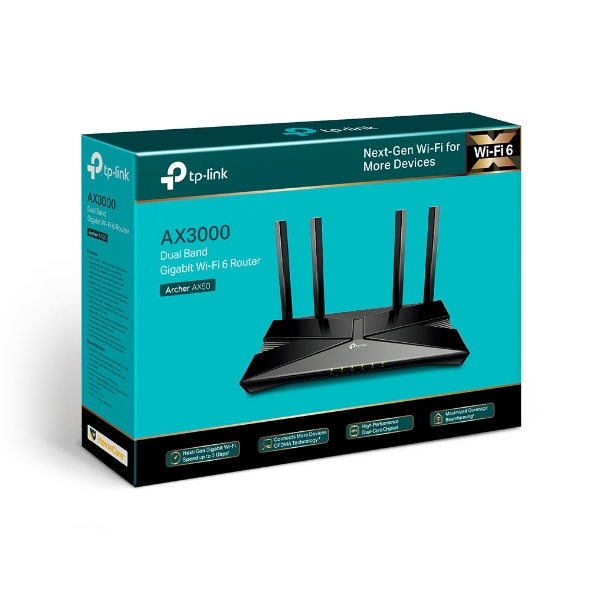
The Internet LED provides the quickest visual confirmation of your connection status to your ISP, using both color and pattern to communicate critical information.
Solid vs. Flashing Green Internet Light: What’s the Difference?
Your Internet LED tells distinct stories based on its behavior:
Solid green Internet LED means your router has established a connection with your modem and ISP, but no active data is currently flowing. This appears when all your devices are powered off or idle—perfectly normal behavior during quiet periods.
Flashing green Internet LED indicates active data transfer happening right now. The faster the flashing, the more bandwidth consumption occurring across your network. If you’re streaming 4K video while someone else downloads large files, expect rapid flashing.
Solid red Internet LED should only appear briefly during startup diagnostics. If you see red after the boot process completes, your router isn’t detecting a valid internet signal from your modem—check all cable connections immediately.
Troubleshoot Ethernet Problems Using LAN Port Lights
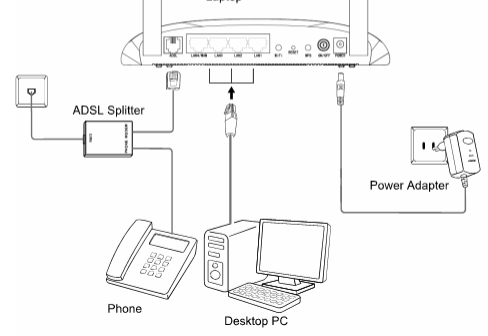
Each numbered LAN LED corresponds directly to a physical port on your router’s back panel, giving instant feedback about wired connections.
Why Your LAN Port Light Won’t Turn On (And How to Fix It)
When a specific LAN LED remains off while you expect a connection:
- Verify physical connection: Unplug and firmly reseat the Ethernet cable at both ends
- Check device power: Ensure the connected computer or device is powered on
- Test with different cable: Ethernet cables fail surprisingly often—swap with a known working cable
- Try alternative port: If another port works, your original port may be damaged
Pro Tip: If your LAN LED shows solid green but you still have no connection, power cycle the connected device. Many network interface cards require a restart to establish proper communication.
Decoding Rapid LAN LED Flashing Patterns
When your LAN LED flashes rapidly during normal use:
- Heavy file transfers between wired devices cause sustained rapid flashing
- Network congestion from multiple devices using bandwidth simultaneously
- Potential loop issue if flashing continues constantly without activity—check for accidental network loops
Restore Wireless Connectivity by Monitoring Band LEDs
2.0_A.png)
Modern TP-Link routers separate 2.4GHz and 5GHz networks with individual LED indicators, giving you precise control over your wireless performance.
Why One Wireless Band LED Is Off (And How to Enable It)
If your 2.4GHz or 5GHz LED remains off when expected:
- Log into your router admin panel (typically 192.168.0.1 or 192.168.1.1)
- Navigate to Wireless Settings > Basic Settings
- Ensure the corresponding band is enabled (checkbox should be selected)
- Save settings and wait 30 seconds for changes to take effect
Warning: Disabling both wireless bands turns off all Wi-Fi functionality—make sure you have a wired connection before attempting this.
What Rapid Wireless LED Flashing Tells You About Network Traffic
Your wireless LEDs provide real-time feedback about network activity:
- Occasional slow flashing: Normal background traffic from smart home devices
- Constant moderate flashing: Regular browsing or standard definition video streaming
- Very rapid flashing: High-bandwidth activities like 4K streaming or large file transfers
- Complete absence of flashing: No wireless devices currently connected to that band
Resolve USB Connection Issues Through USB LED Patterns
The USB LED monitors your external storage or printer connections, providing instant feedback about device recognition and activity.
Why Your USB LED Keeps Flashing (And When to Worry)
When your USB LED flashes longer than expected:
- First 30 seconds: Normal initialization process for new devices
- Beyond 60 seconds: Device may not be compatible with your router’s USB port
- Constant flashing: File transfer in progress—don’t disconnect the device
- Intermittent flashing: Scheduled backup or maintenance operation running
Common Mistake: Never remove USB devices while the LED is flashing—this can corrupt data or damage your storage device. Wait for solid green before disconnecting.
Fix WPS Connection Failures Using the WPS LED
The WPS LED simplifies connecting new devices without passwords, but specific light patterns reveal why connections succeed or fail.
Why Your WPS LED Won’t Stop Flashing (Troubleshooting Guide)
When your WPS LED flashes for more than 2 minutes:
- Device compatibility issue: Older devices may not support WPS properly
- Distance problem: Move the device closer to the router during pairing
- Interference: Other wireless signals may be disrupting the handshake process
- Security mismatch: WPA3 devices might not connect to WPS on older routers
Time-Saving Tip: If WPS fails after two attempts, switch to manual password entry—continuing to retry wastes valuable time when simple password entry will work immediately.
Diagnose VoIP Phone Service Problems with Phone LED
On TP-Link models with VoIP capabilities, the Phone LED provides critical status information about your digital phone service.
What Different Phone LED Flashing Rates Mean for Your Calls
Your Phone LED communicates specific VoIP statuses through precise flashing patterns:
- Solid green: Your phone service is fully operational—make and receive calls normally
- Flashing at 2Hz (twice per second): You have waiting voice messages while off-hook
- Flashing at 4Hz (four times per second): Incoming call ringing on one or more phone lines
- Completely off: VoIP service isn’t connected—check SIP account settings immediately
Critical Note: If your Phone LED remains off despite correct configuration, verify your internet connection first—VoIP requires stable internet to function properly.
Emergency Troubleshooting Guide for Common Light Patterns
When network problems strike, these specific LED combinations provide immediate diagnostic clues.
No Power Light? Follow This Step-by-Step Recovery Process
If your router shows absolutely no lights when plugged in:
- Check wall outlet with another device to confirm power availability
- Inspect power adapter for physical damage or loose connections
- Try a different power cable if available (many adapters use standard connectors)
- Press and hold reset button for 10 seconds while plugged in
- Contact TP-Link support if still no lights after these steps
Internet Light Red After Startup? Fix Your WAN Connection Now
When your Internet LED shows solid red after the startup sequence:
- Unplug both router and modem and wait 60 seconds
- Reconnect modem first and wait for all its lights to stabilize
- Then reconnect router’s WAN cable to modem’s Ethernet port
- Power on router and watch startup sequence complete properly
Pro Tip: Write down your router’s login credentials now—having them ready saves crucial time during troubleshooting emergencies.
Key Takeaway: Your TP-Link router’s LED lights form a precise communication system that reveals exactly what’s happening with your network. By learning these visual signals, you’ve transformed from helpless observer to informed network manager who can diagnose issues before they escalate. Bookmark this guide for quick reference next time your internet acts up—you’ll resolve problems faster while avoiding unnecessary support calls. For ongoing network health, perform a quick LED check every morning to catch developing issues before they disrupt your work or entertainment.



