
You’re scrolling through your phone when suddenly the internet cuts out. Your first instinct? Rush to the router, only to be greeted by a confusing array of blinking lights. That steady red glow on the “Internet” port or the frantic flashing of Wi-Fi LEDs isn’t random—it’s your router desperately trying to tell you what’s wrong. Understanding router lights meaning transforms you from a helpless user into a network detective, saving you hours of frustration and unnecessary service calls.
Those tiny LEDs follow universal communication patterns that reveal your connection health, device status, and data flow. Whether you’re staring at a cable modem’s downstream light or a Wi-Fi router’s WPS indicator, each color and blink sequence provides critical diagnostic information. This guide cuts through the confusion with actionable insights you can use immediately—no technical degree required.
What Every Blinking Pattern Really Means
Your router communicates through precise light rhythms that expose exactly what’s happening behind the scenes. Slow, steady blinking (one pulse per second) signals the router is struggling to establish a connection. This is normal during the first 2-3 minutes of startup, but if it persists beyond 20 minutes, your device has failed to connect to the internet. For example, a downstream light blinking slowly on your cable modem means it can’t lock onto your ISP’s signal—often due to line issues or outages.
Rapid, erratic blinking (multiple flashes per second) is actually good news—it confirms healthy data transmission. When your Wi-Fi or Ethernet lights flicker like a disco strobe during video calls or downloads, that’s normal network traffic. Think of it as watching data packets race through your home network in real time. Only continuous slow blinking after the boot sequence indicates trouble.
When Red Lights Demand Immediate Action
That ominous red glow triggers panic, but it’s your router’s clearest distress signal. Solid red typically means critical hardware failure or complete internet outage. If your WAN light glows red while power and Wi-Fi indicators work normally, your connection to the ISP is severed—likely requiring a service call. Blinking red warns of serious issues like firmware corruption or security breaches. On fiber ONTs, a blinking red alarm light specifically means the optical signal from your provider is lost.
Don’t ignore these warnings: A red internet light for over 30 minutes means your troubleshooting window has closed. Restart your equipment immediately using the 60-second protocol below—delaying further wastes valuable downtime.
Decoding Your Router’s Color Language
Green/White Lights: The “All Systems Go” Signal
Solid green or white is your router’s thumbs-up. On power ports, it confirms stable electricity. For internet/WAN lights, it means you’ve successfully connected to your ISP. With Wi-Fi indicators, solid green shows wireless radios are active and ready—though no blinking means no devices are currently transmitting data. Some newer routers like Google Nest Wi-Fi use white instead of green, but the meaning stays consistent.
Yellow Lights: The Warning Zone
Yellow isn’t an emergency—but it’s not business as usual either. On cable modems, a yellow downstream light during startup indicates signal negotiation with your ISP. If it stays yellow after 5 minutes, check coaxial cable connections. For Ethernet ports, yellow often signals a half-duplex connection (devices communicating but not at full speed). Never ignore persistent yellow lights—they’re your router saying “I’m working but not optimally.”
Critical Router Lights Breakdown
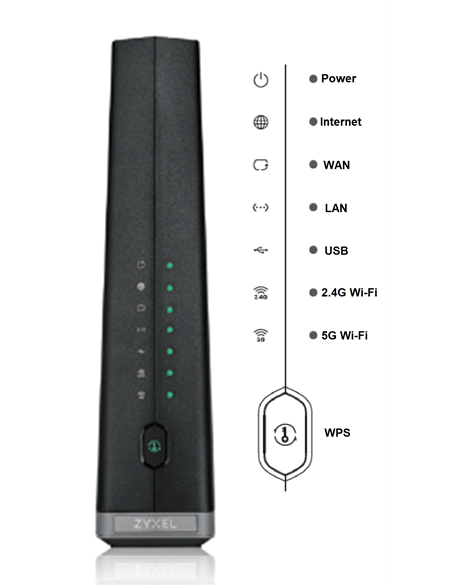
Internet/WAN Light: Your Lifeline to the Web
This is the most important indicator. Solid green means your router has a live internet connection with no active traffic—perfect for checking if outages are local or widespread. Flashing green during downloads/uploads is normal, but continuous slow blinking after startup reveals a failed connection handshake. If this light stays red or off after restarting, unplug your modem/router, wait 60 seconds, then power up the modem first. Wait 2 full minutes for its lights to stabilize before powering the router.
Wi-Fi Activity Lights: Wireless Health Check
Your Wi-Fi lights tell if wireless devices are communicating. Solid green means radios are enabled but idle—like a radio waiting for a signal. Rapid blinking during Netflix streaming or Zoom calls confirms active data flow. If these lights stay completely off while wired connections work, someone likely disabled Wi-Fi in settings. Check for a physical Wi-Fi on/off button on the router—many TP-Link models have one.
WPS Light: The Hidden Security Risk
That blinking WPS light isn’t just decorative—it’s a potential vulnerability. Flashing green means your router is in pairing mode, actively accepting new devices for up to 2 minutes. Some users leave this enabled permanently, creating an open door for hackers. Always disable WPS in your router settings after connecting devices. On TP-Link Archer models, the light stays solid green for 5 minutes post-connection before turning off—a security feature many miss.
Fix Red Internet Light in 3 Minutes Flat
When your internet light glows red, skip the panic with this targeted protocol:
-
Check physical connections first
⚠️ Never force coaxial cables—hand-tighten only (1/4 turn after finger-tight). Verify Ethernet cables click fully into ports. For fiber ONTs, ensure the SFP module is fully snapped into the PON port. -
Execute the 60-second restart
Unplug modem AND router → Wait exactly 60 seconds (critical for capacitor discharge) → Plug in modem first → Wait 2 minutes for DS/US lights to stabilize → Power on router. -
Interpret the reboot sequence
On TP-Link Archer routers: All LEDs flash green for 0.5 seconds → Internet LED turns red briefly → Power light pulses every 0.5 seconds during boot. If internet light stays red after 5 minutes, contact your ISP.
When Blinking Lights Mean “Everything’s Fine”
Most users misinterpret normal operation as errors. Rapid Wi-Fi blinking during downloads? That’s healthy data flow. Slow downstream light during startup? Expected while locking channels. Solid yellow Ethernet light? Indicates Gigabit connection (green = 100Mbps). The true red flag is no blinking at all on active ports—this means devices aren’t communicating despite being connected.
Pro Tip: During heavy downloads, your WAN light should pulse steadily. If it freezes solid while downloads stall, your router’s overwhelmed—time for a reboot or upgrade.
Equipment Lifespan: When Lights Signal Replacement Time
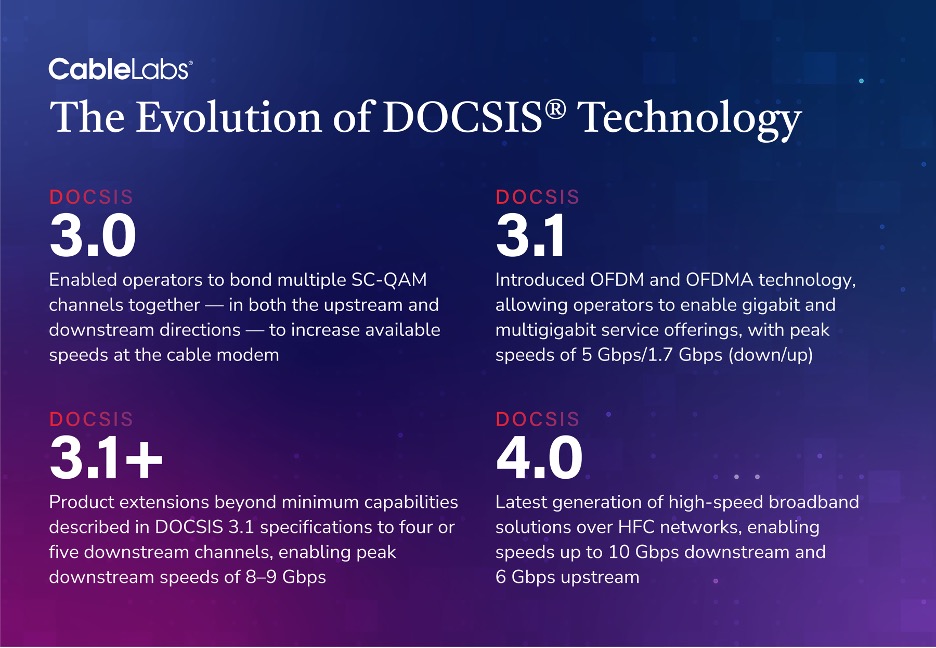
Router lights reveal aging hardware through persistent warnings. If you see frequent red internet lights despite clean cables and proper restarts, your equipment may be obsolete. Modems older than 5 years often can’t handle gigabit speeds (DOCSIS 3.1 required). For Wi-Fi routers, if 5GHz lights stay off while 2.4GHz works, your device lacks modern standards.
Check your ISP’s compatibility list—many throttle speeds on outdated gear. When lights consistently indicate failures after troubleshooting, replacement beats endless diagnostics. Modern mesh systems like Eero use single LEDs with color codes: Solid purple = working, red flashes = no internet.
Single-Light Router Decoding Shortcut

Newer compact routers like Amazon eero or Google Nest use one multi-color LED. Here’s the cheat sheet:
– Solid white: Normal operation
– Pulsing white: Booting up
– Solid blue: Setup mode
– Flashing red: Critical error (power cycle immediately)
– Alternating colors: Firmware update in progress
Always search “[Your Model] LED color chart” online—manufacturer guides specify exact blink rates. For example, a Netgear Orbi flashing blue 3 times then pausing means satellite disconnected.
Those blinking router lights aren’t random—they’re your network’s heartbeat monitor. By learning this visual language, you’ll diagnose issues before they escalate, skip unnecessary tech support calls, and maintain seamless connectivity. When the internet cuts out tonight, don’t just stare at the lights—read their message. That red glow? It’s not a mystery—it’s your router handing you the solution. Keep this guide bookmarked, and you’ll never wonder “what do router lights mean” again. Your network’s story is written in light—one blink at a time.



