
Your Orbi router suddenly stopped broadcasting WiFi, or maybe it won’t connect to the internet at all. Before you panic and consider buying a replacement, most Orbi issues resolve through systematic troubleshooting. Whether you’re dealing with failed installation, dropped connections, or complete network failure, this guide walks you through proven solutions that work across all Orbi models—from the basic RBK20 to the latest WiFi 7 systems.
You’ll discover why your Orbi isn’t working and exactly how to fix it, including when to use the app versus manual setup, how to identify hardware failures, and quick fixes that restore connectivity in minutes. Most connectivity problems stem from simple configuration errors rather than hardware defects, saving you the cost of unnecessary replacements.
Common Orbi Failure Symptoms
No Internet Connection After Setup
When your Orbi router powers on but devices can’t reach the internet, the issue typically stems from the modem-router handshake. First, verify your modem shows solid internet connectivity by checking its status lights. If your modem works but Orbi doesn’t, the problem lies in the configuration or physical connection. This symptom affects all models including popular WiFi 6 systems like the RBK752 and RBK852 series.
Pro tip: For Cable Orbi models (CBK40, CBR750), ensure your coaxial connection is secure and your cable provider has activated the modem functionality. These models combine modem and router functions, requiring different setup than standard Orbi systems.
App Installation Stuck or Fails
The Orbi app installation frequently fails when the router hasn’t properly established communication with your modem. This happens most often when previous network settings remain cached or when the physical connection sequence occurs incorrectly. If you’re using a newer WiFi 7 model like the RBE973SB, ensure your smartphone’s operating system is updated to support the latest security protocols.
Critical step: Always disconnect the Orbi from your modem before starting installation. Reboot your modem first, wait for all lights to stabilize, then connect the Orbi router to the modem’s Ethernet port. This sequence prevents connection conflicts that cause app installation failures across all Orbi models.
WiFi Network Visible But No Internet
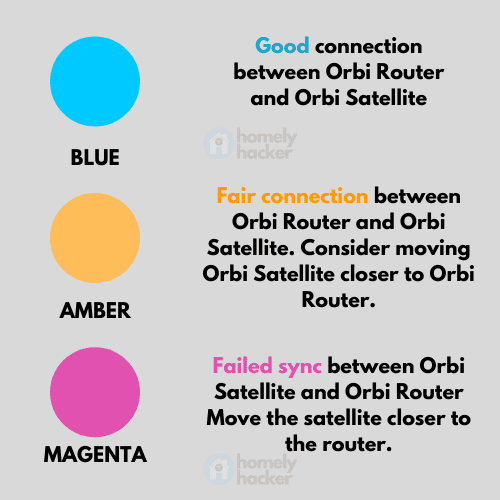
Your devices connect to the Orbi WiFi network successfully, but web pages won’t load. This indicates the router broadcasts WiFi correctly but hasn’t established internet connectivity through your modem. Check the ring LED on your Orbi router—solid blue means satellite connection is good, but magenta indicates no internet connection despite WiFi being active.
Quick Diagnostic Steps

Power Cycle All Equipment
Unplug your modem and Orbi router from power. Wait 30 seconds, then plug in the modem first. Once the modem shows stable lights (typically 2-3 minutes), power on your Orbi router. This sequence clears cached connection data and forces fresh IP assignment. For Cable Orbi models, include the coaxial connection in this process by ensuring it remains secure throughout.
Time estimate: Complete this process in under 5 minutes. Most temporary glitches resolve through proper power cycling. If your Orbi still shows amber or magenta lights after this step, move to physical connection checks.
Check Physical Connections
Inspect the Ethernet cable connecting your modem to the Orbi’s yellow Internet port. Replace the cable if you notice any damage or if it’s older than 5 years. Ensure the cable clicks firmly into both ports. For Cable Orbi models, verify the coaxial connection is hand-tightened (not over-tightened) to prevent signal leakage.
Visual cue: Look for Ethernet cables with CAT5e or CAT6 labeling. Older CAT5 cables may cause intermittent connectivity issues, especially with bandwidth-intensive WiFi 6 and WiFi 7 models that support multi-gigabit speeds.
Verify LED Status Lights
Orbi’s ring LED communicates system status: solid white indicates normal operation, pulsing white shows startup sequence, amber suggests connection issues, and magenta indicates no internet. Solid blue confirms successful satellite connection. For models like the RBK53 or RBR750, refer to the specific LED pattern documentation as some variations exist between WiFi 5 and WiFi 6 models.
App Installation Failures
When Orbi App Won’t Detect Router
If the app fails to find your Orbi during setup, force-close the app and restart your phone. Ensure you’re connected to the default Orbi network (ORBIxx) rather than your cellular data or existing WiFi. Stand within 10 feet of the router during setup to maintain strong signal strength, especially for models with limited range like the basic RBK12.
Common mistake: Using a 5GHz-capable device that can’t detect the 2.4GHz setup network. Many smartphones automatically connect to 5GHz networks, but Orbi initial setup requires 2.4GHz connectivity. Disable 5GHz on your phone temporarily if needed.
Clear App Cache and Retry
On Android: Settings > Apps > Orbi > Storage > Clear Cache. On iOS: Force-close the app and restart. Clearing cache resolves most app detection issues across all models from older WiFi 5 systems to the latest WiFi 7 routers. Then attempt setup while standing within 10 feet of the router.
Pro tip: If you’re setting up Orbi Pro models (different from consumer Orbi), use the dedicated Orbi Pro app instead of the standard Orbi app. Consumer Orbi instructions won’t work for Pro series systems.
Switch to Manual Installation
When app installation repeatedly fails, bypass it entirely. Connect a laptop to the Orbi’s default WiFi, open a browser to orbilogin.net, and follow the web-based setup wizard instead. This method works consistently across all Orbi models including WiFi 6E systems like the RBKE963B that sometimes experience app compatibility issues with older smartphone OS versions.
Manual Setup via Web Interface
Connect to Default Network
Locate the default WiFi name and password on your Orbi’s label. Connect your computer to this network—it appears as “ORBIxx” or similar. No internet connection exists yet; this simply establishes communication with the router. For Voice models like the RBK50V, the setup process remains identical despite the integrated speaker functionality.
Visual cue: The default network name appears on a sticker typically found on the bottom or back panel of all Orbi models, from the compact RBK13 to the powerful RBK854.
Access Web Configuration
Open any web browser and type http://orbilogin.net exactly. If this fails, try 192.168.1.1 or 10.0.0.1 instead. The setup wizard launches automatically. For Cellular models (LBR20 series), ensure you’ve inserted the SIM card properly before accessing the web interface.
Troubleshooting note: If none of these addresses work, clear your browser cache or try a different browser. Some security extensions block access to local network addresses.
Complete Network Configuration
Follow the web wizard’s prompts to:
– Create your new WiFi network name and password
– Configure security settings (use WPA3 if available on WiFi 6+ models)
– Update router firmware if prompted
– Add satellites if you have them
Critical step: For WiFi 6 models (RBK752, RBK852 series), select WPA3 security if all your devices support it. For mixed networks with older devices, choose “WPA2/WPA3” transition mode to maintain compatibility while enhancing security.
Satellite Sync Problems
Proper Satellite Placement
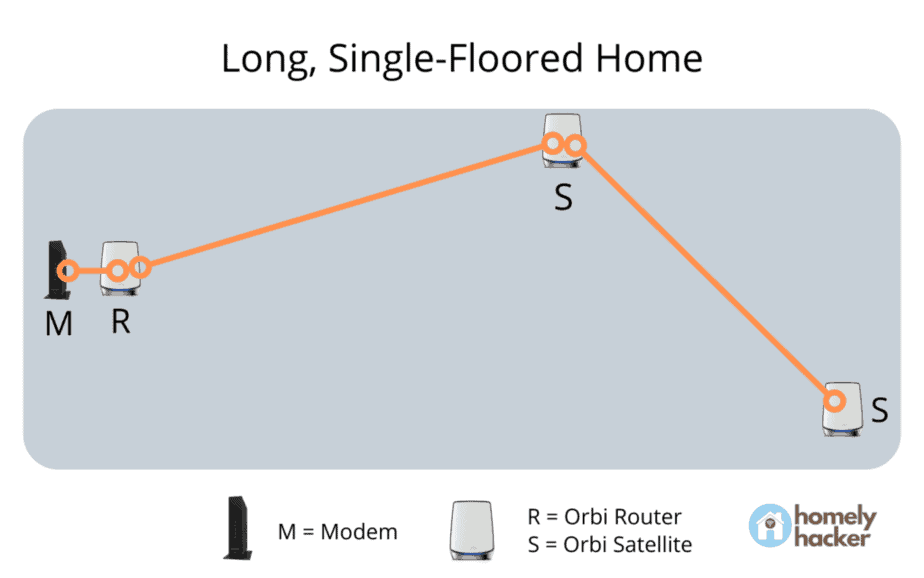
Place satellites halfway between your router and dead zones, ensuring no more than 30 feet from the router for dual-band models or 40 feet for tri-band systems. Avoid thick walls, metal objects, and interference sources. For WiFi 6E models with 6GHz band (RBKE963 series), placement is even more critical as the higher frequency doesn’t penetrate obstacles as well.
Pro tip: Test satellite placement before final installation. Hold the satellite in position and check the LED—solid blue means good connection, pulsing white indicates syncing, and amber/magenta shows poor signal.
Manual Satellite Sync
Press the sync button on your router, then within 2 minutes press the sync button on your satellite. The satellite’s ring LED will pulse white during sync, turn solid blue for successful connection, or amber/magenta for issues. For models like the RBK53S with multiple satellites, sync one at a time to prevent confusion.
Time estimate: Satellite syncing typically completes within 30-60 seconds. If the LED remains pulsing white beyond 2 minutes, move the satellite closer to the router and retry.
Factory Reset Satellite
When satellites refuse to sync, perform a factory reset: press and hold the reset button for 7 seconds until the LED blinks amber. Then re-add through the app or web interface. This resolves persistent sync issues across all satellite models, from the basic RBS10 to the advanced RBS860B.
Model-Specific Considerations
WiFi 5 vs WiFi 6 Setup Differences
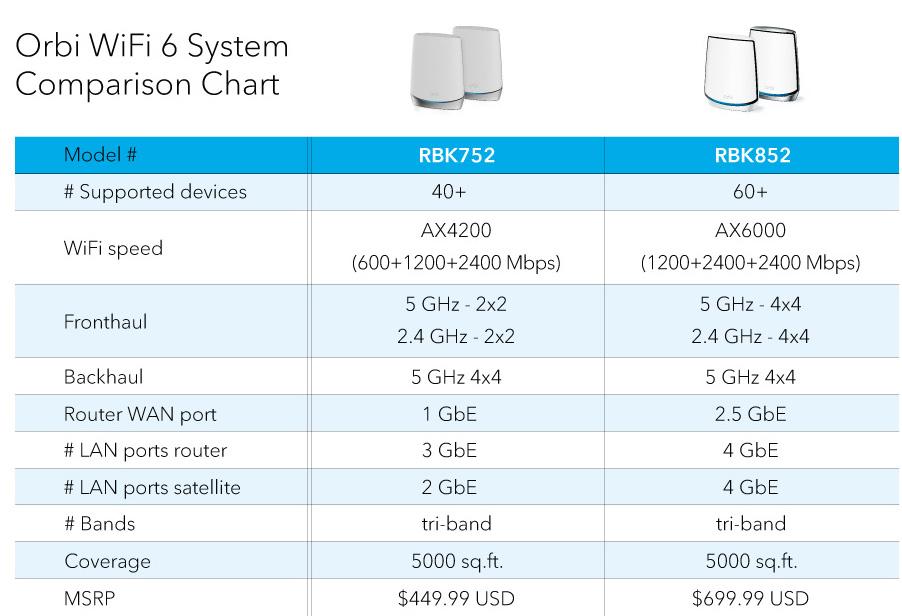
WiFi 6 models (RBK752, RBK852 series) offer WPA3 encryption by default, while WiFi 5 models (RBK50, RBK40 series) use WPA2. The setup process remains identical, but WiFi 6 systems may require updated device drivers. For Insight models, additional business features require specific configuration steps not found in consumer models.
Critical note: Orbi Voice models (RBK50V) include an integrated speaker that may cause initial confusion during setup—the voice prompts are normal and part of the installation process.
Cable Orbi Special Setup
Cable models (CBK40, CBR750) combine modem and router functions. These require coaxial connection instead of Ethernet from a separate modem. Contact your cable provider for activation codes, as these models won’t work without proper provisioning. The setup wizard will prompt you for these codes during installation.
Prevention and Maintenance
Regular Reboot Schedule
Restart your Orbi system monthly by unplugging it for 30 seconds. This clears memory leaks and maintains optimal performance. Schedule reboots during low-usage periods, especially important for high-traffic models like the RBK854 that serve multiple devices simultaneously.
Pro tip: If you have smart home devices that require constant connectivity, use the web interface to schedule reboots during periods of lowest usage rather than unplugging manually.
Firmware Auto-Updates
Enable automatic firmware updates in the web interface under Advanced > Administration > Firmware Update. This ensures security patches and performance improvements install without manual intervention. For Orbi Cellular models (LBR20 series), firmware updates may include carrier-specific improvements that enhance cellular connectivity.
Your Orbi router should now function properly. If issues persist after following these steps, the hardware may require replacement—particularly if LED indicators show no response to resets or if the device won’t power on. Most connectivity problems resolve through proper setup sequencing and configuration adjustments rather than hardware failure. For Orbi Pro systems, consult the dedicated Pro troubleshooting guide as consumer Orbi instructions won’t apply to these business-grade models.



