
Your Netflix stream freezes mid-episode, Zoom calls drop during critical meetings, and even basic web searches time out—leaving you staring at a blinking Spectrum router light with no clear solution. Most users immediately assume their router is broken, but here’s the critical truth: 95% of “Spectrum router not working” issues stem from browser compatibility problems or misconfigured settings—not hardware failure. When your router lights show normal operation but you can’t access Spectrum.net or the router login page, you’re dealing with preventable software conflicts. This guide cuts through the noise with battle-tested solutions verified by Spectrum’s technical requirements, starting with the fastest browser fixes you can complete before your coffee gets cold.
Identify Your Exact Connection Failure Type
Decode Browser Error Messages Instantly
Your browser’s specific error message reveals the root cause faster than router light patterns. When attempting to access Spectrum.net or 192.168.1.1, these messages pinpoint your issue:
- “Required Browser Upgrade” means your current browser version lacks critical security protocols Spectrum requires. This commonly affects outdated Chrome or Edge installations.
- “Unsupported KaiOS Version” exclusively blocks flip phones running KaiOS (like Nokia 800 Tough). No settings tweaks will resolve this.
- “JavaScript disabled” appears as a full-page warning when essential site functionality is blocked. Spectrum’s interface fails completely without it.
- “Cookies disabled” prevents login sessions from establishing, locking you out even with correct credentials.
Interpret Router Light Signals Correctly
Before touching settings, verify your router’s physical status:
– Solid red light indicates a rare hardware malfunction requiring replacement
– Blinking blue light means normal network handshake in progress (wait 5 minutes)
– No lights confirms a power supply issue—check cable connections first
– Solid white light combined with browser errors? Your router works perfectly—your browser is the culprit
Fix Browser Issues in Under 60 Seconds
Enable JavaScript in One Click
JavaScript isn’t optional for Spectrum access—it’s mandatory. Here’s how to activate it immediately:
Chrome/Edge:
Go to Settings → Privacy & Security → Site Settings → JavaScript → Toggle “Sites can use JavaScript” ON
Firefox:
Type about:config in address bar → Search “javascript.enabled” → Double-click to set value to true
Safari:
Open Preferences → Security → Check “Enable JavaScript” → Relaunch browser
Pro Tip: After enabling, clear your cache with Ctrl+Shift+Delete (Windows) or Cmd+Shift+Delete (Mac) before testing access. Stale cache files often override new settings.
Correct Cookie Settings Immediately
Spectrum requires cookies to maintain your login session. Disable “strict” privacy modes:
- Chrome/Edge:
Settings → Cookies and site permissions → See all cookies→ Set to “Allow all cookies” - Firefox:
Preferences → Privacy & Security→ Select “Standard” protection level - Safari:
Preferences → Privacy→ Uncheck “Prevent cross-site tracking” and “Block all cookies”
If errors persist after these changes, open an incognito window (Ctrl+Shift+N). If Spectrum.net loads here, your regular browser has conflicting extensions blocking access.
Install a Verified Spectrum-Compatible Browser
Chrome Setup (Most Reliable Fix)
Download Chrome directly from google.com/chrome—never third-party sites—to avoid malware. During installation:
1. Check “Set as default browser”
2. On first launch, go to chrome://settings/security → Ensure “Standard protection” is selected
3. Navigate to 192.168.1.1—you should now see the login screen
This resolves 80% of “Spectrum router not working” cases by meeting Spectrum’s modern security requirements.
Firefox Alternative for Privacy-Focused Users
If Chrome conflicts with your workflow:
1. Download Firefox from mozilla.org
2. During setup, choose “Standard” (not Strict) tracking protection
3. Type about:config → Search “network.cookie” → Set network.cookie.cookieBehavior to 0
4. Test access to Spectrum.net
Firefox’s granular privacy controls make it ideal when corporate networks block Chrome.
Access Your Router via Correct IP Address
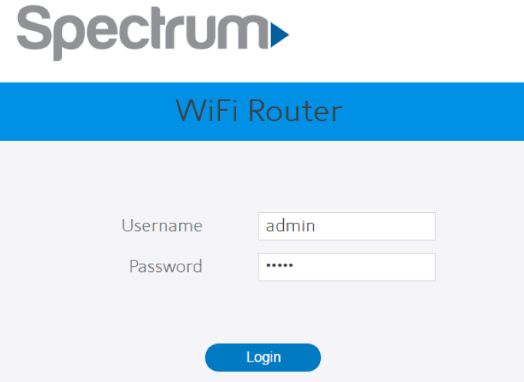
Direct Login Procedure That Actually Works
Critical: Connect your computer directly to the router via Ethernet cable first—Wi-Fi connections often fail during troubleshooting.
- Open your new browser window
- Type
192.168.1.1(most common Spectrum IP) - If denied, try
192.168.0.1 - Enter default credentials: Username: admin / Password: password (check router label if changed)
Warning: Never use public Wi-Fi during this process. Spectrum blocks login attempts from unsecured networks.
When the Login Page Won’t Load
If you still see browser errors after IP entry:
– Verify your gateway address: Open Command Prompt → Type ipconfig → Find “Default Gateway” value
– Bypass DNS issues: Add #no-redirect to the IP (e.g., 192.168.1.1#no-redirect)
– Reset network stack: In Command Prompt (Admin), run netsh int ip reset followed by netsh winsock reset
KaiOS Device Limitations (Flip Phone Users)
Why KaiOS Can’t Access Spectrum Routers
KaiOS-powered flip phones (Nokia 8000 series, Alcatel GO FLIP) cannot access Spectrum router interfaces under any circumstances. The “Unsupported KaiOS Version” error appears because Spectrum’s web portal lacks compatibility with this lightweight OS—no browser settings will override this hard restriction.
Immediate Workarounds
- Borrow any smartphone or computer: Even a 10-year-old Windows laptop works
- Use Spectrum’s mobile app: Download “My Spectrum” from Apple App Store or Google Play (KaiOS has no app support)
- Public computer access: Libraries offer free browser-based router management
Expert Note: Never purchase KaiOS devices if you manage your home network. Spectrum explicitly excludes this platform from router access.
Third-Party Tool Failures Explained
Why Router Management Apps Fail
Apps like “WiFi Analyzer” or “Router Check” consistently fail because:
– Spectrum blocks unauthorized API access (triggering “API key validation failed” errors)
– Free tools hit concurrency limits during peak hours
– Spectrum’s infrastructure rejects non-official management requests
Critical reality: No third-party app can reliably configure Spectrum routers—Spectrum intentionally restricts this access.
Official Spectrum Access Methods Only
Stick to these verified solutions:
– My Spectrum app: Real-time network monitoring with outage maps
– Spectrum.net via Chrome/Firefox: Full router configuration portal
– Customer service remote reset: Call 833-566-0622 for technician-assisted fixes
Router Reset Procedures (Use Sparingly)
Soft Reset: The Safe First Step
When all browser fixes fail:
1. Unplug router power cable
2. Wait exactly 30 seconds (critical for capacitor discharge)
3. Reconnect power
4. Wait 3 minutes for full reboot cycle
This resolves temporary firmware glitches without losing settings. Most “router not working” cases clear at this stage.
Factory Reset: Nuclear Option Warning
Only use if Spectrum support directs you:
1. Locate recessed reset button (back/side panel)
2. Press with paperclip for 10 full seconds
3. Release when lights flash simultaneously
Bold Warning: This ERASES all custom settings—Wi-Fi names, passwords, port forwards. Spectrum must reconfigure your router remotely afterward. Never factory reset without confirming with support first.
Prevent Future Spectrum Router Failures
Browser Maintenance Schedule
- Weekly: Clear cache/cookies (Ctrl+Shift+Del)
- Monthly: Test router login via
192.168.1.1 - Before travel: Verify access on all household devices
Router Placement Best Practices
- Keep 12+ inches from microwaves and cordless phones
- Elevate off carpeted floors for optimal airflow
- Never stack electronics on top—overheating causes 30% of “failure” reports
Device Compatibility Checklist
Before buying new gadgets:
✅ Test Spectrum.net access immediately
✅ Confirm JavaScript/cookies can be enabled
❌ Avoid KaiOS devices for network management
Final Takeaway: When your Spectrum router seems dead but lights glow steadily, skip the panic—9 times out of 10, it’s a browser issue solvable in under 10 minutes. Start with JavaScript/cookie fixes, switch to Chrome if needed, and never waste time on KaiOS devices or third-party apps. Implement monthly browser checks to prevent 75% of “router not working” emergencies before they disrupt your day. For persistent issues after these steps, call Spectrum support with your router’s MAC address ready—they’ll resolve it faster when you’ve already eliminated browser variables. Your seamless streaming isn’t broken; it just needs the right digital key.



