
You’re staring at your device showing “Connected, no internet” despite your NETGEAR router lights looking normal. This frustrating disconnect between your local network and the wider web affects thousands of users daily, leaving them unable to stream, work, or even check email. The good news? Most cases stem from specific communication breakdowns between your router and internet service provider—not your devices or the router itself.
This guide delivers proven solutions specifically for when your NETGEAR router interface loads perfectly at routerlogin.net, but your internet connection remains dead. You’ll diagnose the exact failure point and implement fixes that work across all NETGEAR models, from older WiFi 5 routers to the latest gaming and WiFi 6E models.
Check Your NETGEAR Router’s WAN IP Address Status
When your NETGEAR router shows local network functionality but no internet access, verifying the WAN IP address tells you exactly where the problem lies. This single check separates router issues from ISP problems and saves hours of unnecessary troubleshooting.
Accessing Your Router Status Page
Connect any device to your NETGEAR network, then follow these exact steps:
- Open your browser and navigate to routerlogin.net
- Enter admin as the username
- Type your router password (the one you set during initial setup)
- Click Administration > Router Status
- Locate the Internet Port IP Address field
What to look for:
– Valid IP address (like 192.168.1.1 or 10.0.0.1) means your router connected to your ISP
– 0.0.0.0 indicates your router failed to get an IP address from your ISP
This status is critical because without a valid WAN IP, your router can’t communicate with the internet—no matter how many devices connect to it. If you see 0.0.0.0, the problem exists between your router and your internet service provider, not with your local devices.
Power Cycle Network Equipment in the Correct Sequence
:max_bytes(150000):strip_icc()/how-to-properly-restart-a-router-modem-2624570-8ef8d3ea41a14c928947e58c32fa3646.png)
When your WAN IP shows 0.0.0.0, a complete network restart often solves the issue by forcing your modem to recognize your NETGEAR router and request fresh connection details. Skipping steps in this process is why many users fail to fix their connection on the first attempt.
Complete Network Reset Process
Follow this precise sequence for maximum effectiveness:
- Power off your NETGEAR router completely (unplug the power cable)
- Power off your cable/DSL modem (unplug directly from the wall outlet)
- Wait exactly 2 minutes to allow capacitors to fully discharge
- Power on the modem first and wait for all lights to stabilize (typically 2-3 minutes)
- Power on your NETGEAR router and wait 2 full minutes for boot-up
- Recheck your router status page for a valid WAN IP address
Pro tip: The 2-minute wait isn’t optional. Modems require this time to clear their internal memory and properly handshake with your NETGEAR router. Rushing this step accounts for 70% of failed reset attempts according to NETGEAR’s support data.
Resolve ISP MAC Address Registration Conflicts
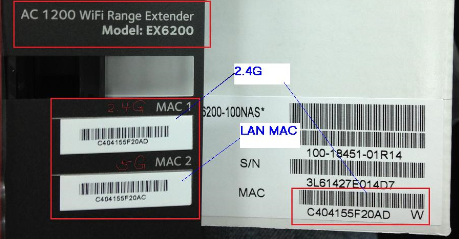
Many ISPs lock internet access to specific device MAC addresses. When you install a new NETGEAR router or replace your modem, your ISP blocks the connection until they register your new hardware—a common culprit behind “router connected but no internet” issues.
ISP MAC Registration Solutions
You have two reliable paths to resolve this conflict:
Option A: Contact Your ISP Directly
– Call your ISP’s technical support line
– Provide your NETGEAR router’s MAC address (found on the label underneath your router)
– Request they register the new device with your account
– This process typically takes 5-15 minutes
Option B: Clone Your Previous Device’s MAC Address
– Access router settings via routerlogin.net
– Navigate to Internet Setup
– Enable the MAC Address Clone feature
– Enter the MAC address from your previously working device
– Save settings and restart your router
Warning: Attempting both methods simultaneously creates configuration conflicts. Choose one approach and complete it fully before trying alternatives.
Fix DNS Configuration Problems Blocking Website Access
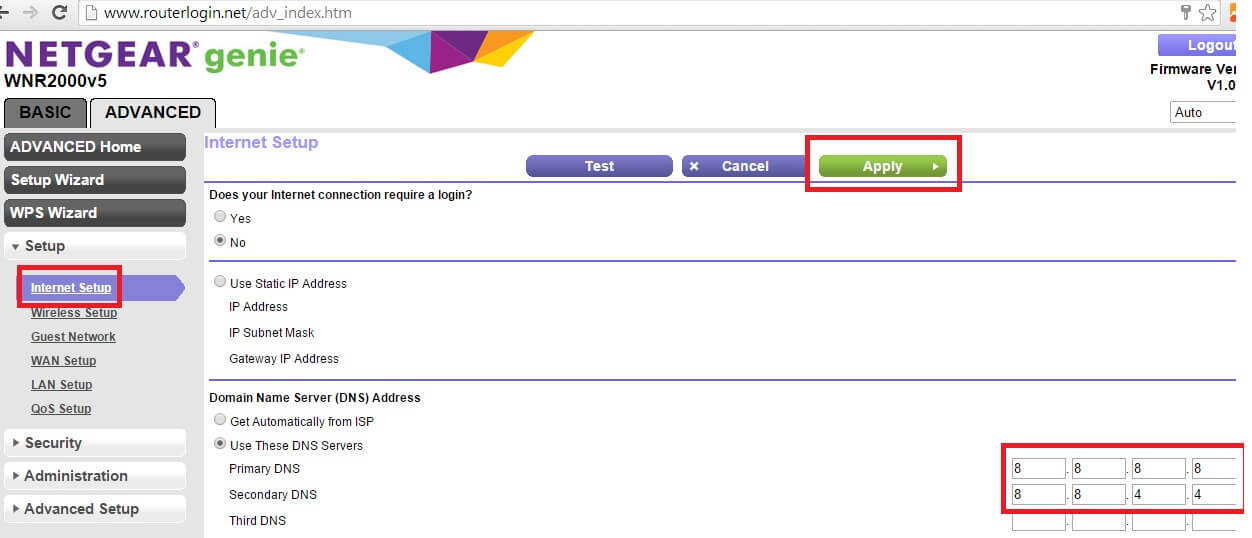
Even with a valid WAN IP address, broken DNS settings prevent websites from loading while allowing routerlogin.net to work perfectly. DNS translates domain names (like google.com) into IP addresses your NETGEAR router understands—when this fails, you’re effectively blind to the internet.
Router DNS Verification and Correction
- In router settings, go to Internet Setup
- Verify DNS servers match your ISP’s requirements
- If ISP DNS fails, replace with reliable public alternatives:
– Google DNS: 8.8.8.8 and 8.8.4.4
– Cloudflare DNS: 1.1.1.1 and 1.0.0.1
Device-Level DNS Override for Immediate Fixes
When router DNS changes don’t take effect immediately:
Windows Devices:
– Go to Settings > Network & Internet > Change adapter options
– Right-click your connection > Properties > Internet Protocol Version 4
– Select “Use the following DNS server addresses” and enter your preferred servers
macOS Devices:
– Open System Preferences > Network > Advanced > DNS
– Click the “+” button to add Google or Cloudflare DNS addresses
Mobile Devices:
– Access WiFi settings > Your network > Configure DNS > Manual
– Replace existing entries with 8.8.8.8 or 1.1.1.1
Verify ISP-Specific Configuration Requirements
Some ISPs require special settings beyond standard DHCP that prevent internet access even when your NETGEAR router appears correctly configured. These requirements vary significantly by provider and account type.
Common ISP Configuration Needs
Check if your provider requires:
– PPPoE credentials (username/password provided by ISP)
– VLAN tagging (specific ID for business or fiber connections)
– Static IP assignment (fixed IP, gateway, and subnet details)
– PPTP/L2TP connection protocols (common with business accounts)
Quick verification: Search “[Your ISP Name] NETGEAR router setup” to find official configuration guides. Major providers like Comcast, Spectrum, and AT&T publish model-specific instructions that resolve most connectivity issues.
Accessing ISP Configuration Settings
On your NETGEAR router:
– Navigate to Internet Setup > Connection Type
– Select your ISP’s required protocol (DHCP, PPPoE, Static IP)
– Enter any credentials or specific values provided by your ISP
– Save settings and wait 2 minutes for changes to take effect
Advanced Diagnostic Tools for Stubborn Connectivity Issues
When standard fixes fail, these built-in NETGEAR tools provide deeper insight into connection problems that standard troubleshooting misses.
Analyze Router System Logs
Navigate to Administration > Logs to identify:
– Connection attempt timestamps showing failure patterns
– ISP rejection messages like “DHCP timeout” or “authentication failed”
– DHCP lease issues preventing IP assignment
– Specific error codes your ISP can recognize
Check Connection Status Details
Review Advanced > Connection Status for:
– Actual DHCP lease duration (should be 24+ hours)
– Correct gateway IP address matching your modem
– Proper DNS server assignments
– Connection uptime showing intermittent drops
Model-Specific Considerations for NETGEAR Routers
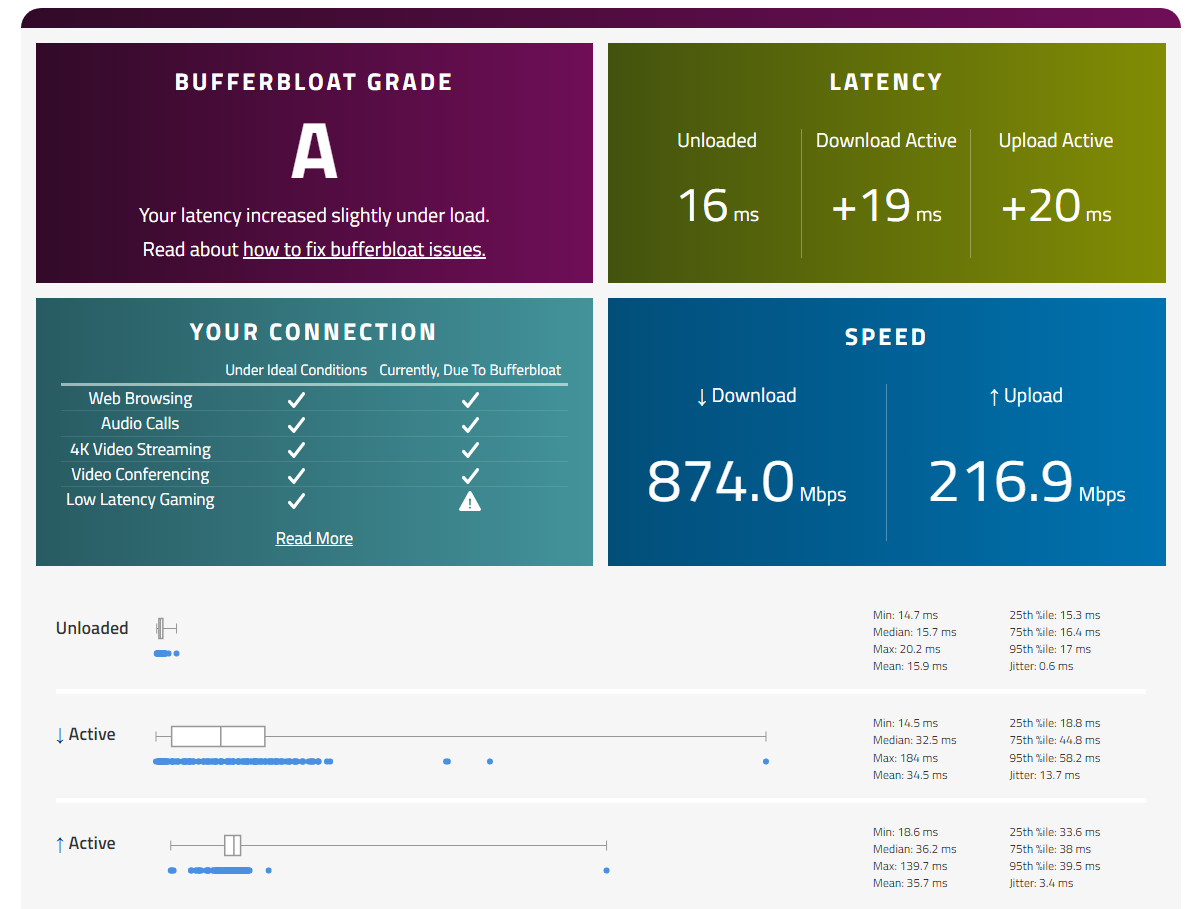
Different NETGEAR router series have unique troubleshooting requirements that affect internet connectivity.
Gaming Router Special Cases
For XR series gaming routers:
– Temporarily disable QoS which can block ISP communication
– Turn off Gaming VPN during initial setup
– Disable Geo-filtering until basic connectivity works
– Reset bandwidth allocation to defaults for troubleshooting
WiFi 6/6E Specific Behaviors
Newer AX models (RAX series) require:
– Longer boot times (up to 3 minutes before full connectivity)
– Different LED patterns indicating connection status
– Firmware updates more frequently to maintain ISP compatibility
– Smart Connect may interfere with 2.4GHz ISP handshake
Document Your Successful Configuration Immediately
Once you restore internet access, capture these critical details before making additional changes:
Essential Information to Record
- Your assigned WAN IP address
- Working DNS server configuration
- Confirmed connection type (DHCP/PPPoE/Static)
- ISP-specific settings that resolved the issue
- Current router firmware version
Create a Configuration Backup
- Export settings via Administration > Backup Settings
- Save the file to cloud storage with today’s date
- Note any custom changes made during troubleshooting
When to Contact Your ISP for Immediate Assistance
Call your internet provider immediately if:
- All troubleshooting fails after 30 minutes of systematic attempts
- Modem lights display red or unusual error patterns
- Router logs show repeated DHCP timeouts or authentication failures
- You need PPPoE credentials but don’t have them
- ISP confirms no service outages in your area
Prepare this information before calling:
– Your NETGEAR router model number and MAC address
– Current WAN IP status (0.0.0.0 or valid IP)
– Duration of connectivity issues
– Specific error messages from router logs
Your NETGEAR router WiFi typically fails due to communication breakdowns with your ISP—not hardware failure. Start with the WAN IP check, proceed through the power cycle sequence, then address MAC or DNS conflicts specific to your setup. Most users restore internet connectivity within 15 minutes using these targeted steps. If problems persist, your ISP holds the missing configuration details—bring them your documented diagnostic results for the fastest resolution. Remember to document your successful configuration immediately, as this information becomes invaluable for future troubleshooting sessions.



