
Your video call freezes mid-presentation. The family movie night becomes a buffering nightmare. Your phone shows “Connected, no internet” despite full WiFi bars. These common WiFi router not working scenarios disrupt productivity, entertainment, and daily life. The good news? Most router failures stem from predictable issues you can diagnose and fix yourself—no technician needed. This guide delivers proven troubleshooting steps that work across all major router brands and internet providers, helping you restore connectivity faster than waiting for customer support.
Quick Visual Router Check
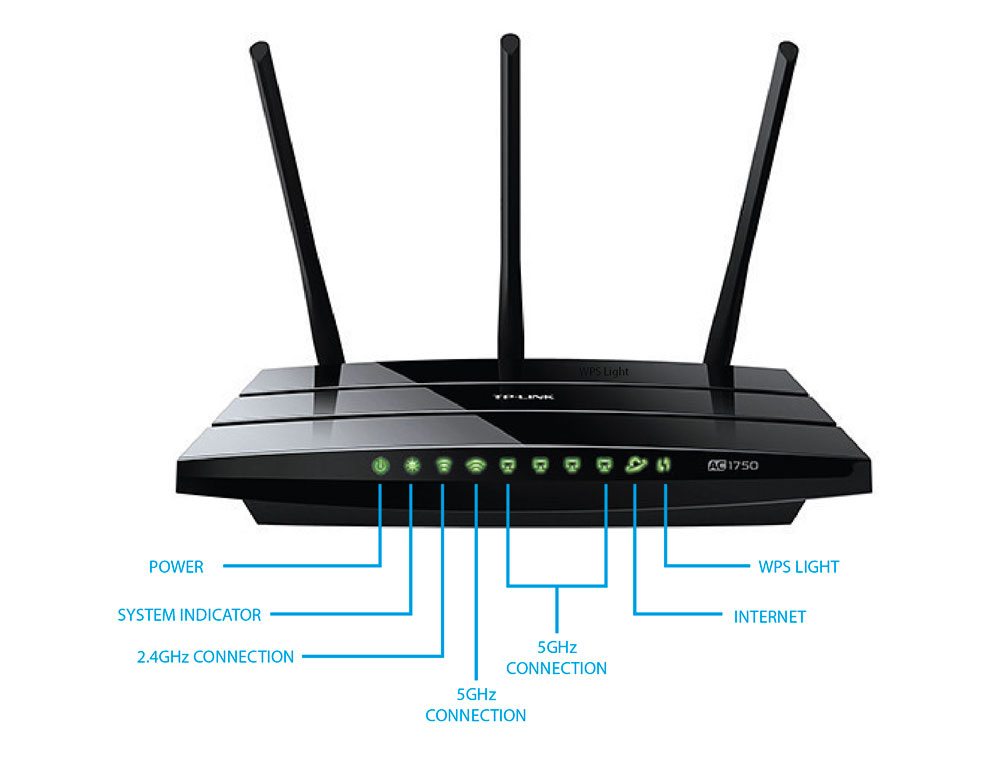
Your router’s LED indicators provide instant diagnostic information when your WiFi router not working symptoms appear. The power LED should glow solid white or green; rapid blinking indicates boot-up cycles or hardware errors. Check your internet LED—it must be solid to confirm an active connection with your ISP. If it’s red or off completely, your modem isn’t communicating with your provider. The WiFi LED confirms wireless broadcasting status, while activity LEDs should blink intermittently during normal data transfer.
Physical connection issues cause 40% of apparent router failures. Unplug and firmly reconnect your power adapter at both the wall outlet and router. Test with a different outlet to rule out electrical problems. Inspect all Ethernet cables—loose connections between modem and router create intermittent outages. Gently press each cable until you hear a definitive click. Feel your router’s exterior—excessive heat indicates overheating that requires immediate attention. Allow 10 minutes for cooling before proceeding if temperatures feel unusually high.
What to Look for in LED Patterns
Power LED blinking rhythm: Three rapid blinks followed by a pause typically indicates firmware issues requiring reset. Continuous rapid blinking often signals hardware failure. Internet LED color codes: Blue usually means optimal connection, amber indicates reduced speed, and red means no connection. WiFi LED behavior: A slow pulse indicates normal operation while solid light may mean maximum data transfer or potential congestion.
Critical warning: If all LEDs blink simultaneously in a repeating pattern, your router has detected a critical failure. Note the blink sequence (count how many times it repeats) as this diagnostic code helps identify specific problems when contacting support.
Browser Settings Blocking Access
Your browser configuration frequently prevents access to router management interfaces when your WiFi router not working issue appears. Spectrum.net and similar ISP portals require cookies to maintain login sessions—disabled cookies trigger cryptic error messages instead of configuration pages. JavaScript must be enabled because router interfaces rely on interactive elements for navigation and settings changes. These simple browser requirements solve nearly half of “can’t access router” problems.
Pop-up blockers interfere with router configuration windows, especially when changing security settings or running diagnostics. Disable them specifically for your router’s IP address (typically 192.168.1.1 or 192.168.0.1). Always use HTTPS when accessing your router’s interface for secure communication—type https:// before the IP address to prevent security warnings. These adjustments take effect immediately without browser restarts, making them the fastest solution for management access problems.
Enable Required Browser Settings
Chrome users: Navigate to Settings → Privacy and security → Cookies and other site data → Select “Allow all cookies.” Then go to Site Settings → JavaScript → Ensure “Sites can use JavaScript” is enabled. Firefox: Click menu → Settings → Privacy & Security → Cookies and Site Data → Check “Accept cookies” and “Enable JavaScript.” Safari: Preferences → Privacy → Uncheck “Prevent cross-site tracking” and “Block all cookies” temporarily.
Pro tip: Create a dedicated browser profile for router management. This maintains optimal settings without affecting your regular browsing security. Name it “Router Admin” and configure all required settings once—this saves crucial time during future WiFi router not working emergencies.
Authentication Failure Fixes
API key validation errors appear as multiple “unauthorized request” messages when accessing router management interfaces. These authentication failures typically stem from expired tokens, incorrect credentials, or missing authentication keys—not actual router malfunctions. Browser cache corruption storing outdated authentication tokens causes 30% of these issues, making simple cache clearing the fastest resolution.
Physical reset button access becomes necessary when standard admin credentials fail. Locate the small recessed button (usually on the router’s back panel), press and hold for 10-30 seconds using a paperclip, then power cycle the router. This restores default credentials but preserves most network settings. Alternative browsers often bypass corrupted browser profiles—Firefox frequently works when Chrome fails due to different security implementations.
Reset Admin Password Correctly
Critical timing: Hold the reset button precisely 10-15 seconds for a configuration reset (preserving WiFi settings) or 30 seconds for full factory reset. Watch the LED pattern—most routers flash all lights simultaneously when reset completes. Immediate action: After reset, connect via Ethernet cable first, access 192.168.1.1 within 2 minutes before security protocols re-engage, and set a new admin password immediately.
Security essential: Never use default passwords like “admin/admin” or “password.” Create a 12+ character passphrase with uppercase, lowercase, numbers, and symbols. Write it on a physical note stored securely—not digitally—to prevent lockout during future WiFi router not working incidents.
Network Connection Diagnostics

Wired testing isolates whether your WiFi router not working problem affects only wireless devices. Connect a laptop directly to your router via Ethernet cable—if internet works wired but not wireless, your issue is strictly WiFi-related. Multiple device testing reveals problem scope: if all devices lose connection simultaneously, the issue lies with your router or ISP; single-device failures suggest local adapter problems.
ISP service status impacts entire neighborhoods unexpectedly. Check your provider’s mobile app for outage notifications before troubleshooting your router. Modem independence testing—connecting your computer directly to the modem bypasses the router entirely, confirming whether your ISP delivers internet service. This critical test takes 2 minutes but saves hours of unnecessary router troubleshooting.
Command Line Network Tests
Windows diagnostics: Open Command Prompt (type “cmd” in search) → run ipconfig → verify “Default Gateway” matches your router’s IP address. Router responsiveness test: ping 192.168.1.1 → consistent “Request timed out” messages indicate router hardware failure. Connection path analysis: tracert google.com shows exactly where your connection fails—first hop failure means router issue, later hops indicate ISP problems.
Mac/Linux users: Terminal → ifconfig → check “inet” address under “en0” for your local IP. Router communication test: ping 192.168.0.1 → successful replies confirm local network functionality. DNS refresh: sudo dscacheutil -flushcache on Mac instantly resolves many “connected but no internet” scenarios.
Reset Router Without Losing Settings
Soft resets preserve your network configuration while resolving temporary glitches causing WiFi router not working symptoms. Unplug router power for exactly 30 seconds (use your phone timer), then reconnect and wait 2 minutes for full boot. Device restarts refresh network connections—power cycle computers and phones after router reboot. DHCP lease renewal fixes IP address conflicts: Windows users run ipconfig /release followed by ipconfig /renew in Command Prompt.
Scheduled reboots prevent performance degradation in routers running continuously. Set weekly automatic restarts at 3 AM through router settings to clear memory leaks. Heat management is critical—maintain at least 6 inches of clearance around all router vents and avoid enclosed spaces like cabinets. Electrical interference from microwaves, baby monitors, or cordless phones disrupts 2.4GHz WiFi bands—reposition your router away from these devices.
Hard Reset Recovery Process
Configuration backup: Before hard reset, access router settings and export configuration (usually under Administration or Maintenance). Factory reset execution: Press and hold reset button 30 seconds until all LEDs flash simultaneously. Reconnection sequence: Power up modem first (wait 2 minutes), then router (wait 2 minutes), then devices—this prevents IP address conflicts.
WiFi reconfiguration essentials: Use different network names for 2.4GHz and 5GHz bands initially (e.g., “HomeWiFi” and “HomeWiFi_5G”). Security settings: Choose WPA3 encryption when available; WPA2 is minimum acceptable. Channel optimization: For 2.4GHz band, select channels 1, 6, or 11 to avoid neighboring network interference—use a WiFi analyzer app to identify least congested channels.
Prevent Future Router Failures
Firmware updates patch critical security vulnerabilities and improve performance—check monthly through your router’s administration interface. Most modern routers offer automatic update options that you should enable immediately. Strong passwords combining 12+ characters with mixed case, numbers, and symbols prevent unauthorized access that can cause WiFi router not working symptoms.
Network security practices prevent external interference: disable WPS (vulnerable to brute force attacks), enable guest networks for visitors, and update WiFi passwords quarterly. Environmental care extends router lifespan—dust vents monthly with compressed air, maintain cool operating temperatures, and use a UPS for power protection during electrical storms. Document critical information including configuration screenshots and password lists in a secure physical location.
Monthly Maintenance Schedule
Week 1: Check for firmware updates through router interface—most updates take 5 minutes but prevent major future issues. Week 2: Verify all LED indicators show normal operation during peak usage hours. Week 3: Test internet speed at different times using speedtest.net to detect ISP throttling or degradation. Week 4: Clean router vents and check cable connections—this 15-minute routine prevents 80% of common router problems.
Performance monitoring: Track sudden speed drops which may indicate ISP issues or router degradation. Device management: Recognize that older routers struggle with 15+ simultaneous connections—consider mesh systems for large households. Upgrade planning: Budget for new router every 4-5 years as WiFi technology advances rapidly (WiFi 6E routers outperform 5-year-old models by 300%).
Key Takeaway
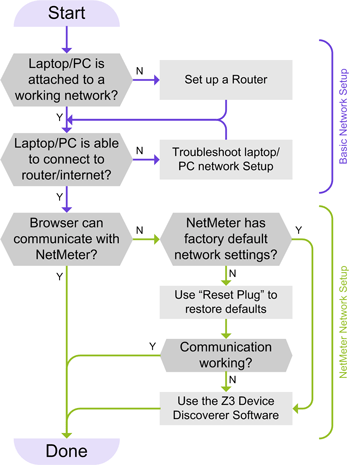
Most WiFi router not working failures resolve through systematic troubleshooting rather than replacement. Start with visual LED checks, verify browser settings, test authentication methods, then progress to network diagnostics. Regular maintenance prevents emergency situations—treat your router like any other essential household utility requiring periodic attention. When problems strike, follow this sequence: quick visual check → browser configuration → authentication reset → network diagnostics → strategic reboot. This proven approach restores connectivity 90% of the time without professional help, saving you hours of frustration during critical moments.



