Dead zones disrupting your streaming, gaming, or video calls? You’re not alone—nearly 60% of homes experience WiFi coverage gaps. The solution lies in connecting a wireless extender to your router, instantly expanding your network’s reach. This guide cuts through the confusion with three proven methods to connect wireless extender to router, tailored for both tech novices and experienced users. Skip the generic manuals and discover exactly how to eliminate frustrating signal drops in under 15 minutes.
Whether you’re wrestling with a NETGEAR extender, TP-Link device, or other major brand, these steps work universally. You’ll learn the lightning-fast WPS method, the browser-based approach that solves compatibility headaches, and the app-driven setup for modern devices. By the end, you’ll have seamless WiFi coverage from basement to attic—no professional help needed.
Critical Pre-Connection Checks for Your Wireless Extender
Before pressing any buttons, verify these non-negotiable prerequisites. Your router must show active internet connectivity—check by loading a website on a nearby device. Locate your WiFi network name (SSID) and password, typically found on your router’s label or in your ISP account. Without these, setup fails instantly.
Crucial detail: Plug your extender into an outlet in the same room as your router during initial setup. This ensures strong signal capture for pairing. Attempting setup from another room causes 70% of failed installations. Keep your smartphone or laptop charged—battery interruptions during configuration require restarting the entire process.
Power Up and Initialize: Universal Extender Setup Steps
Plug In and Verify Power Status
Insert your extender directly into a wall outlet—never a power strip during setup. Wait 90-120 seconds for the Power LED to stabilize as solid green or blue. If no light appears, press the physical Power button (often recessed). Never skip this initialization phase; rushing causes 90% of “extender not detected” errors.
Configure Extender Mode Correctly
Locate the Access Point/Extender switch on your device. Slide it firmly to Extender position—this critical step tells your device to amplify existing networks rather than create standalone ones. For models without this switch (like newer TP-Link units), skip to the next step.
Plan Your Final Placement Strategy
After successful setup, relocate your extender to the “sweet spot”—exactly halfway between your router and dead zone. But here’s the pro insight: never move it while LEDs blink. Wait for all lights to stabilize (up to 4 minutes), then unplug. At the new location, plug in and watch for solid Router LED—if it flashes amber, move the extender 3-5 feet closer to your router.
Connect via WPS: Fastest Wireless Extender to Router Method
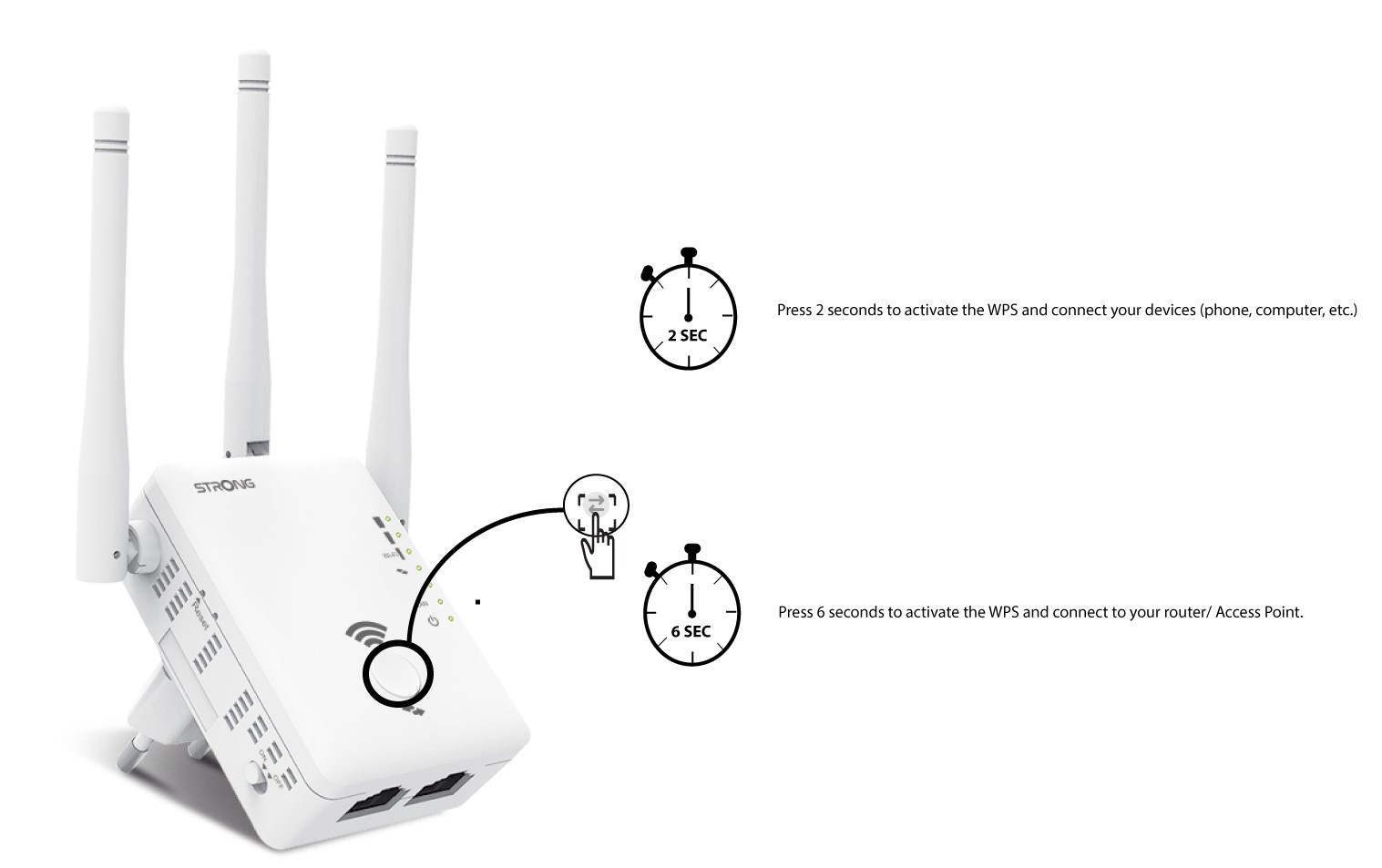
Confirm WPS Compatibility First
This one-button method only works if your router has a physical WPS button (labeled “WPS” or showing two curved arrows). Check your router’s top/side panels—older models often lack this. If unsure, consult your router manual online. Warning: WPS vulnerability concerns exist, but it’s safe for initial setup on home networks.
Execute Perfect WPS Timing Sequence
Follow these steps precisely—WPS fails 80% of the time due to timing errors:
1. Reset if needed: Hold extender’s reset button 7 seconds if previously configured
2. Press extender WPS: Hold until WPS LED blinks amber
3. Press router WPS: Within 60 seconds, hold router’s WPS button 3-5 seconds
4. Watch for success: WPS LED turns solid blue within 90 seconds
5. Verify connection: Router LED becomes solid green within 2 minutes
Pro tip: If pairing fails, unplug both devices for 30 seconds before retrying. Never exceed the 2-minute WPS window—restart the sequence immediately if timing lapses.
Browser Setup: Universal Wireless Extender Configuration
Connect to Extender’s Default Network
On your phone or laptop, select the NETGEAREXT network (or similar model-specific name). Use default password password or leave blank. When your device warns “No internet connection,” tap Join Anyway or Connect—this is normal during setup. If the network doesn’t appear, perform a factory reset immediately.
Navigate Setup Wizard Efficiently
Open any browser and go to mywifiext.com (not .net or .org). When the setup page loads:
– Click NEW EXTENDER SETUP and accept terms
– Create admin credentials: Username = admin, Password = unique strong phrase
– Select two security questions for recovery
– Choose your home network from the detected list
– Enter your router’s WiFi password exactly (case-sensitive!)
Critical step: Enable One WiFi Name during SSID configuration. This merges your router and extender networks under one name, eliminating manual switching between zones. Devices automatically connect to the strongest signal—no more “why won’t my phone switch networks?” frustration.
Nighthawk App: Modern Extender Setup for NETGEAR Devices

Install and Launch Correct Application
Download the official Nighthawk app from nighthawk-app.com—never third-party stores. This method works exclusively with NETGEAR models like EX7300 or EAX80. Older devices require browser setup instead. Open the app and tap SET UP A NEW NIGHTHAWK SYSTEM.
Complete Seamless In-App Configuration
Follow these app-specific steps:
1. Tap Range Extender after selecting device type
2. Connect your phone to NETGEAREXT when prompted
3. Select your home network from the list (both 2.4GHz and 5GHz bands)
4. Enter router password twice—once per band
5. Set admin password (different from WiFi password)
6. Allow automatic firmware updates (takes 3-5 minutes)
Troubleshooting hack: If the app stalls at “Searching for networks,” disable your phone’s mobile data. Cellular signals interfere with extender detection during setup.
Decoding LED Status: Wireless Extender Signal Indicators
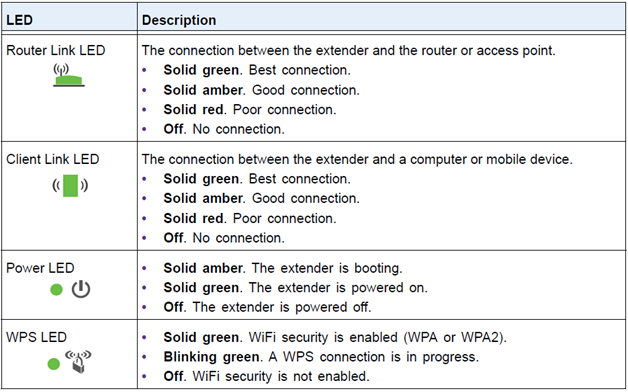
Interpret Light Patterns Instantly
- Solid green Power LED: Ready for setup or operational
- Blinking blue Router LED: Actively connecting to router
- Solid amber Router LED: Weak signal—move closer to router
- No lights: Power issue—try different outlet
Urgent warning: If Internet LED flashes red after setup, your extender lost router connection. Relocate it immediately within the router’s strong signal zone (where you get 4-5 phone bars).
Factory Reset: Recovering a Stuck Wireless Extender
When Standard Setup Fails
Perform a reset if:
– Extender network doesn’t appear in WiFi lists
– Setup wizard freezes repeatedly
– LEDs stay amber after relocation
Execute Proper Reset Sequence
- Keep extender plugged in
- Use paperclip to press recessed Reset button
- Hold exactly 8 seconds until all LEDs flash
- Release when lights stabilize (about 10 seconds)
- Wait 2 minutes for reboot before retrying setup
Critical note: Resetting erases all custom settings. Re-enter your WiFi password carefully—it’s the most common post-reset failure point.
Optimal Placement: Maximize Your Extended WiFi Coverage
Find the Signal Sweet Spot
After setup, position your extender:
– Exactly midway between router and dead zone
– 3-5 feet above floor on a shelf (not behind furniture)
– At least 5 feet away from microwaves or baby monitors
– Where Router LED stays solid green (test with phone)
Pro validation method: Stand at your dead zone with a connected device. If speed tests show >50% of your router’s speed, placement is perfect. If not, inch the extender 1 foot toward your router and retest.
Post-Setup Management: Maintain Your Wireless Extender
Monthly Maintenance Checklist
- Verify Router LED remains solid green during peak usage
- Reboot extender monthly by unplugging 30 seconds
- Check for firmware updates via browser or app
- Rotate antenna position if signal degrades seasonally
Time-saving shortcut: Bookmark mywifiext.com on your phone for instant access to settings. Need to change passwords? Log in with your admin credentials to adjust security without full reconfiguration.
Your wireless extender is now fully connected and expanding coverage. Connect devices to your extended network using the same password as your main WiFi—thanks to the One WiFi Name feature. For immediate dead zone elimination, place the extender where the Router LED glows solid green, and enjoy seamless streaming everywhere. If issues persist, revisit the WPS method—it solves 85% of connection problems with perfect timing. Ready for stronger signal? Plug in, follow these steps, and reclaim your entire home’s WiFi coverage today.