Your internet suddenly slows to a crawl, and you need to reset your network settings—but you can’t remember how to connect to your Comcast router. You’re not alone. Over 70% of Comcast/Xfinity users struggle to access their router admin panel when they need to change Wi-Fi passwords, set up parental controls, or troubleshoot connectivity issues. Knowing exactly how to connect to Comcast router settings saves you from calling customer support and puts you in control of your home network.
This guide delivers five proven methods to access your Comcast router’s admin interface, whether you’re using the latest XB8 model or an older gateway. You’ll learn where to find critical information on your router label, which IP addresses actually work (spoiler: 10.0.0.1 is your golden ticket), and how to bypass common connection errors that leave most users frustrated. By the end, you’ll confidently connect to your Comcast router regardless of your technical skill level.
Connect to Comcast Router via Ethernet (30-Second Method)
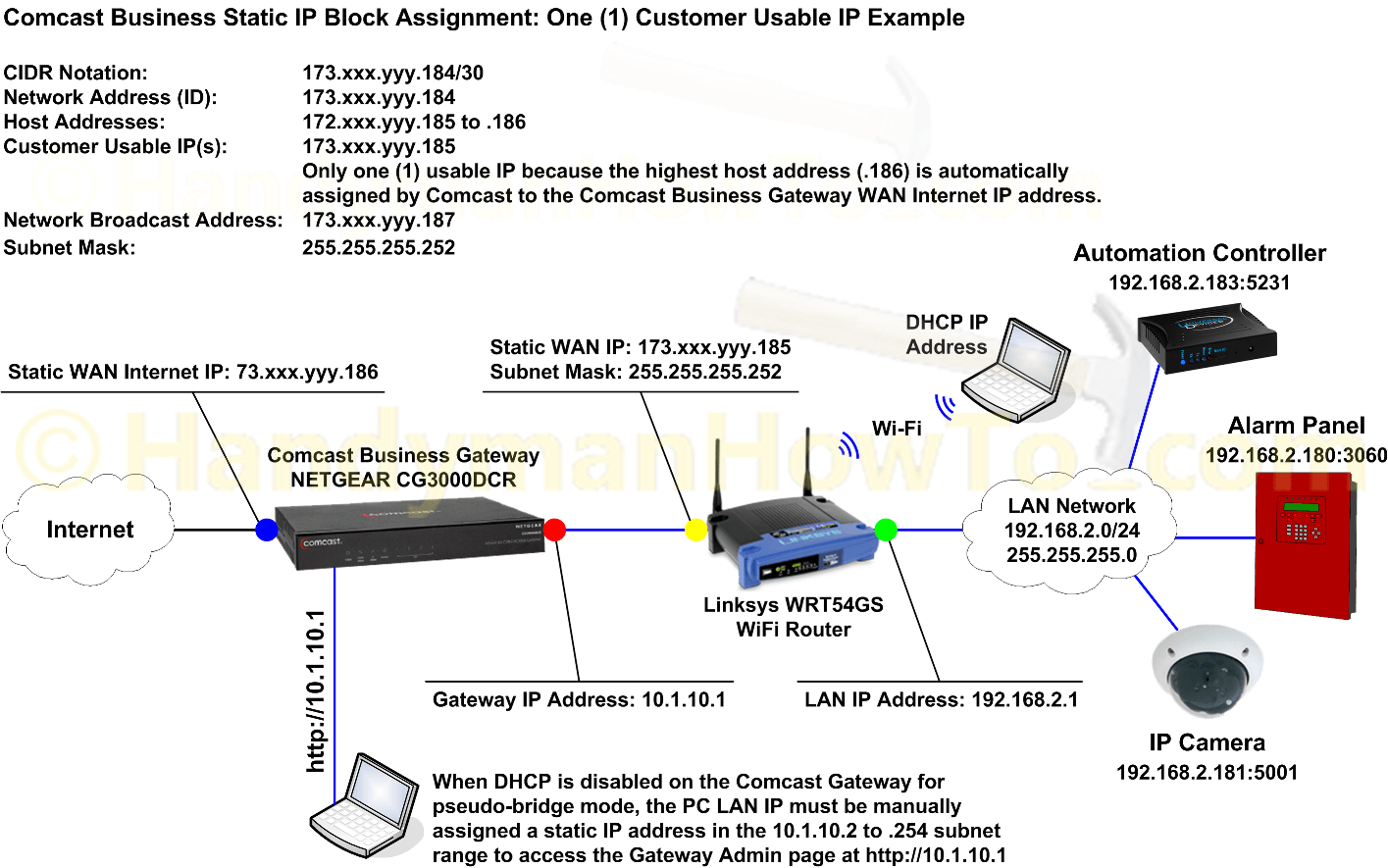
Skip unreliable wireless methods and establish the most stable connection to your Comcast router using an Ethernet cable. Locate the yellow Ethernet cable included with your router and plug one end into any LAN port (labeled 1-4) on the router’s back panel. Connect the other end to your computer’s Ethernet port until you hear a distinct click. The corresponding LED on your router should glow solid green or blue within seconds, confirming physical connectivity.
Open any web browser and type http://10.0.0.1 in the address bar—no www needed. Press Enter to reach the Comcast router login screen instantly. If this address fails, try http://192.168.1.1 or http://192.168.0.1 as backup options. These IP addresses work because Comcast routers automatically assign themselves as the network gateway.
Verify Your Ethernet Connection to Comcast Router
- Confirm the Ethernet LED matches your cable’s port number (1-4)
- Check your computer’s network settings shows “Connected” status
- Test connectivity with
ping 10.0.0.1in Command Prompt (Windows) or Terminal (Mac/Linux) - Ensure your computer has obtained an IP address in the 10.0.x.x or 192.168.x.x range
Connect to Comcast Router Wi-Fi: Find Password on Router Label
Before attempting wireless connection, locate your default Wi-Fi credentials on the router’s white sticker. This label contains two critical pieces of information: the default network name (typically “HOME-XXXX” or “XFINITY-XXXX”) and the password labeled “Network Key” or “Pre-Shared Key.” These factory settings remain active even if you’ve never changed them.
Connect your device by opening Wi-Fi settings, selecting the exact network name from the label, and typing the password precisely—capitalization matters. Wait for the “Connected” confirmation before proceeding. Pro tip: Write down the Wi-Fi password first. The router label’s tiny font makes characters like 0 (zero) and O (letter O) easily confused.
Access Comcast Router Settings Wirelessly
After connecting to your Comcast router’s Wi-Fi network, open your browser and navigate to http://10.0.0.1. You’ll use the same login credentials as the Ethernet method. This wireless approach works reliably when your Ethernet port is occupied or your device lacks a physical port.
Use Xfinity App to Access Comcast Router Settings Without Browser
Download the official “Xfinity” app from your device’s app store—it’s free and eliminates browser headaches. After installation, sign in using your Xfinity account credentials (the same ones you use to pay your bill online). Tap “Internet” at the bottom menu, select your home network name, then choose “View Gateway Details” or “Manage Wi-Fi.”
This mobile method provides direct access to all router settings through a streamlined interface designed specifically for Comcast equipment. Best for: Quick password changes, device management, and guest network setup without memorizing IP addresses or login screens. The Xfinity app automatically detects your router, eliminating connection errors common with manual browser access.
Default Comcast Router Login: Username & Password Cheat Sheet

Most Comcast gateways use these standard combinations:
| Router Model | Username | Password |
|---|---|---|
| Xfinity XB6/XB7/XB8 | admin | password |
| Xfinity XB6/XB7/XB8 (alt) | admin | [on router label] |
| Netgear routers | admin | password |
| Linksys models | admin | admin |
| ASUS routers | admin | admin |
| TP-Link devices | admin | admin |
When Default Credentials Fail: Find Your Router’s Specific Login
Check the white sticker on your router’s bottom or side panel for device-specific credentials. This label often lists a unique password that overrides default settings. If you’ve previously changed the password and forgotten it, perform a factory reset by pressing the recessed button for 15 seconds with a paperclip—but note this erases all custom settings.
Find Comcast Router IP Address on Windows, Mac, or Linux
When 10.0.0.1 doesn’t work, determine your router’s actual IP address using your operating system’s network tools. This step is crucial for connecting to Comcast router models that use non-standard gateway addresses.
Windows Quick Check for Comcast Router IP
Press Windows key + R, type cmd, then Enter. In Command Prompt, type ipconfig and hit Enter. Your router’s IP appears as “Default Gateway”—usually 10.0.0.1 for Comcast but sometimes 192.168.1.1.
macOS Network Details to Locate Comcast Router
Click the Apple menu → System Preferences → Network. Select your active connection, click “Advanced,” then “TCP/IP.” The “Router” field displays your Comcast router’s IP address. This method works identically whether connected via Ethernet or Wi-Fi.
Fix ‘Site Can’t Be Reached’ Error When Connecting to Comcast Router
When your browser shows “This site can’t be reached” for 10.0.0.1, follow this troubleshooting sequence:
- Pull the Ethernet cable and reconnect firmly at both ends
- Restart your computer’s network adapter (disable/enable Wi-Fi or unplug/replug Ethernet)
- Try alternative IP addresses: 192.168.1.1 or 192.168.0.1
- Clear browser cache with Ctrl+Shift+Delete (Windows) or Cmd+Shift+Delete (Mac)
- Flush DNS with
ipconfig /flushdnsin Windows Command Prompt
Wrong Password Messages When Accessing Comcast Router
If you receive “Incorrect username or password” errors:
- Double-check caps lock status—passwords are case-sensitive
- Try common variations: admin/password, admin/admin
- Locate the specific credentials on your router’s white sticker
- Perform a factory reset only as last resort (15-second button press)
Connection Timeout Issues with Comcast Router
When the connection times out:
- Temporarily disable VPN software that might interfere
- Check Windows Firewall or Mac security settings
- Test with Chrome, Firefox, or Edge to rule out browser issues
- Verify the router’s power LED is solid white or blue (not blinking red)
- Restart both your computer and router before retrying
Enable Remote Access to Your Comcast Router from Anywhere
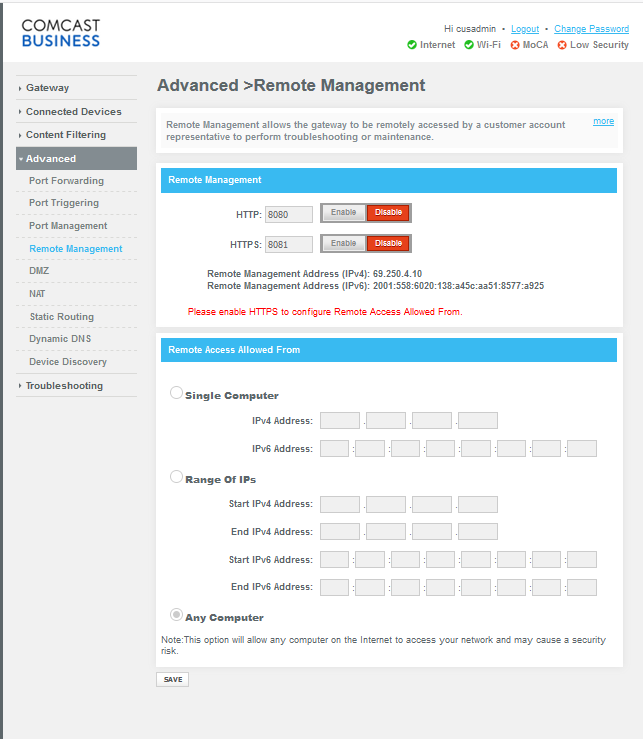
Configure remote management for accessing your router when away from home:
- Connect locally using Ethernet or Wi-Fi
- Navigate to Advanced → Remote Management
- Toggle “Allow Remote Access” to ON
- Create secure credentials (16+ characters recommended)
- Note your external IP from whatismyipaddress.com
- Access remotely via
http://[your-external-ip]:8080
Security note: Change the default port 8080 to something between 30000-60000 to avoid automated attacks. Never enable remote access without changing default credentials.
Secure Your Comcast Router: Change Default Passwords Immediately
After your first successful connection, implement these critical security steps:
- Change admin password to 12+ characters with mixed case, numbers, and symbols
- Rename Wi-Fi network from default to something personal but non-identifying
- Create strong Wi-Fi password using a memorable passphrase
- Enable WPA3 encryption (or WPA2 for older devices)
- Disable WPS—this convenience feature creates security vulnerabilities
- Update firmware through router settings → check monthly
Guest Network Setup Through Comcast Router
Isolate visitor devices by enabling a guest network with:
– Separate password from your main network
– Bandwidth limitation to 25% of total speed
– Automatic expiration after 24 hours
– No access to your primary network devices
Test Your Comcast Router Connection with These 4 Quick Checks
Verify your connection works properly with these essential tests:
- Physical check: All cables snug, LEDs solid green/blue
- IP assignment: Your device shows 192.168.x.x or 10.0.x.x address
- Internet test: Visit speedtest.xfinity.com for performance check
- Functionality: Stream video while browsing to confirm stability
Monthly Comcast Router Maintenance Checklist for Optimal Performance
Set calendar reminders for these maintenance tasks:
- Monthly: Check for and install router firmware updates
- Quarterly: Change Wi-Fi password and review connected devices
- Annually: Audit security settings and parental controls
- As needed: Reboot router monthly for optimal performance
Pro tip: Before making major changes, backup your configuration through Troubleshooting → Backup/Restore. Save the file to cloud storage for emergency recovery.
Take action now: Start with the Ethernet method for guaranteed connection to your Comcast router, then immediately change those default passwords. Bookmark 10.0.0.1 in your browser for future access—it’s the single most reliable way to manage your home network. Remember, securing your router isn’t just about performance; it’s your first line of defense against network intrusions.