You’ve unpacked your new printer, positioned it perfectly in your home office, and now face the frustrating reality: connecting it to your router isn’t as straightforward as you hoped. Countless online searches for “how to connect printer to router” yield conflicting instructions, leaving you wondering which steps actually apply to your specific printer model and network setup. This confusion is more than just inconvenient—it can lead to security vulnerabilities or a printer that simply refuses to cooperate with your network.
The challenge isn’t your technical ability; it’s the critical fact that printer-to-router connection methods vary dramatically across brands, models, and even router generations. What works for a HP OfficeJet on a Netgear router might completely fail for an Epson EcoTank connecting to an older Linksys model. Generic “one-size-fits-all” guides often omit crucial details that determine success or failure in your specific environment.
This guide cuts through the noise by helping you identify authentic setup information for your exact equipment combination, avoiding the common pitfalls that leave printers stranded outside your network.
Why Printer-Router Connection Requires Model-Specific Guidance
Connecting your printer to your router isn’t a universal process—your specific hardware combination dictates the correct procedure. Printers manufactured before 2015 often lack modern security protocols, requiring different setup steps than current models. Similarly, routers with WPS (Wi-Fi Protected Setup) capability enable one-touch connections impossible on older networking hardware. Attempting generic instructions without verifying compatibility can brick your printer’s network functionality or create security holes.
Critical Hardware Variations You Must Identify
Before attempting any connection, locate your printer’s exact model number—typically found on a label at the back or bottom of the device. This number (like “HP ENVY 6055” or “Brother MFC-L2750DW”) determines which setup methods your printer supports. Simultaneously, check your router’s model number and firmware version, as these dictate compatible security protocols and connection options. Without these specific identifiers, you’re navigating blindfolded.
Security Protocols That Make or Break Your Connection
Modern printers require specific security protocols to join your network safely. If your router uses WPA3 encryption (common on newer models), many printers manufactured before 2020 cannot connect without downgrading your security—a significant risk. Conversely, using outdated WEP encryption to accommodate an older printer exposes your entire network. The correct security handshake depends entirely on your printer’s capabilities and your router’s configuration options.
Where to Find Authentic Connection Instructions for Your Setup

Manufacturer documentation remains the single most reliable source for connecting your printer to your router, but knowing where to look saves hours of frustration. Official setup guides contain model-specific screenshots, menu navigation paths, and compatibility notes missing from generic online tutorials. These resources account for the subtle differences between seemingly identical printer models that determine which connection method will succeed.
Accessing Your Printer’s Built-in Setup Wizard
Most modern printers feature an interactive setup wizard accessible through the control panel. Power on your printer, navigate to Settings > Network Setup, and look for options like “Wireless Setup Wizard” or “Network Configuration.” This built-in guide detects your router’s capabilities and walks you through compatible connection methods using terminology specific to your device. The process typically takes 5-10 minutes and eliminates guesswork about button sequences or menu locations.
Manufacturer Support Portals With Model Filtering
When built-in wizards aren’t enough, visit your printer manufacturer’s support website and enter your exact model number. Reputable brands like HP, Epson, and Canon provide downloadable PDF guides and video tutorials filtered by specific printer models. Look for documents titled “Network Setup Guide” rather than generic “User Manuals,” as these contain step-by-step connection procedures with visual references matching your device’s interface.
Essential Information You Need Before Starting
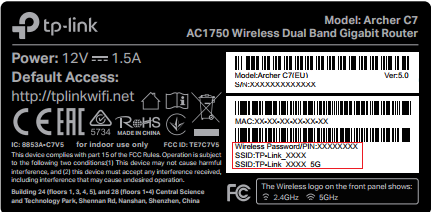
Successful printer-router connection depends on having three critical pieces of information readily available. Without these details, you’ll waste time entering incorrect network credentials or selecting incompatible connection methods. Gathering this information before beginning setup prevents the most common connection failures experienced by home users.
Your Router’s 2.4GHz Network Credentials
Most printers cannot connect to 5GHz Wi-Fi networks, requiring you to identify your router’s 2.4GHz network name (SSID) and password. Check your router’s label for networks labeled “2.4G” or similar—many dual-band routers broadcast separate network names for each frequency. The password must match exactly, including capitalization and special characters. If you’ve changed your Wi-Fi password recently, ensure you’re using the current version, as printers don’t auto-update network credentials.
Physical Access to Both Devices During Setup
Unlike smartphone connections, printer-router pairing often requires physical button presses on both devices simultaneously. Position your printer within 6 feet of your router during initial setup—Wi-Fi signal strength significantly impacts connection success. Keep both power cords accessible, as some procedures require specific power cycling sequences (like holding the Wi-Fi button while powering on). Having both devices visible prevents missed visual cues like blinking LED patterns that indicate connection progress.
Common Connection Mistakes That Derail Setup
Even with correct instructions, subtle errors can prevent your printer from joining your network. These mistakes often stem from assumptions about how network devices interact, leading to repeated failed attempts that frustrate users into abandoning wireless setup altogether. Recognizing these pitfalls before starting saves significant troubleshooting time later.
Assuming All Wi-Fi Networks Are Equal
Many users attempt to connect printers to their 5GHz network, not realizing most printers lack support for this frequency. If your router uses the same network name for both 2.4GHz and 5GHz bands (a common default setting), your printer may repeatedly fail to maintain connection. Temporarily separate your network names (e.g., “HomeNetwork_24G” and “HomeNetwork_5G”) to ensure your printer connects to the compatible frequency.
Ignoring Router Security Settings
Modern routers often enable advanced security features like AP Isolation or Client Isolation that prevent devices on the same network from communicating—a critical requirement for network printing. If your printer connects to Wi-Fi but remains invisible to computers, check your router’s wireless settings for these isolation features and disable them during printer setup. Re-enable them after confirming successful printing if your network security policy allows.
Next Steps for Successful Printer-Router Connection
With the right information in hand, your path to successful printer-router connection becomes clear. Start by verifying your printer’s network capabilities through its control panel menu—look for wireless icons or network settings options. If your device lacks these features, you may need a USB-to-Ethernet adapter or print server rather than direct router connection.
Document Your Network Configuration
After successful connection, print a network configuration page from your printer’s menu options. This document shows your printer’s assigned IP address, connection status, and network details—essential information for troubleshooting future issues. Store this page with your router documentation for quick reference when adding new devices to your network.
Create a Connection Cheat Sheet
As you complete the setup process, note the exact sequence of steps that worked for your specific equipment. Include details like menu navigation paths (“Settings > Wireless > Setup Wizard > WPS Push”), button hold durations, and visual indicators of success. This personalized guide becomes invaluable when you need to reconnect after router changes or firmware updates.
Key takeaway: The most reliable method to connect your printer to your router begins with identifying your exact printer and router models—not following generic online guides. Manufacturer-specific instructions account for the critical nuances that determine connection success, while understanding your network’s security configuration prevents common pitfalls. By gathering your specific network credentials and temporarily positioning devices close together during setup, you’ll overcome the most frequent obstacles to seamless wireless printing. Always verify connection success by printing a test page from multiple devices before considering the setup complete—this confirms true network integration rather than just Wi-Fi association.