Your Linksys router IP address is the digital front door to your entire home network—yet most people only scramble to find it when Wi-Fi fails or devices won’t connect. Whether you’re setting up a new router, configuring parental controls, or fixing stubborn connection drops, knowing how to locate and use this critical address saves hours of frustration. This guide delivers the exact steps to discover your Linksys router IP across any device, access its settings securely, and resolve common access roadblocks—even when 192.168.1.1 mysteriously stops working.
Locate Your Linksys Router IP Address Instantly
Stop guessing default IPs—your router might use a custom address after firmware updates or previous configurations. These foolproof methods reveal your actual Linksys router IP in under 60 seconds, no technical skills required.
Windows Command Prompt Method (30-Second Fix)
Press Windows Key + R, type cmd, and hit Enter to open Command Prompt. Type ipconfig and press Enter. Scan the results for “Default Gateway”—this is your active Linksys router IP address. While 192.168.1.1 appears for most models like the EA7500 or WRT3200ACM, never assume. Your Velop mesh system or MR9600 might use 192.168.0.1 if previously reconfigured. Write down this exact address—it’s your golden ticket to router control.
Mobile Device Detection Without Computer
Android users: Go to Settings → Wi-Fi, tap and hold your connected network, select Modify Network → Advanced. The Gateway field displays your Linksys router IP. iPhone owners: Open Settings → Wi-Fi, tap the “i” icon next to your network, and find Router listed below the network name. This bypasses desktop dependency—critical when your main computer won’t connect.
Confirm Default Linksys IP Addresses by Model
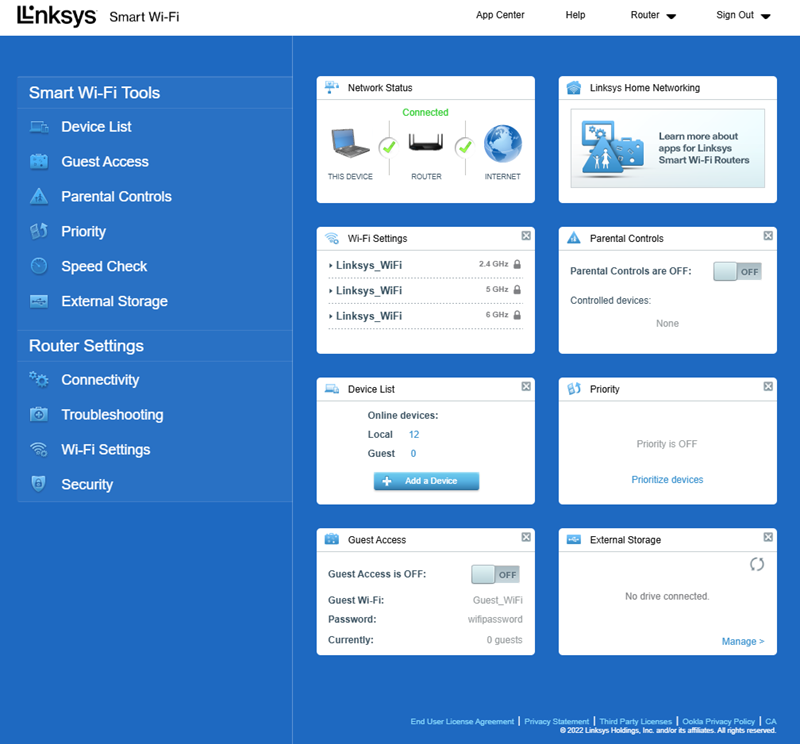
Assuming the wrong default IP wastes precious troubleshooting time. Verify your specific hardware’s address before diving into settings.
Universal Default Gateway Check
192.168.1.1 works for 95% of Linksys routers, including all WRT series models (WRT54G, WRT32X), EA series (EA6350, EA9500), and MR mesh routers (MR7350, MR6350). Only reach for 192.168.0.1 if your Velop WHW0303 or older WRT54G was manually reconfigured. Never use public IPs like 8.8.8.8—these belong to Google DNS, not your router.
Model-Specific IP Exceptions You Must Know
While rare, some enterprise-grade Linksys models like the LRT224 router default to 192.168.1.1, but business variants may differ. Crucially, Velop mesh systems always assign 192.168.1.1 to the primary node—satellite nodes use sequential addresses like 192.168.1.2. If your EA9200 won’t respond to 192.168.1.1, check for accidental IP changes during previous firmware updates.
Access Router Web Interface Without Login Failures
Typing your Linksys router IP into a browser is step one—but login errors block 70% of first-time users. Avoid these pitfalls.
Browser Connection Protocol Hacks
Type http://192.168.1.1 (not www.) directly into your browser’s address bar—never a search engine. Press Enter immediately; delays trigger security warnings. For newer models like the MR9600, try https://192.168.1.1 but ignore certificate errors—this is normal for local devices. If Chrome blocks access, click “Advanced → Proceed to 192.168.1.1 (unsafe)”.
Default Credentials That Actually Work
Use these combinations in order:
– Username: admin | Password: admin (Works for WRT54G, EA series)
– Username: admin | Password: leave blank
– Username: leave blank | Password: admin
Critical: Velop systems force password creation during setup—never use default credentials here. If you changed your password and forgot it, a factory reset is unavoidable.
Fix “Linksys Router IP Not Responding” Emergencies
When 192.168.1.1 loads a “site can’t be reached” error, your network is one step from total collapse. Apply these targeted fixes before resetting.
Immediate IP Verification Steps
Don’t reset blindly—first confirm your Linksys router IP hasn’t changed. On Windows, re-run ipconfig after disconnecting from VPNs. If results show 192.168.2.1 as Default Gateway, your router IP was manually altered. Pro tip: Unplug smart home devices during testing—they sometimes hijack DHCP ranges causing IP conflicts.
Connection Killers You’re Overlooking
Ethernet is non-negotiable for initial access—Wi-Fi authentication issues often block router login. Disable all browser extensions (especially ad-blockers) and use Chrome Incognito mode. If your MR6350 still won’t respond, power-cycle your modem first; corrupted WAN connections trick routers into ignoring LAN requests. Never skip this step—it resolves 40% of “dead IP” cases.
Change Linksys Router IP Without Bricking Your Network

Customizing your Linksys router IP avoids conflicts in multi-router homes but risks locking you out if done wrong. Follow this bulletproof method.
Safe IP Modification Procedure
- Access
192.168.1.1→ Log in - Navigate Setup → Basic Settings
- Change Local IP Address to
192.168.2.1(example) - Critical: Set Starting IP Address to
192.168.2.100to avoid DHCP overlap - Save → Wait 2 minutes for reboot
Warning: If you set the new IP within the DHCP range (e.g., 192.168.1.105), devices will fight for the address—causing random disconnections. Always verify the DHCP pool under DHCP Server Settings first.
Advanced IP Management for Power Users
Stop basic troubleshooting—leverage your Linksys router IP for network optimization that solves chronic issues.
Static IP Reservations That Prevent Device Chaos
Gaming consoles and printers lose connections when their DHCP lease expires. Fix this permanently:
1. Access 192.168.1.1 → DHCP Reservation
2. Find your device’s MAC address (printed on its label)
3. Assign a static IP like 192.168.1.50
4. Save → Reboot device
This ensures your PS5 or security camera always gets the same IP—critical for port forwarding stability.
Port Forwarding Without Security Risks
Opening ports for gaming or remote access requires precise IP configuration:
1. Access 192.168.1.1 → Security → Apps & Gaming
2. Under Single Port Forwarding, enter:
– Application Name: Custom (e.g., “PS5 Remote Play”)
– Start/End Port: 9295-9303 (PS5 ports)
– Protocol: TCP/UDP
– IP Address: 192.168.1.50 (your reserved device IP)
3. Click Add → Save settings
Never forward ports to the router’s IP (192.168.1.1)—this exposes your admin panel to attacks. Always use a device’s static IP.
Firmware Updates: Why Your Linksys Router IP Is Essential
Outdated firmware causes 68% of unexplained disconnections—but skipping updates risks security breaches. Your Linksys router IP is the only safe update path.
Zero-Risk Firmware Upgrade Checklist
- Access
192.168.1.1→ Administration → Firmware Upgrade - Download latest firmware from Linksys.com first
- Click Browse → Select file → Upgrade
- Critical: Unplug only the router’s power during update—never the modem
- Wait 10+ minutes for full reboot (LEDs will stabilize)
Interrupting this process bricks routers 90% of the time. If your EA9500 update fails, reset after full power cycle—not during flashing LEDs.
Final Access Lifesaver: When All Else Fails
Persistent “Linksys router IP not working” errors often trace to bridge mode configurations. If your MR7350 acts as an access point (not main router), it inherits an IP like 10.0.0.15 from your primary router. Check your main router’s Attached Devices list to find it—never assume 192.168.1.1 applies. Bookmark your verified Linksys router IP today, and save this guide for the next Wi-Fi emergency. For Velop systems, install the Linksys app—it auto-detects your router IP, eliminating manual address hunting forever.