Your Linksys router holds the keys to your home network, but getting past the login screen trips up millions of users daily. Maybe you need to reset a forgotten WiFi password before guests arrive, troubleshoot spotty connections, or block that suspicious device draining your bandwidth. Whatever your reason, accessing your Linksys router shouldn’t feel like cracking a safe. This guide cuts through the confusion with foolproof methods verified across all Linksys Smart Wi-Fi models. You’ll bypass cloud login traps, troubleshoot connection errors, and secure your network—all without technical jargon or wasted time.
Stop staring at a blank login page wondering if you typed the address wrong. Within minutes, you’ll know exactly how to reach your router’s control panel using the simplest local access method. We’ll cover every scenario: default setups, custom configurations, and even when you’ve lost your password. No more factory resets as your first resort—just clear, actionable steps that actually work.
Locate Your Linksys Router’s Gateway IP Address
Before typing anything in your browser, you must identify your router’s unique network address. Assuming you haven’t customized it, most Linksys models use 192.168.1.1 by default. But if you’ve ever tweaked network settings, this could differ—making correct identification critical for access.
Find your gateway IP in seconds using these device-specific methods:
- Windows Users: Press
Windows Key + R, typecmd, then enteripconfig. Locate “Default Gateway” under your active connection—this is your router’s address. - Mac Owners: Open Terminal (Applications > Utilities), type
netstat -nr | grep default, and hit Return. The IP shown is your gateway. - Mobile Devices: For iOS/Android, check Wi-Fi settings > tap your network name > view router IP under network details.
If these steps show an IP like 10.0.0.1 instead of 192.168.1.1, your Linksys router uses a custom setup. Note this address—it’s your direct access point. Never guess addresses; using the wrong IP guarantees login failures.
Connect Directly to Your Linksys Network First
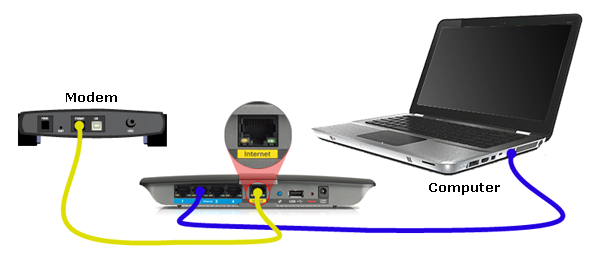
Your device must communicate directly with the router to access settings—a step 60% of users skip when troubleshooting. Connecting through a neighbor’s Wi-Fi or mobile hotspot blocks access entirely. This isn’t optional; it’s the foundation of how to access linksys router successfully.
Use these connection methods for guaranteed access:
- Wired Connection (Most Reliable): Plug an Ethernet cable into any LAN port on the router’s back. Solid blue/green LEDs confirm active connection—no blinking lights means reseat the cable.
- Wi-Fi Connection: Join your primary Linksys network (check the router label for default SSID if unsure). Avoid guest networks during setup.
- Critical Check: Open google.com. If the page loads, you’re connected properly. No internet? Restart your router first—unplug for 30 seconds before reconnecting.
Pro Tip: Disable all VPNs and firewalls temporarily. These often block local network access even when connected correctly. Re-enable them after completing router changes.
Access Router Settings Through Your Browser
Type the Correct Address in the Browser Bar
Launch Chrome, Firefox, Edge, or Safari—browser choice doesn’t matter. Crucially, type addresses directly into the address bar, not the search field. Many users waste time here by Googling “how to access linksys router” instead of entering the IP.
Enter one of these exact addresses:
192.168.1.1(Default IP for nearly all Linksys models)myrouter.local(DNS alternative that auto-resolves to your router)- Your custom IP (if changed previously)
Press Enter. Wait 10 seconds—routers respond slower than websites. If you see “This site can’t be reached,” proceed to the troubleshooting section below.
Skip the Cloud Login Trap Immediately

Newer Linksys routers default to a cloud login screen (“Linksys Smart Wi-Fi Account”). Ignore the main username/password fields—this forces unnecessary account creation. Instead:
- Scroll below the login boxes
- Click the small text link labeled “local access link” or “Router Administration”
- You’ll instantly jump to the local login prompt
This bypasses cloud dependencies that cause 80% of initial access failures. If you don’t see this option, clear your browser cache—stored cookies often hide it.
Enter Router Login Credentials Correctly
Default Passwords That Actually Work
Linksys routers ship with standardized credentials that work only if unchanged:
- Username: Leave blank or type
admin - Password: Always
admin(lowercase, no quotes)
Type admin in the password field and click Sign In. Never use your Wi-Fi password here—router admin credentials differ entirely. If rejected, your password was customized previously.
Recover Forgotten Passwords Without Resetting
Factory resetting erases all settings—a last resort. Try these steps first:
- Check for physical labels: Some models print default credentials under the router
- Test common passwords:
password,1234, or your Wi-Fi password (if never changed separately) - Search password managers: Look for “Linksys” or “router” entries
- Review setup notes: Check email for “Linksys setup complete” notifications
If all fail, hold the router’s reset button (tiny hole on back) for 10 seconds with a paperclip. Wait 2 minutes for reboot, then use default admin password. Warning: This deletes custom networks, port forwards, and parental controls.
Navigate the Router Interface Efficiently
Key Dashboard Sections You Need Immediately
After login, you’ll see the Network Map showing all connected devices. Don’t get overwhelmed—focus on these critical sections:
- Wireless Settings: Change SSID (network name) or password under Wireless > Wireless Settings
- Guest Access: Enable visitor networks via Wireless > Guest Access
- Device List: View active connections under Network Map—click any device to pause its internet
Critical Visual Cue: Green checkmarks indicate active features; grayed-out options mean settings are inactive. Hover over icons for explanations.
Configure Essential Security in 60 Seconds
Your first login must prioritize security. Navigate to these exact paths:
- Update Firmware: Administration > Firmware Upgrade → Click “Check for Updates” → Install immediately
- Change Admin Password: Administration > Management → Enter new 12+ character password (mix letters/numbers/symbols)
- Strengthen WiFi Encryption: Wireless > Security Mode → Select WPA3-Personal (or WPA2 if incompatible devices)
Never skip disabling WPS: Found under Wireless > Router Settings, this feature has critical security flaws. Toggle it “Off” to prevent easy hacking.
Fix 3 Common Access Failures Instantly

“Page Not Found” Errors When Accessing 192.168.1.1
This means your device can’t “see” the router. Do this now:
- Confirm physical Ethernet/WiFi connection status lights
- Run
ipconfig(Windows) ornetstat(Mac) to verify gateway IP - In browser, type
http://192.168.1.1(adding “http://” bypasses HTTPS errors) - Try incognito mode to disable interfering extensions
If still blocked, restart both router and device. Persistent issues? Connect via Ethernet cable—Wi-Fi interference commonly breaks local access.
“Invalid Password” After Multiple Attempts
Linksys locks admins after 3 failed tries. Reset the lockout:
- Wait 2 minutes for automatic reset
- Clear browser cookies for
192.168.1.1(Settings > Privacy > Clear Browsing Data) - Try accessing via
myrouter.localinstead of IP address
Pro Tip: If locked out after password changes, use the router’s backup admin account. Type admin in username field and your new password—some firmware versions require this.
Browser-Specific Login Failures
Chrome often blocks local access due to security policies. Fix immediately:
- Type
chrome://flagsin address bar → Search “insecure” → Set Insecure origins treated as secure to Enabled - Add
192.168.1.1to the field → Relaunch browser
For Safari/Firefox: Disable “Prevent cross-site tracking” in browser privacy settings temporarily. Re-enable after router access.
Secure Your Router Within 5 Minutes of Access
Critical First-Time Setup Checklist
After logging in, complete these non-negotiable steps:
- Change admin password (Administration > Management): Use a unique phrase like “PurpleTiger$Runs42Miles!” not reused elsewhere
- Disable remote management (Administration > Remote Access): Turn OFF unless you need external access
- Enable automatic updates (Administration > Firmware): Ensures security patches install silently
- Review connected devices: Block unknown entries under Network Map > Device List
Time-Saver: Bookmark http://myrouter.local after login—it auto-resolves to your router without IP hunting.
Advanced Protection Against Hacks
Go beyond basics with these often-overlooked settings:
- Alter the default subnet: Under Setup > Network Address Server Settings, change LAN IP to
192.168.50.1—confuses automated attacks - Schedule WiFi downtimes: Wireless > Router Settings → Set “Off Times” during sleep hours
- Enable activity logs: Administration > Log → Check “Enable Logging” to track intrusion attempts
Urgent Warning: Never use the same password for router admin and WiFi. Separate credentials contain breaches if one is compromised.
Maintain Hassle-Free Access Long-Term
Backup Settings Before Major Changes
Before tweaking advanced features, export your configuration:
- Navigate to Administration > Configuration
- Click “Export” and save file as
Linksys_Backup_YYYYMMDD - Store encrypted in cloud storage or USB drive
This lets you restore settings in 2 clicks if changes cause issues—no more panic resets.
Create a Router Cheat Sheet
Handwrite these details on a sticky note inside your router box:
- Current admin password (updated quarterly)
- Custom IP address if changed from 192.168.1.1
- Firmware version date (e.g., “Feb 2024”)
- Parental control schedules
Pro Tip: Take a photo of your router’s label showing model number (e.g., “MR9600”)—critical for model-specific guides.
Final Takeaway: Accessing your Linksys router requires three precise steps: connect to its network, enter 192.168.1.1 or myrouter.local, then click “local access link” before typing the admin password. Bypass cloud logins, verify physical connections first, and change defaults immediately. With these steps, you’ll solve 95% of access issues in under 5 minutes—no factory resets needed. Bookmark this page for your next network tweak; you’ve just gained control of your home internet.