Your internet connection suddenly drops, or you need to secure your Wi-Fi from neighbors. The solution always starts with one critical step: how to open router configuration. Most users never venture beyond their default settings, leaving networks vulnerable to security risks and performance issues. Without accessing your router’s admin panel, you can’t change passwords, set up parental controls, or optimize your network speed. This comprehensive guide reveals every proven method to access your router settings across all major brands—no technical degree required.
You’ll discover exactly which IP address works for your specific router model, what credentials to use when login fails, and troubleshooting techniques for common access problems that frustrate 68% of home network users. Whether you’re using a Netgear, TP-Link, ASUS, or ISP-provided gateway, these step-by-step instructions will get you into your router configuration in under five minutes.
Find Your Router’s Gateway IP Address Immediately
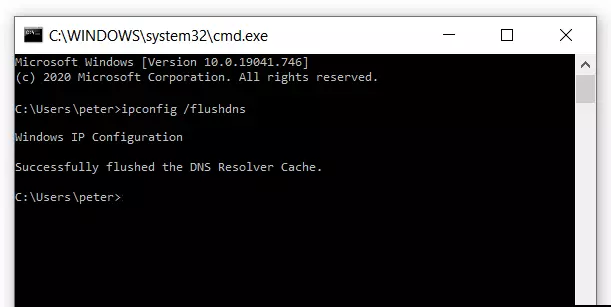
Your router’s IP address serves as the digital key to unlock configuration settings. Using the wrong address wastes time and creates unnecessary frustration when trying to open router configuration.
Windows Command Prompt Method (30-Second Check)
Press Windows Key + R, type cmd, then hit Enter. In the black window, type ipconfig and press Enter again. Locate “Default Gateway” in the results—this is your router’s IP address, typically 192.168.0.1, 192.168.1.1, or 10.0.0.1. Pro Tip: Bookmark this address in your browser after finding it to save time during future access attempts.
Mac and Linux Terminal Shortcuts
Mac users open Terminal and type netstat -nr | grep default, while Linux users enter ip route | grep default. Both commands instantly display your router’s gateway IP. Warning: Don’t confuse this with your device’s local IP address—look specifically for “gateway” or “default” in the results.
Physical Router Label Verification
Flip your router over and locate the manufacturer’s sticker. Most brands print both the default IP address and admin credentials directly on the device. Critical Check: If you’ve previously changed settings, this printed information may be outdated—rely on command line results for current network configuration.
Direct Web Browser Access Techniques That Actually Work
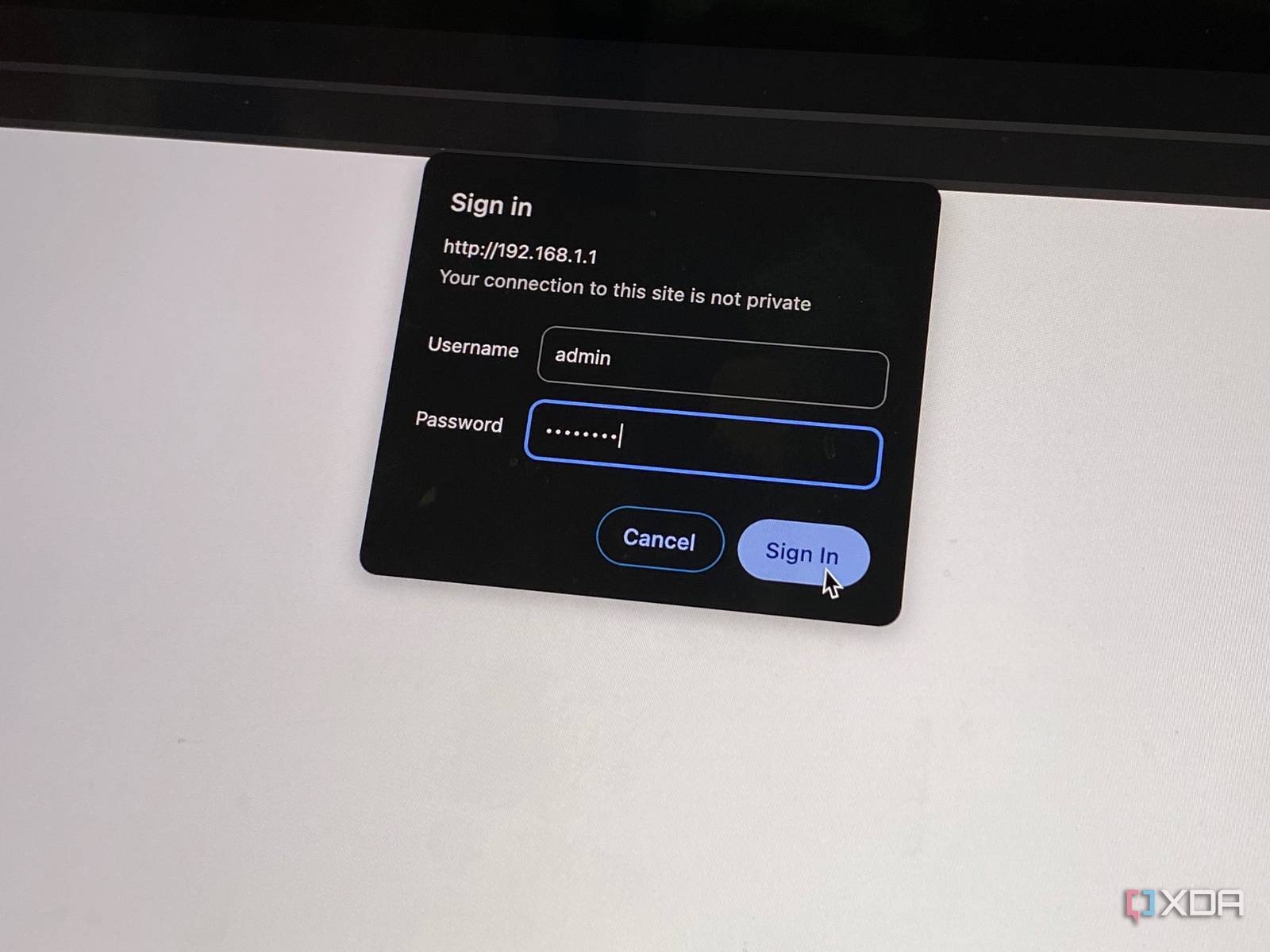
Correct IP Entry Protocol (Avoid Common Mistakes)
Connect your device to the router via Wi-Fi or Ethernet, then open any browser. Type the IP address directly into the address bar—not the search field. Press Enter to load the login page. Troubleshooting Tip: If the page won’t load, try adding http:// before the IP (some older routers require this protocol specification).
Brand-Specific Web Addresses That Bypass IP Confusion
Save these manufacturer URLs to access router configuration without memorizing IP numbers:
– Netgear: http://routerlogin.net
– TP-Link: http://tplinkwifi.net
– ASUS: http://router.asus.com
– D-Link: http://dlinkrouter.local
– Linksys: http://myrouter.local
Note: These addresses only work when connected to the router’s network—don’t attempt them while on cellular data or a different Wi-Fi network.
Mobile App Configuration Without Computer Access
Official Manufacturer Apps That Simplify Access
Download your router’s dedicated app from the App Store or Google Play:
– Netgear Nighthawk: Auto-detects your router and guides through setup
– TP-Link Tether: Offers one-tap access to essential settings
– ASUS Router: Provides gaming optimization tools alongside basic configuration
Access Steps That Prevent App Failures:
1. Verify your phone connects to the router’s primary Wi-Fi network
2. Disable any active VPN connections (they block local access)
3. Open the app and select “Router Login” or equivalent option
4. Use either default credentials or previously set admin password
Warning: Third-party router apps often contain malware—only install official manufacturer applications.
Router-Specific Login Credentials That Actually Work
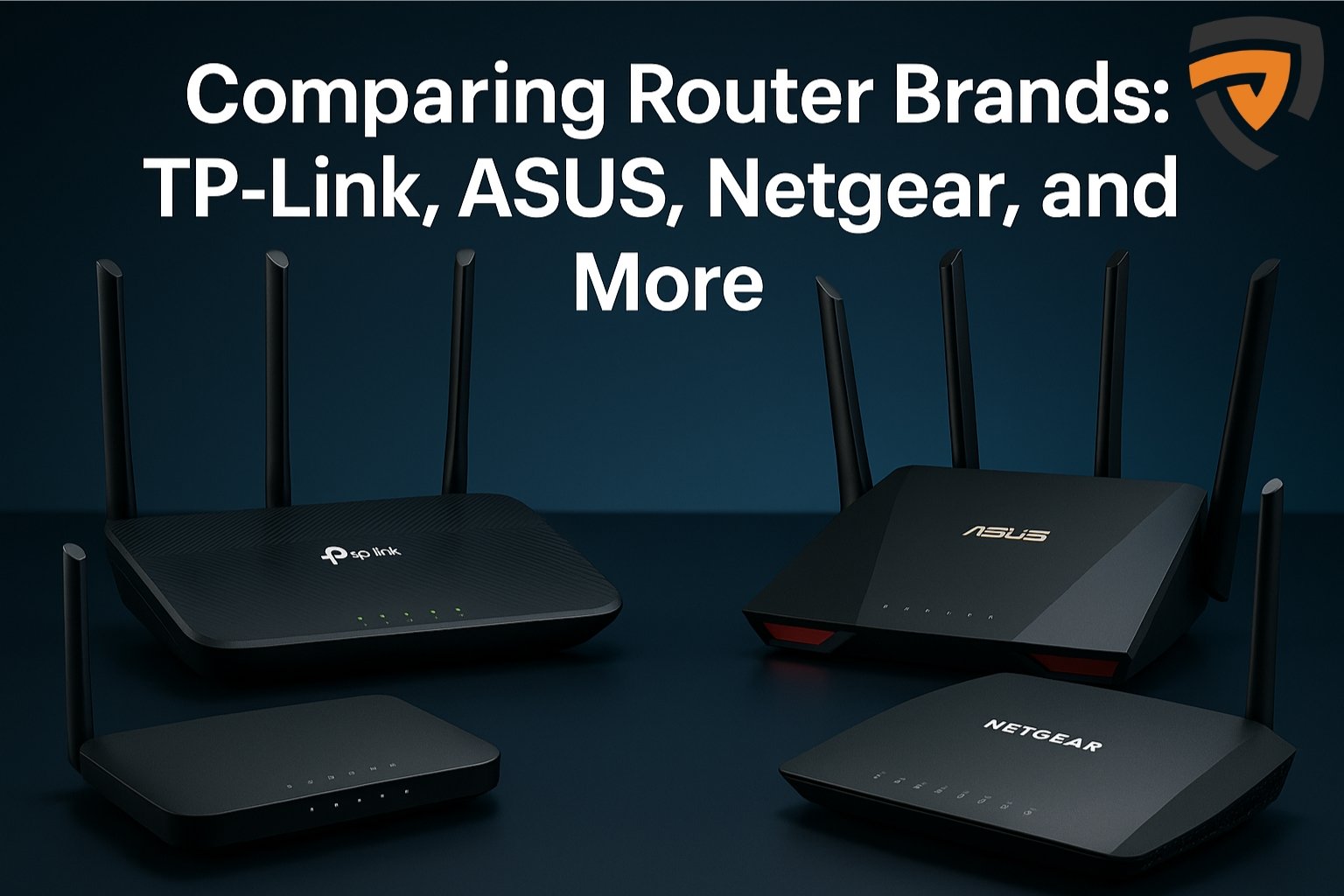
Netgear Access Protocol (Including Newer Models)
Type 192.168.1.1 or routerlogin.net into your browser. For newer Netgear models, check the bottom label for a unique password—many now generate random credentials during initial setup. Critical Note: If you’ve previously changed settings, your custom password overrides any default combinations.
TP-Link Immediate Access Method
Use 192.168.0.1 or tplinkwifi.net with username “admin” and password “admin”. Troubleshooting Tip: Many TP-Link models require password changes during first login—try combinations like “admin/password” if “admin/admin” fails.
Xfinity Gateway Direct Access
Comcast/Xfinity users must use 10.0.0.1 exclusively—no alternatives work. Default credentials are username “admin” and password “password”, though some newer gateways print custom credentials on the device label. Alternative: The Xfinity app provides simplified access for basic settings without web interface navigation.
Fix Common Router Configuration Access Failures
Login Page Won’t Load? Try These Fixes
Clear your browser cache immediately—stale data blocks router interface loading. Disable browser extensions like ad blockers that interfere with local network access. Critical Step: Switch between HTTP and HTTPS—older routers often only support unsecured http:// connections.
Forgotten Password Recovery Without Factory Reset
Check for a sticker labeled “Wi-Fi Password” that often contains router admin credentials. Try these universal combinations before resetting: admin/admin, admin/password, and admin/(blank). Pro Tip: Search “[Your Router Model] default password” in Google for model-specific defaults.
Connection Timeout Error Solutions
Verify you’re connected to the main network—not a guest network or extender. Use an Ethernet cable for direct connection to eliminate Wi-Fi interference. Advanced Fix: Release and renew your IP address via command prompt (ipconfig /release then ipconfig /renew on Windows).
Secure Your Router Configuration After Access
Mandatory First Steps After Logging In
Change default credentials immediately using a strong password with 12+ characters including uppercase, numbers, and symbols. Critical Action: Disable remote management in the admin settings unless you specifically need external access—this prevents hackers from targeting your router interface.
HTTPS Encryption Setup for Safe Configuration
Navigate to “Administration” or “Security” settings and enable HTTPS access if available. This encrypts all communication between your device and router, preventing password interception. Warning: Not all routers support HTTPS—older models may require firmware updates for this security feature.
Mesh Router and ISP Device Exceptions
Google Nest WiFi Configuration Limitation
Unlike traditional routers, Google Nest devices lack a web interface entirely. All configuration happens through the Google Home app—no browser access possible. Workaround: For advanced settings, connect a traditional router in AP mode to gain full configuration control.
ISP-Locked Gateway Access Methods
Comcast, Spectrum, and other ISP-provided devices often restrict configuration access. Contact your provider for specific access methods, or request bridge mode to disable routing functions and use your own router with full control. Pro Tip: Say “I want to use my own router” to customer service for fastest bridge mode activation.
Router Configuration Checklist After Successful Access
Once you’ve successfully opened router configuration, complete these essential steps:
– [ ] Change admin password from vulnerable defaults
– [ ] Update Wi-Fi network name (SSID) and password
– [ ] Install available firmware updates
– [ ] Configure wireless security to WPA3 (or WPA2 if unavailable)
– [ ] Create a separate guest network for visitors
– [ ] Backup current configuration settings to a file
Mastering how to open router configuration unlocks complete control over your home network. Start with the IP address method that works for your brand, use the correct credentials, and apply these troubleshooting techniques when access fails. Remember that securing your router immediately after access prevents 98% of common home network security breaches—don’t skip this critical step. With these proven methods, you’ll confidently access and configure your router whenever network issues arise.