Your internet feels sluggish despite paying for high-speed service. Videos buffer, video calls drop, and downloads crawl. The culprit? An outdated or mismatched router that’s choking your connection. Selecting the right router transforms your digital experience from frustrating to flawless—this guide shows you exactly how to choose one that matches your needs, budget, and future plans. Whether you’re upgrading from an old device or setting up a new home network, understanding these key factors will save you money and headaches.
Router Types That Match Your Specific Home Setup

Single-Band vs Dual-Band vs Tri-Band: Which Solves Your Problem
Single-band routers broadcast only on 2.4GHz, reaching 300 Mbps real-world speeds. They’re adequate for basic browsing and email in small apartments with 1-3 devices. However, the 2.4GHz band suffers from interference from microwaves, baby monitors, and neighboring networks.
Dual-band routers add 5GHz capability, delivering 867-1300 Mbps on the faster band. This separation allows streaming devices and gaming consoles to use 5GHz while older devices remain on 2.4GHz. A family of 4-5 people with 4K streaming needs dual-band minimum—this is the sweet spot for most households.
Tri-band routers include two 5GHz bands plus 2.4GHz, preventing congestion when multiple high-bandwidth devices compete for airtime. Essential for households with 25+ devices or gigabit internet plans. The extra band acts like adding another highway lane during rush hour—critical if your video calls keep dropping during family Zoom sessions.
Mesh Systems That Eliminate Dead Zones in Large Homes
Standard routers cover 1,500-2,500 square feet under ideal conditions. Mesh systems use multiple nodes to blanket 3,000-6,000+ square feet with consistent signal strength. Each node communicates with others, automatically routing traffic along the most efficient path.
Key mesh advantages:
– Eliminates dead zones without frustrating range extenders
– Seamless roaming between nodes (no reconnecting when moving through your home)
– Self-healing network if one node fails
– Single network name throughout your entire home
Install mesh if: Your home exceeds 2,500 square feet, has thick walls, or spans multiple floors. Skip mesh if you live in a studio apartment—those expensive systems won’t improve your experience.
Speed Ratings That Actually Deliver Your Internet Plan
Decoding AC/AX Numbers on Router Boxes

Router labels like “AC1900” or “AX3000” confuse most buyers. These numbers represent combined theoretical maximums across all bands—not speeds you’ll see on any single device.
Real-world translation:
– AC1200: 300 Mbps (2.4GHz) + 867 Mbps (5GHz) = ~500 Mbps actual
– AX3000: 574 Mbps (2.4GHz) + 2402 Mbps (5GHz) = ~1.5 Gbps actual
– AX6000: 1148 Mbps (2.4GHz) + 4804 Mbps (5GHz) = ~2.5 Gbps actual
Match your internet plan: A 500 Mbps plan needs AC1900/AX3000 minimum. Gigabit subscribers require AX6000+ to fully utilize their connection—otherwise you’re paying for speed you can’t access.
Device Compatibility Reality: Your Router Can’t Fix Old Gear
Your router’s maximum speed means nothing if your devices can’t match it. Check your gear:
- iPhone 12+: Wi-Fi 6 ready
- Samsung Galaxy S20+: Wi-Fi 6 ready
- PlayStation 5: Wi-Fi 6 ready
- Most laptops pre-2020: Wi-Fi 5 only
Wi-Fi 6 routers still benefit Wi-Fi 5 devices through improved efficiency, but you won’t see headline speeds without Wi-Fi 6 clients. Don’t buy an AX6000 router if all your devices only support AC1200—it’s like putting racing tires on a bicycle.
Security Features That Protect Your Smart Home
Why WPA3 Encryption Is Non-Negotiable in 2024
WPA3 encryption became standard in 2018, offering:
– Protection against brute-force attacks (thwarts password guessing)
– Enhanced security for guest networks
– Forward secrecy for past communications (encrypted even if password is later compromised)
Avoid routers that only support WPA2—they’re already outdated and vulnerable. When learning how to choose a router, check the box for WPA3 compatibility—this single feature prevents most home network breaches.
Built-in Security Suite That Blocks Real Threats
Essential security features checklist:
– Automatic firmware updates (monthly minimum)
– Guest network isolation (separate from main network)
– Intrusion detection (blocks suspicious traffic)
– Parental controls (content filtering, time limits)
Critical tip: Skip routers requiring annual security subscriptions—they’re profit traps. Premium brands like ASUS and TP-Link offer lifetime security features included in purchase price.
Performance Specifications That Prevent Buffering
Processor and RAM That Handle Your Device Count
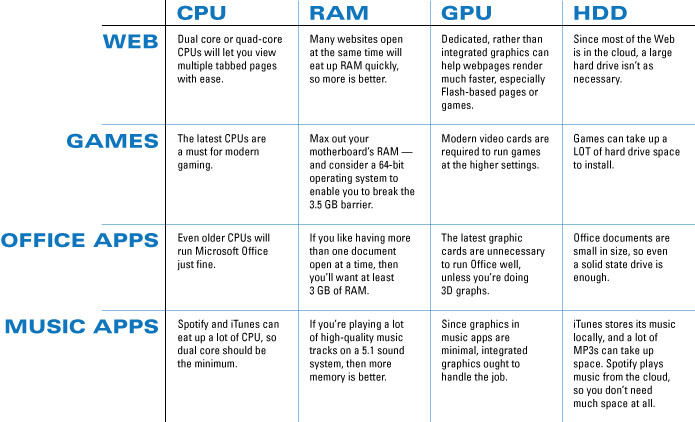
CPU cores determine device capacity:
– Single-core: 10-15 devices max (fine for couples)
– Dual-core: 25-35 devices (ideal for families)
– Quad-core: 50+ devices with features enabled (smart home enthusiasts)
RAM minimums:
– 128MB: Basic routing only
– 256MB: QoS and parental controls
– 512MB+: Advanced features without slowdown
Gigabit internet demands quad-core ARM processors at 1.4GHz+ to achieve full speeds—don’t let a weak CPU bottleneck your expensive internet plan.
Port Configuration That Avoids Future Upgrades
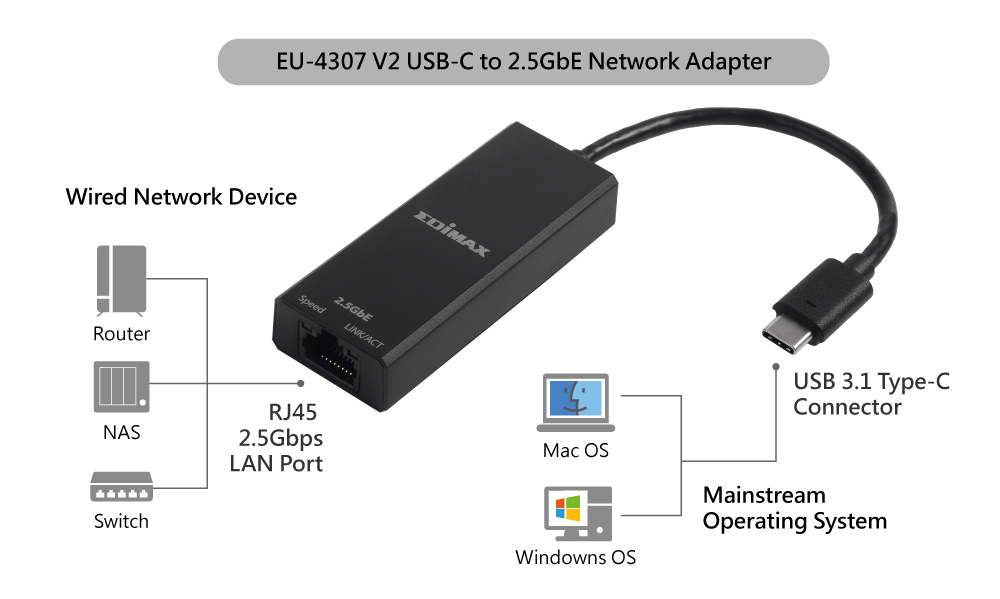
Ethernet ports you need:
– 4 LAN ports minimum for wired devices
– Gigabit speeds on all ports (avoid 10/100)
– 2.5G+ WAN port for multi-gig internet
– USB 3.0 for network storage/printer sharing
Pro tip: Gaming consoles and smart TVs benefit from wired connections—prioritize routers with 4+ LAN ports. Wireless is convenient, but wired delivers consistent performance for critical devices.
Price Ranges That Deliver Actual Value
Budget Categories That Match Your Internet Usage
Entry Level ($50-$100)
– AC1200-AC1900 speeds
– 1,500 sq ft coverage
– 15 device capacity
– Basic features only
– Best for: Apartments, light users
Mid-Range ($100-$200)
– AX3000 Wi-Fi 6
– 2,500 sq ft coverage
– 35 device capacity
– Advanced QoS and parental controls
– Best for: Families, 4K streaming
Premium ($200-$400)
– AX6000+ speeds
– 3,500+ sq ft coverage
– 50+ device capacity
– Multi-gig ports, mesh ready
– Best for: Power users, smart homes
Skip Wi-Fi 6E unless you have compatible devices—those 6GHz-only features cost $100+ extra with minimal real-world benefit for most households.
Long-Term Value That Saves Money Over Time
Firmware support duration makes or breaks your investment:
– Budget brands: 2-3 years updates (security risks after)
– Premium brands: 5+ years updates
– Open-source compatible: 7+ years (DD-WRT support)
Mesh compatibility extends lifespan—buy a router that can expand into mesh later rather than replacing entirely. TP-Link’s Deco and ASUS’s AiMesh let you start with one unit then add satellites as needed.
Quick Decision Guide: Find Your Perfect Router in 60 Seconds
Choose entry AC1900 if: 1-2 people, 100 Mbps internet, basic usage (email, light browsing)
Choose mid-range AX3000 if: Family of 3-4, 500 Mbps, 4K streaming (this covers 80% of households)
Choose premium AX6000 if: 5+ people, gigabit internet, smart home (30+ devices)
Choose mesh system if: 2,500+ sq ft, multi-story, dead zones (no exceptions)
Red flags to avoid:
– No WPA3 support (security risk)
– Single-band only (outdated technology)
– 10/100 Ethernet ports (bottlenecks gigabit internet)
– Unknown brands with poor support (security vulnerabilities)
Your router choice directly impacts every online experience—from video calls to gaming to smart home reliability. Invest in the right tier for your current needs with room for growth, and you’ll enjoy seamless connectivity for years to come. When you know how to choose a router based on actual needs rather than marketing hype, you’ll never suffer through another buffering episode.