That critical moment when you need to configure your Cisco router but can’t locate its IP address hits every network professional. Whether you’re setting up a new dCloud session or troubleshooting connectivity issues, the right cisco router ip unlocks firewall configurations, VPN access, and network diagnostics. Without it, you’re effectively locked out of your own infrastructure. This guide delivers three field-tested methods to pinpoint any Cisco router IP address instantly—no guesswork required. You’ll learn exactly where to look in configuration files, how to access live interfaces via Telnet, and when to bypass network issues entirely with a console connection. By the end, you’ll never waste time hunting for these endpoint-specific addresses again.
Download Router Configuration Files for Instant IP Access
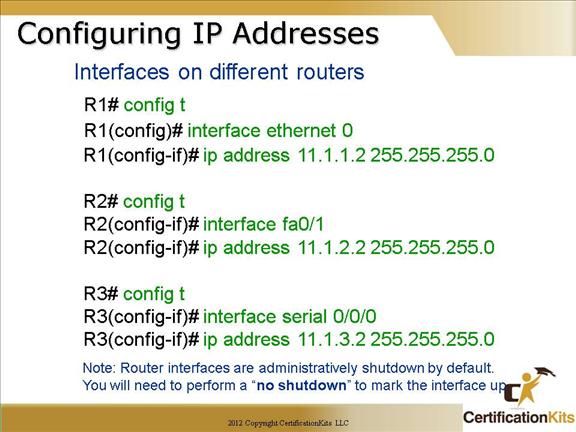
This method reveals every configured IP address in your Cisco router’s blueprint, working even when the device is offline. It’s the fastest approach for initial dCloud setups where physical access isn’t possible.
Access dCloud Dashboard Configuration Files
Navigate directly to Devices → Router in your dCloud dashboard, select your specific router instance, and click Edit. The Download button retrieves a complete configuration package containing all network settings in plain text format. This ZIP file is your router’s DNA—it holds every interface configuration including your critical cisco router ip assignments. Unlike live connections, this method bypasses network dependencies since you’re accessing the source configuration directly.
Extract IP Addresses from Configuration Files
Open the extracted configuration file in any text editor and search for lines starting with interface. Each interface block follows this pattern:
interface Vlan10

 ip address 10.1.1.1 255.255.255.0
Immediately document every IP address you find—these are unique to your specific router instance and essential for backend integrations. Pay special attention to management interfaces like Vlan1, which typically host the primary administrative cisco router ip. Pro tip: Use your editor’s “Find” function (Ctrl+F) for “ip address” to skip irrelevant sections. Save this file securely; it becomes your single source of truth for all interface IPs during configuration changes.
Telnet Directly to Router CLI for Live IP Verification
When network access exists but physical access doesn’t, Telnet provides real-time visibility into your router’s active interfaces. This method confirms which IPs are actually operational versus merely configured.
Connect Workstation to Router Network
Plug an Ethernet cable between your computer and any available switchport on the Cisco router. Configure your workstation’s network adapter for DHCP and verify it receives an IP address in the 10.64.x.x/24 range—this confirms connectivity to the router’s management network. If you don’t see this range, check physical connections and router power status. This step is crucial because Telnet requires your workstation to sit on the same subnet as the router’s management interface.
Execute Essential IP Discovery Commands
Open Command Prompt and connect using telnet 10.0.1.1, then authenticate with Username: admin and Password: C1sco12345. Once logged in, these commands reveal your cisco router ip:
Quick Overview (All Interfaces):
show ip interface brief
Scans for “UP/UP” status interfaces—these are actively transmitting data.
Detailed Interface Inspection:
show run interface vlan10
Reveals subnet mask and secondary IPs for critical interfaces.
Filtered Results (Multi-Interface Routers):
show ip interface brief | exclude unassigned
Eliminates noise by showing only configured interfaces.
Exit cleanly with exit when done. Warning: If Telnet fails, verify your workstation’s IP is in 10.64.x.x/24—this is the most common oversight when connections time out.
Bypass Network Failures with Console Cable Connection

When Telnet fails due to misconfigurations or outages, the console port provides guaranteed access. This physical method works even with blank network configurations.
Required Hardware Setup for Console Access
Gather these essentials: the flat blue rolled console cable (included with your Cisco router), Tera Term terminal software (free download), and a USB-to-serial adapter if using modern laptops. Connect the console cable to the router’s labeled CONSOLE port—this dedicated management port operates independently of network interfaces. The USB-serial adapter bridges legacy hardware to current systems; ensure it’s recognized in Device Manager before proceeding.
Configure Tera Term for Immediate Access
Launch Tera Term, select Serial connection type, and choose the correct COM port (check Device Manager if uncertain). Press Enter—if you see router output, the physical layer is functional. Log in with admin / C1sco1234 credentials. Unlike network-based methods, console access ignores IP configurations entirely, making it indispensable when your cisco router ip is unknown or misconfigured. Pro tip: Save Tera Term session files for future use—they preserve port settings and save setup time.
Extract IP Information via Console CLI
Once authenticated, run identical commands as Telnet:
show ip interface brief for a full IP inventory
show run interface GigabitEthernet0/0 for WAN interface details
show ip interface brief | exclude unassigned to filter inactive ports
The console output will match Telnet results but works during total network failures. Critical insight: If interfaces show “DOWN/DOWN” status here, the issue is physical (cables, power) rather than IP configuration.
Identify Critical Interface IP Locations
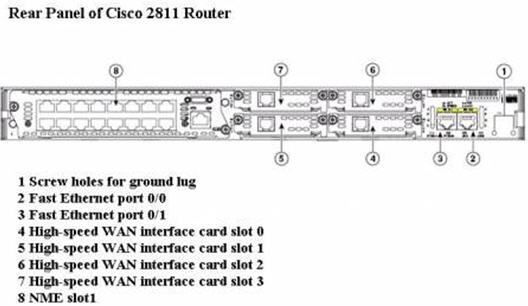
Most Cisco routers follow predictable interface naming conventions—knowing where to look saves diagnostic time. Your primary cisco router ip typically resides on these key interfaces:
- Vlan1: Default management interface (most common admin IP location)
- GigabitEthernet0/0: Primary WAN connection (faces external networks)
- FastEthernet0/1-24: LAN switch ports (user-facing interfaces)
- Loopback0: Virtual internal address (used for routing protocols)
Always start with show ip interface brief—this single command displays all IPs with status indicators. Focus on interfaces showing UP/UP in the “Status” and “Protocol” columns; these are actively passing traffic. For dCloud environments, Vlan1 usually hosts the main administrative IP, while Gig0/0 handles internet connectivity.
Document IP Addresses to Prevent Future Headaches
Every interface IP is unique to your specific router instance—treating them as disposable invites configuration chaos. Create physical labels with router name and critical IPs like this example:
Router: R01

Vlan1: 192.168.1.1

Gig0/0: 203.0.113.5
Store configuration files in version-controlled repositories, not just local drives. Update documentation immediately after changes—this 2-minute habit prevents hours of re-discovery during outages. Security note: Never store credentials with IP documentation; use separate encrypted password managers.
Troubleshoot Common IP Discovery Failures
No IP Address Showing in Output?
Verify interfaces are active with show run interface [name]—look for no shutdown in the configuration. If missing, the interface is administratively disabled. Check DHCP server status if using dynamic addressing, and physically inspect cables for damage. Remember: Unassigned interfaces won’t appear in show ip interface brief | exclude unassigned output.
Can’t Connect to 10.0.1.1 via Telnet?
Confirm your workstation IP is in the 10.64.x.x/24 range using ipconfig. If not, reset network settings or try a different switchport. Temporarily disable firewalls that may block Telnet (port 23). When all else fails, switch to console access—this bypasses network layer issues entirely.
Too Many Interfaces Listed?
Apply the | exclude unassigned filter to hide inactive ports. Prioritize interfaces with UP/UP status, then cross-reference with your network diagram. For dCloud sessions, focus on Vlan1 and Gig0/0 first—they handle 90% of management and WAN traffic.
Mastering these three methods transforms cisco router ip discovery from a frustrating bottleneck into a 5-minute routine task. Configuration file downloads deliver instant access during initial setups, Telnet provides real-time verification when networks are operational, and console connections guarantee entry during critical outages. Always document interfaces immediately after discovery—this single habit saves countless hours during troubleshooting marathons. When you next face a blank configuration screen, remember: the right IP is always hiding in plain sight within these three access points. Your future self will thank you when that midnight outage hits and you’re the only one who can restore connectivity.